
WordPress’s flexibility is its biggest strength: drop the right 5 lines of PHP into the right place and you can change how the site behaves without touching a plugin. Below are 15 of the most useful WordPress code snippets I keep coming back to, with the actual code inline (not buried in a gist) and a one-line “what it does” for each.
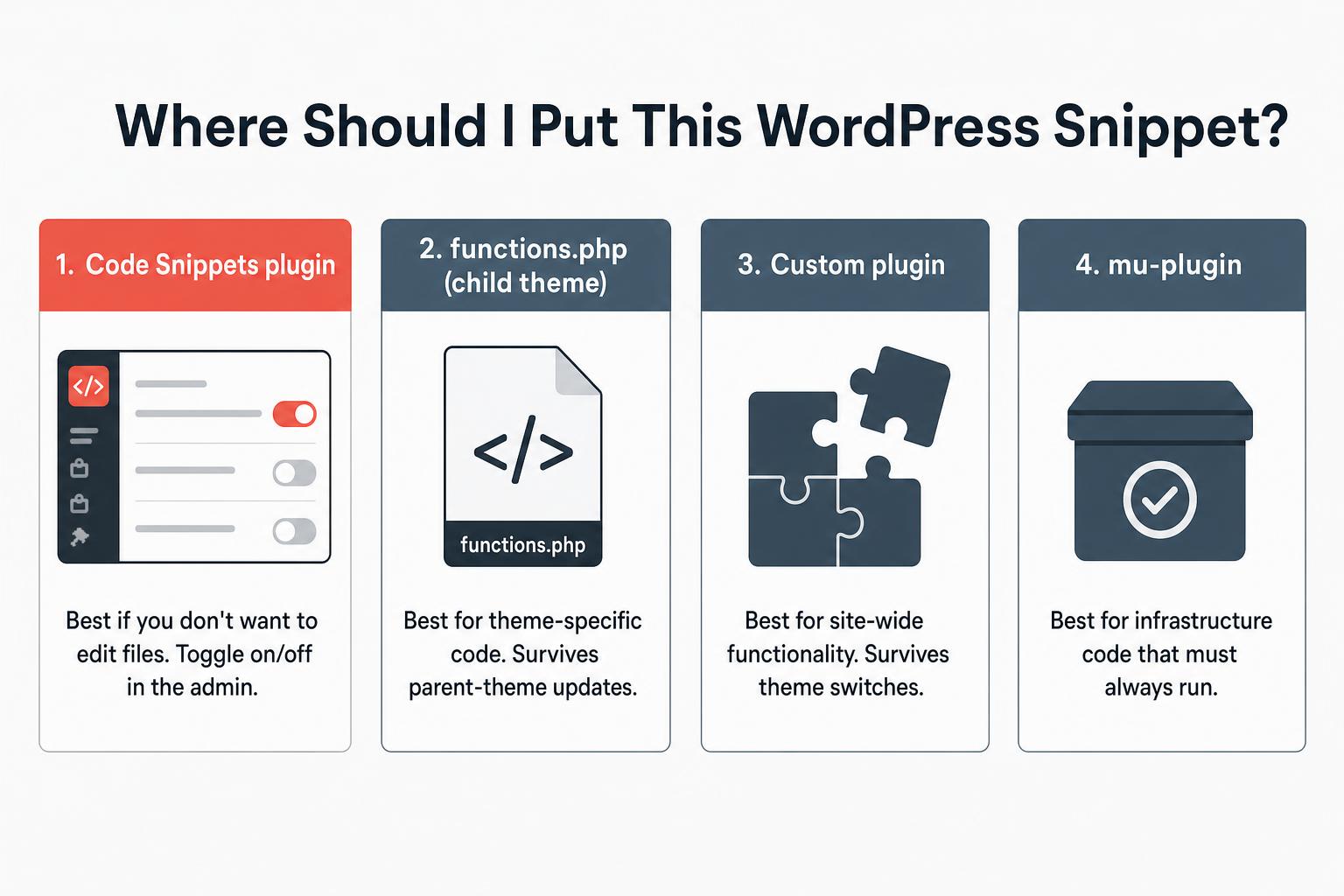
Where to put any of these:
- Code Snippets plugin if you’d rather not edit files (UI-based, easy to toggle on/off).
- Your child theme‘s functions.php for theme-specific tweaks.
- A custom plugin for anything site-wide that should survive a theme switch.
Before you paste anything: back up your site (or at least the file you’re editing). A typo in PHP takes the site down until you fix it, usually with the critical error screen on current WordPress and the older white screen of death on much older versions. Edit on staging if you have it, and have SFTP ready in case you need to revert.
Each snippet below works on every modern WordPress version (6.x and the upcoming 7.0).
- The collection gives you 15 ready-to-use PHP snippets, from disabling the admin toolbar to allowing SVG uploads.
- Add snippets via a code snippets plugin, your child theme’s functions.php, or a small custom plugin, not the parent theme.
- Test snippets on staging first, since a syntax error in functions.php can white-screen your site.
- Snippets let you change site behavior without installing a separate plugin for every small tweak.
1. Disable Admin Toolbar
Some caching systems will require you not to have different code for logged in users vs public users so disabling the WordPress admin toolbar can be useful for that case.
To disable the WordPress admin toolbar on every page for logged-in users, drop this single line into your theme’s functions.php:
add_filter( 'show_admin_bar', '__return_false' );2. Show Post Thumbnails in RSS Feed
By default WordPress will only show text in your RSS feed but if you want to include your set featured image this snippet will do that.
This will add the post’s featured thumbnail before your content in your site’s RSS feed.
function smartwp_featured_image_in_feed( $content ) {
    global $post;
    if ( is_feed() && has_post_thumbnail( $post->ID ) ) {
        $thumb = get_the_post_thumbnail( $post->ID, 'medium', array( 'style' => 'margin-bottom: 15px;' ) );
        $content = $thumb . $content;
    }
    return $content;
}
add_filter( 'the_excerpt_rss', 'smartwp_featured_image_in_feed' );
add_filter( 'the_content_feed', 'smartwp_featured_image_in_feed' );
3. Change Read More Text for Excerpts
Whether you want to change the “Continue Reading” text in WordPress or make it a button with HTML the snippet below will allow you to change the read more for excerpts.
function smartwp_excerpt_more( $more ) {
return ' <a class="read-more" href="' . esc_url( get_permalink( get_the_ID() ) ) . '">Continue reading →</a>';
}
add_filter( 'excerpt_more', 'smartwp_excerpt_more' );4. Change Post Excerpt Length
By default, the length of excerpts in WordPress is 55 words. This code snippet will change the length of excerpts to 24 words but you can just the number to whatever you’d like.
function smartwp_excerpt_length( $length ) {
    return 24; // change this number to whatever word count you want
}
add_filter( 'excerpt_length', 'smartwp_excerpt_length', 999 );
5. Add an Admin User with PHP
Let’s face it we’ve all been locked out of our WordPress site or have to work on a new site with no login information.
This code snippet is useful for adding a new admin to a site using the theme’s function.php.
I have worked on plenty of WordPress sites that don’t have correctly configured email servers so accessing the site even if you have a login can be difficult.
This snippet will make a user with the username/password/email set in the variables. It’s important to see that it will only try to make the user if it doesn’t exist based on the username/email so if you have an account with your email address already you can fill in email with dummy data.
function smartwp_emergency_admin() {
    $username = 'newadmin';
    $password = 'StrongPasswordHere!';
    $email    = '[email protected]';

    if ( ! username_exists( $username ) && ! email_exists( $email ) ) {
        $user_id = wp_create_user( $username, $password, $email );
        $user    = new WP_User( $user_id );
        $user->set_role( 'administrator' );
    }
}
add_action( 'init', 'smartwp_emergency_admin' );
Important: remove this snippet from functions.php immediately after it’s run once and you’ve successfully logged in. Leaving it in place is a serious security risk.
6. Enable Shortcodes in Text Widgets
Shortcodes are useful in widget areas, but the legacy Text widget doesn’t process them by default. (The block-based Widgets screen introduced in WP 5.8 handles shortcodes natively, so this is mostly relevant if your theme uses classic widgets.) If you are registering a shortcode of your own, it is worth checking the name is not already taken first. This snippet enables shortcode processing in any classic Text widget:
add_filter( 'widget_text', 'do_shortcode' );7. Add a Custom Dashboard Logo
If you want to add a bit more branding to your WordPress site this code snippet will replace the top left logo in your dashboard.

Make sure you upload an admin-icon.png to your theme’s directory. You can also change the CSS to link to any file in the background-image property.
function smartwp_custom_dashboard_logo() {
    echo '<style>
        #wp-admin-bar-wp-logo > .ab-item .ab-icon:before {
            background-image: url(' . get_template_directory_uri() . '/admin-icon.png) !important;
            background-size: contain;
            background-position: 0 0;
            color: rgba(0, 0, 0, 0);
        }
    </style>';
}
add_action( 'wp_before_admin_bar_render', 'smartwp_custom_dashboard_logo' );
8. Allow SVG upload
The SVG format is becoming more popular, especially for logo files. Of course, you can use a plugin to enable this functionality or use this code snippet.
By default, WordPress does not allow SVG upload for security reasons but our code snippet only allows site admins to upload SVG files.
function smartwp_allow_svg_upload( $mimes ) {
    // Only let admins upload SVG (XSS risk on a multi-author site)
    if ( current_user_can( 'manage_options' ) ) {
        $mimes['svg'] = 'image/svg+xml';
    }
    return $mimes;
}
add_filter( 'upload_mimes', 'smartwp_allow_svg_upload' );
If you have multiple authors uploading content, use the Safe SVG plugin instead. It sanitizes uploaded SVGs to strip embedded scripts.
9. Disable XML-RPC in WordPress
Very rarely do you need XML-RPC enabled on your WordPress site but having it enabled can cause a slew of security issues.
If you use the WordPress app you may need to keep it enabled but I have rarely seen any case where XML-RPC enabled.
This code snippet will disable XML-RPC to improve site security.
add_filter( 'xmlrpc_enabled', '__return_false' );The official WordPress mobile app has used the REST API with Application Passwords since 2020, so disabling XML-RPC won’t break it. The only common reason to keep it enabled in 2026 is older Jetpack-style integrations.
10. Remove jQuery Migrate
If you are trying to increase the performance of your site you may have noticed jQuery Migrate loading on your site. If you open the console you’ll see “JQMIGRATE: Migrate is installed, version 1.4.1” when your site loads if jQuery Migrate is loading.
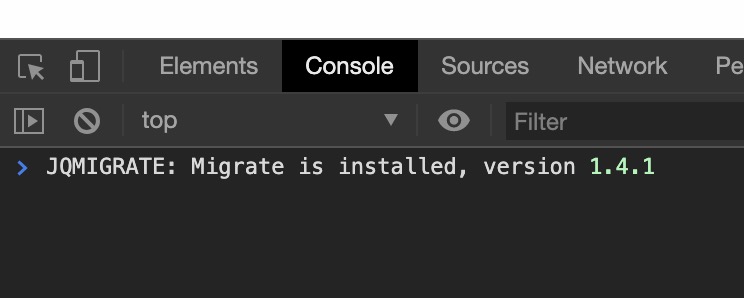
jQuery Migrate adds support for older jQuery versions, often useful for older themes. From my experience, it’s rare that it’s needed so it’s best to remove it to take one request away from page loads.
The snippet below will remove jQuery Migrate from your site. After removing jQuery Migrate take a look at a few of your pages to ensure the site is still functioning correctly.
function smartwp_remove_jquery_migrate( $scripts ) {
    if ( ! is_admin() && isset( $scripts->registered['jquery'] ) ) {
        $script = $scripts->registered['jquery'];
        if ( $script->deps ) {
            $script->deps = array_diff( $script->deps, array( 'jquery-migrate' ) );
        }
    }
}
add_action( 'wp_default_scripts', 'smartwp_remove_jquery_migrate' );
11. Disable WordPress Emojis
WordPress injects a small emoji-detection script and stylesheet on every page, which is a holdover from when browser emoji support was inconsistent. In 2026 every modern browser handles emojis natively. Removing this saves a request per page load:
function smartwp_disable_emojis() {
    remove_action( 'wp_head', 'print_emoji_detection_script', 7 );
    remove_action( 'admin_print_scripts', 'print_emoji_detection_script' );
    remove_action( 'wp_print_styles', 'print_emoji_styles' );
    remove_action( 'admin_print_styles', 'print_emoji_styles' );
    remove_filter( 'the_content_feed', 'wp_staticize_emoji' );
    remove_filter( 'comment_text_rss', 'wp_staticize_emoji' );
    remove_filter( 'wp_mail', 'wp_staticize_emoji_for_email' );
}
add_action( 'init', 'smartwp_disable_emojis' );
12. Limit Post Revisions
WordPress saves a post revision every time you click Update, which keeps a full history but can balloon the database on long-edited posts. This caps the per-post revision count at 5 (the most-recent ones).
You can set this in wp-config.php:
define( 'WP_POST_REVISIONS', 5 );Or via a filter in functions.php if you want it conditional (e.g., only limit revisions on posts, not pages):
add_filter( 'wp_revisions_to_keep', function( $num, $post ) {
    if ( 'post' === $post->post_type ) {
        return 5;
    }
    return $num;
}, 10, 2 );
13. Custom WordPress Login Logo
Replaces the WordPress logo on the /wp-login.php screen with your own image. Useful for client sites where the login page is part of the brand:
function smartwp_custom_login_logo() {
    echo '<style>
        #login h1 a {
            background-image: url(' . get_template_directory_uri() . '/login-logo.png) !important;
            background-size: contain;
            width: 100%;
            height: 80px;
        }
    </style>';
}
add_action( 'login_enqueue_scripts', 'smartwp_custom_login_logo' );
Drop a login-logo.png into your active theme folder. Adjust the height to match your logo’s aspect ratio.
14. Hide WordPress Version Number
WordPress adds a meta tag with the current version to your site’s HTML head and to the RSS feed. That signals attackers exactly which version-specific exploits might work. Removing it is a small but standard hardening step:
remove_action( 'wp_head', 'wp_generator' );

add_filter( 'the_generator', function() {
    return '';
} );
The first line removes <meta name="generator" content="WordPress 6.x"> from the front-end. The second removes the version from the RSS feed.
15. Auto Logout Inactive Users
By default WordPress sessions last 14 days (or 48 hours if “Remember Me” is unchecked). On a multi-user site or a site you’d rather not stay logged in to forever, this trims the session length:
add_filter( 'auth_cookie_expiration', function( $length, $user_id, $remember ) {
    if ( $remember ) {
        return 24 * HOUR_IN_SECONDS; // "Remember Me" = 24 hours
    }
    return 2 * HOUR_IN_SECONDS;      // No "Remember Me" = 2 hours
}, 99, 3 );
Adjust the durations to whatever fits your security posture. HOUR_IN_SECONDS, DAY_IN_SECONDS, and WEEK_IN_SECONDS are WordPress constants you can multiply.
How to Add Code Snippets to WordPress
If you need help adding PHP code snippets to WordPress here is a quick video showing 2 easy methods to add them. In the video I go over using functions.php to add code and the Code Snippets plugin.
Using Code Snippets Plugin to add PHP to your Site
One of the easiest ways to add code to your WordPress site is to use the plugin Code Snippets.

This WordPress plugin lets you easily organize and add code snippets in a simple to use interface.
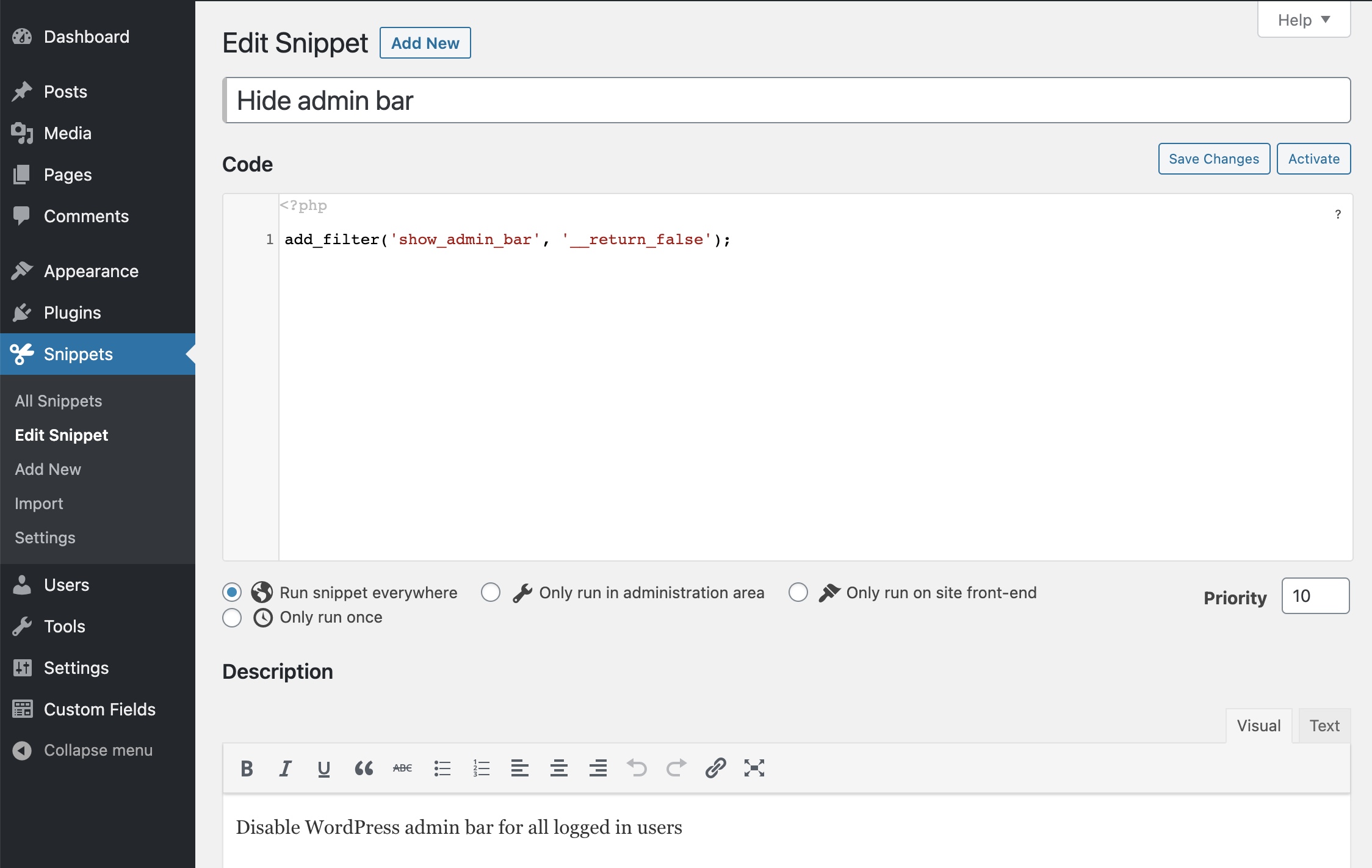
Best of all you can easily choose where the snippet will run and flick them off and on. Perfect for beginners to PHP code snippets.
Wrapping Up
Every snippet on this list works in 2026 WordPress (6.x and the upcoming 7.0). The right place for any of them depends on scope: theme-specific tweaks belong in your child theme‘s functions.php, site-wide functionality belongs in a custom plugin, and one-off toggles fit nicely in the Code Snippets plugin.
If a snippet ever takes your site down (a typo or a function-name collision usually does it), the recovery routine is in our white screen of death guide. Enabling WordPress debug mode first will surface the exact line that broke.
Got a snippet you reach for constantly that’s not on the list? Drop it in the comments and I’ll consider adding it.




10 Responses
Thanks so much for these useful snippets. “Show Post Thumbnails in RSS Feed” was all I needed.
Glad it was helpful!
Wow, I used two of the code snippets, thanks buddy, but I am confused in the “Add a Custom Dashboard Logo” code, the code contains cdn link, you must provide with a code that does not contain any external link.
You can use it with local img link. It is only an example.
how can i include if statement in html table??
hi!
can i have a snippets code to translate two enteries that i can’t translate manually please?
thanks
Thank you for sharing this very useful snippets.
I’m using #8 (SVG upload) now and get rid off 1 plugin (SVG Support).
So happy to help!
Thank you for sharing.
Great tips! I love how these WordPress code snippets are beginner-friendly and practical. Customizing my site sounds much easier now. Can’t wait to try them out to boost functionality.