
To get the featured image of a WordPress post with PHP, use one of three core functions depending on what you need:
// The full <img> tag (easiest, drop into the loop)
the_post_thumbnail( 'large' );

// Just the URL as a string
$url = get_the_post_thumbnail_url( get_the_ID(), 'large' );

// Just the attachment ID
$id = get_post_thumbnail_id( get_the_ID() );
Below I’ll cover all the common variations: displaying as a responsive <img> tag, grabbing just the URL for CSS or srcset, getting the attachment ID for advanced use, checking whether a post even has a featured image, and a handful of edge cases (alt text, captions, fallback images, custom image sizes).
Before you start: make sure featured images are enabled
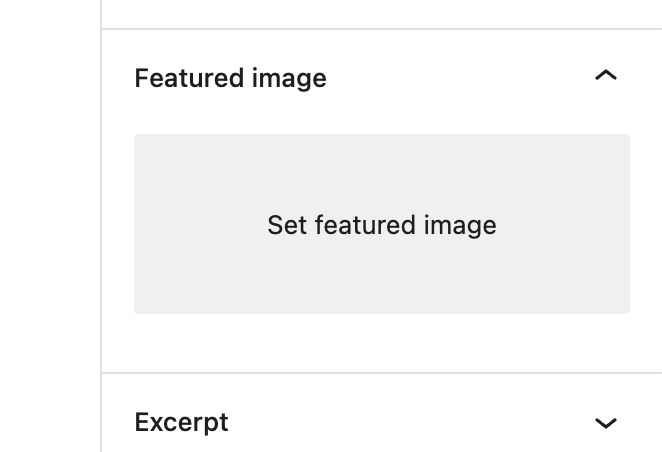
If the “Featured image” panel isn’t showing in the block editor, your theme hasn’t declared support for post thumbnails. Add this to your theme’s functions.php (or a child theme’s functions.php). It uses the after_setup_theme action hook to register support for post thumbnails:
add_action( 'after_setup_theme', function() {
    add_theme_support( 'post-thumbnails' );
} );
Most modern themes (including Hello Elementor, Twenty Twenty-Four, Kadence, and Astra) already enable this. You only need to add it when building a theme from scratch or using a stripped-down starter theme.
Method 1: Display the featured image as an <img> tag
the_post_thumbnail() echoes a full <img> tag (with srcset, sizes, alt text, and proper classes baked in). Inside the loop, this is a one-liner:
// Inside the loop
if ( has_post_thumbnail() ) {
    the_post_thumbnail( 'large' );
}

// With custom attributes (class, alt override, loading, etc.)
the_post_thumbnail( 'large', array(
    'class'   => 'hero-image',
    'alt'     => esc_attr( get_the_title() ),
    'loading' => 'lazy',
) );
If you need the HTML as a string (to concatenate or pass around), use get_the_post_thumbnail() instead. Same arguments, but it returns the markup rather than echoing it.
$thumbnail_html = get_the_post_thumbnail( get_the_ID(), 'large' );
echo $thumbnail_html;
Method 2: Get just the featured image URL
When you only need the URL (for a CSS background, an Open Graph tag, a custom image component, or a JSON API response), get_the_post_thumbnail_url() returns a plain string:
// Current post, large size
$url = get_the_post_thumbnail_url( get_the_ID(), 'large' );

// Specific post by ID, full size
$url = get_the_post_thumbnail_url( 42, 'full' );

// Inside the loop, default (post-thumbnail) size
$url = get_the_post_thumbnail_url();

echo esc_url( $url );
Returns false if the post has no featured image, so check for it before echoing. Available since WordPress 4.4 (2015), so effectively everywhere at this point.
Method 3: Get the featured image ID
The featured image ID is just the attachment ID of the media library item WordPress is using. You need it when you want to call other WordPress functions that take an attachment ID (wp_get_attachment_image_src(), wp_get_attachment_metadata(), get_post_meta(), etc.):
$thumbnail_id = get_post_thumbnail_id( get_the_ID() );

// Example: get the image at an arbitrary size as an array
// Returns [ url, width, height, is_intermediate ]
$image = wp_get_attachment_image_src( $thumbnail_id, 'full' );
if ( $image ) {
    $url    = $image[0];
    $width  = $image[1];
    $height = $image[2];
}

// Example: read the image's alt text from the media library
$alt = get_post_meta( $thumbnail_id, '_wp_attachment_image_alt', true );
Returns 0 if there’s no featured image, so either check the return value or use has_post_thumbnail() first.
Method 4: Check if a post has a featured image (with fallback)
has_post_thumbnail() returns a simple boolean. Use it to guard against empty states and to swap in a fallback image:
if ( has_post_thumbnail() ) {
    the_post_thumbnail( 'large' );
} else {
    // Fallback to a default image in your theme
    printf(
        '<img src="%s" alt="" loading="lazy" />',
        esc_url( get_template_directory_uri() . '/assets/default-featured.jpg' )
    );
}
Good rule: every template that displays a featured image should handle the “no image” case. Either a fallback, a different layout, or skipping the image container entirely. A broken <img> tag with no src is the worst outcome.
Method 5: Use the featured image as a CSS background
For hero sections, card overlays, and anywhere a CSS background image is cleaner than an <img>, grab the URL and drop it into an inline style:
<?php
$featured_url = get_the_post_thumbnail_url( get_the_ID(), 'large' );

if ( $featured_url ) :
?>
    <section
        class="post-hero"
        style="background-image: url('<?php echo esc_url( $featured_url ); ?>');">
        <h1><?php the_title(); ?></h1>
    </section>
<?php endif; ?>
For multiple breakpoint sizes, use image-set() in your CSS with different sizes pulled via wp_get_attachment_image_src(). Don’t use full on a hero unless you actually want the original upload (often 2000px+ wide). Pick a size that matches the rendered container.
Featured image sizes (and picking the right one)
Every featured image function accepts a size keyword as the second argument. The built-in sizes:
| Size keyword | Default dimensions | Typical use |
|---|---|---|
thumbnail | 150 × 150 (cropped) | Small avatar-style lists |
medium | 300 × 300 max | Sidebar thumbnails |
medium_large | 768 × any | Card grids |
large | 1024 × 1024 max | Most post heroes |
full | Original upload | Only when you need the raw image |
post-thumbnail | Theme-defined | Theme’s declared default size |
You can also register custom sizes in functions.php:
add_action( 'after_setup_theme', function() {
    add_theme_support( 'post-thumbnails' );

    // Hard-cropped 1200x630 for social cards and hero images
    add_image_size( 'hero', 1200, 630, true );

    // Proportional 400-wide for card grids
    add_image_size( 'card', 400, 9999, false );
} );
After registering a new size, regenerate existing images with the Regenerate Thumbnails plugin or wp media regenerate via WP-CLI. New sizes only apply to images uploaded after the declaration.
Frequently asked questions
How do I get the featured image URL in WordPress?
Use get_the_post_thumbnail_url( $post_id, $size ). It returns the URL as a string (or false if the post has no featured image). Pass a size keyword like 'large' or 'full' as the second argument. Inside the loop, call get_the_post_thumbnail_url() with no arguments to get the current post’s default size.
What’s the difference between the_post_thumbnail() and get_the_post_thumbnail()?
the_post_thumbnail() echoes the <img> tag directly to the page. get_the_post_thumbnail() returns the HTML as a string so you can modify, concatenate, or pass it around before output. Use the get_ version when you need flexibility; use the_post_thumbnail() for straight-line display in the loop.
How do I get the featured image ID in WordPress?
Use get_post_thumbnail_id( $post_id ). It returns the attachment ID of the featured image, or 0 if there isn’t one. You can then pass that ID to functions like wp_get_attachment_image_src(), wp_get_attachment_metadata(), or get_post_meta() to read the alt text with the _wp_attachment_image_alt meta key.
How do I check if a post has a featured image?
Use has_post_thumbnail(). It returns true if the post has a featured image and false if not. Wrap your the_post_thumbnail() call in an if ( has_post_thumbnail() ) check, or provide a fallback image in the else branch so templates don’t render broken <img> tags.
How do I get the featured image alt text?
The alt text is stored as post meta on the attachment itself: $alt = get_post_meta( get_post_thumbnail_id(), '_wp_attachment_image_alt', true );. If you’re using the_post_thumbnail(), WordPress includes alt text in the output automatically. You only need to fetch it manually when building custom markup. If you need to draft alt text in bulk for images that don’t have any, I built Image Caption Generator as an AI helper for exactly that.
Why doesn’t my theme show the featured image option?
Your theme hasn’t declared support for post thumbnails. Add add_theme_support( 'post-thumbnails' ); inside an after_setup_theme action in your theme’s functions.php. Refresh the post editor and the “Featured image” panel will appear in the sidebar.
How do I get a specific image size for the featured image?
Pass a size keyword as the second argument: get_the_post_thumbnail_url( $post_id, 'large' ). WordPress ships with thumbnail, medium, medium_large, large, full, and post-thumbnail. You can register custom sizes with add_image_size( 'hero', 1200, 630, true ) in functions.php, then pass 'hero' where you’d pass any built-in size.
Bottom line
For display in the loop, the_post_thumbnail( 'large' ) is the one-liner to reach for. When you need the URL as a string, get_the_post_thumbnail_url( $id, 'large' ). When you need the attachment ID for downstream calls, get_post_thumbnail_id( $id ). Always guard with has_post_thumbnail() and provide a fallback so your templates don’t break on posts without an image.
Related: how to get a post ID, get the post title, get the current page slug, or browse the full WordPress code snippets library.




One Response
Is there a way to change the featured image of the site?