Most WordPress site owners hit .htaccess exactly twice. The first time is when they install WordPress and it writes a small block to handle pretty permalinks. The second time is when they’re trying to add an HTTPS redirect, block a bad bot, or fix a 404 from a plugin and end up googling “what is .htaccess in WordPress” at 11pm.
This guide walks through exactly what .htaccess is, what WordPress puts in it by default, the most useful additions you can make, and how to edit it without taking your site down.
.htaccessis an Apache config file that controls redirects, rewrite rules, security, and caching at the directory level.- It only applies on Apache and LiteSpeed servers; Nginx ignores it, so check your host first.
- WordPress uses it to make pretty permalinks work and regenerates the default block when you save permalinks.
- Always back it up before editing, since a bad rule can trigger a 500 error.
- Use .htaccess for server-level rules and wp-config.php for WordPress-level settings.
What is .htaccess?
.htaccess is a per-directory configuration file used by the Apache web server (Apache officially calls them “distributed configuration files”; “hypertext access” is the popular backronym). When Apache serves a request, it walks up the directory tree from the requested file, reads any .htaccess files it finds along the way, and applies the rules in them on top of the server’s main config.
This means you can change how a directory behaves (URL rewriting, redirects, password protection, caching headers, security rules) without having root access to the server. That’s useful on shared hosting where you don’t control the main Apache config, and it’s why nearly every PHP-based CMS (including WordPress) leans on it for things like pretty URLs.
WordPress writes a small block to .htaccess automatically the first time you save a Permalinks setting that isn’t “Plain”. Without that block, every URL on your site that isn’t ?p=123 would 404.
First, Check Whether Your Host Even Uses Apache
This is the step most .htaccess guides skip and it’s the one that wastes the most people’s time.
.htaccess is an Apache feature. If your WordPress site runs on Nginx, LiteSpeed, or OpenLiteSpeed, the .htaccess file is either ignored entirely or partially translated, and edits you make won’t behave the same way (or won’t work at all).
- Apache: full .htaccess support. Most cPanel-based shared hosts run Apache (sometimes behind an Nginx reverse proxy that just passes requests through).
- LiteSpeed / OpenLiteSpeed: reads .htaccess natively (drop-in compatible with Apache). Hostinger, Namecheap, and most budget hosts run LiteSpeed.
- Nginx: ignores .htaccess entirely. Rules need to be translated into the Nginx config. Kinsta, WP Engine, Rocket.net, and many managed WordPress hosts use Nginx.
- Cloudflare in front: doesn’t change .htaccess processing on the origin, but redirect/security rules at the Cloudflare layer often supersede whatever’s in .htaccess.
The fastest way to check: open your hosting control panel and look at server info, or run curl -I https://yoursite.com and check the Server: response header. If it says Apache or LiteSpeed, .htaccess works. If it says nginx, you’re working with a different config file (and your host likely has a UI for redirects and security rules).
Where .htaccess Lives
For a standard WordPress install, the .htaccess file lives in the WordPress root directory: the same folder that contains wp-config.php, wp-content/, and wp-admin/.
To find it, connect via SFTP, SSH, or your host’s file manager. The file starts with a dot, which means most file managers hide it by default. Look for a “Show hidden files” option (usually under Settings or View) and toggle it on.
If there’s no .htaccess file at all, two things might be happening:
- WordPress hasn’t created one yet (you’re using “Plain” permalinks). Going to Settings → Permalinks and clicking Save Changes will create it.
- The web root is writable but doesn’t have an .htaccess yet. You can create one manually with any plain-text editor and upload it.
The Default WordPress .htaccess Block
This is exactly what WordPress writes to .htaccess for a single-site installation:
# BEGIN WordPress

RewriteEngine On
RewriteRule .* - [E=HTTP_AUTHORIZATION:%{HTTP:Authorization}]
RewriteBase /
RewriteRule ^index\.php$ - [L]
RewriteCond %{REQUEST_FILENAME} !-f
RewriteCond %{REQUEST_FILENAME} !-d
RewriteRule . /index.php [L]

# END WordPress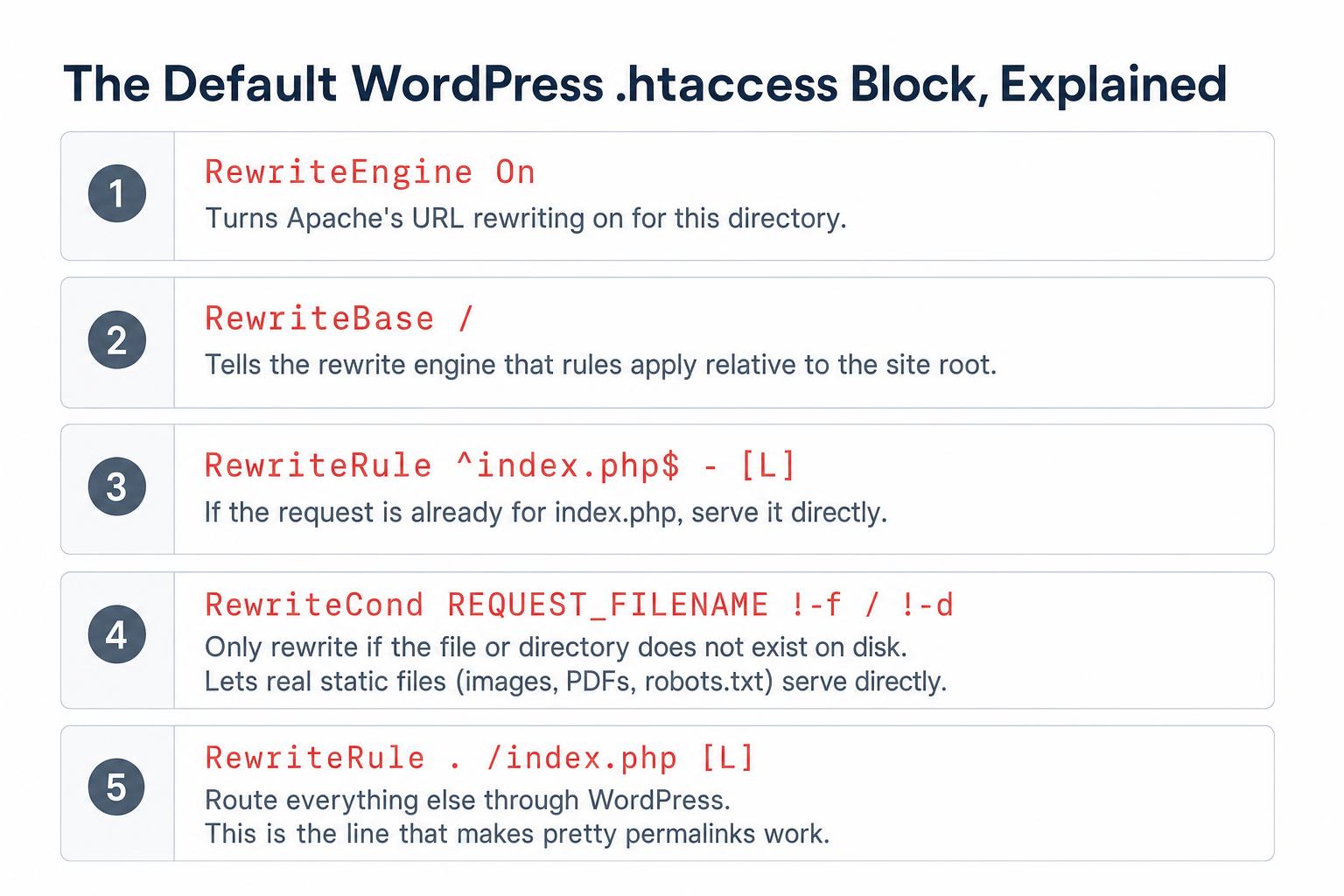
It’s only seven directives. What each one does:
RewriteEngine On: turns Apache’s URL rewriting module on for this directory.RewriteRule .* - [E=HTTP_AUTHORIZATION:%{HTTP:Authorization}]: preserves the HTTP Authorization header so REST API authentication and Application Passwords work correctly across shared-host configurations that strip the header by default.RewriteBase /: tells the rewrite engine that the rules apply relative to the site root.RewriteRule ^index\.php$ - [L]: if the request is already for index.php, stop processing and serve it.RewriteCond %{REQUEST_FILENAME} !-fand!-d: only rewrite if the requested file or directory doesn’t actually exist on disk. This is what lets you serve real static files (images, uploaded PDFs, robots.txt) directly without going through WordPress.RewriteRule . /index.php [L]: for everything else, route the request through index.php (which is WordPress’s front controller). This is the line that makes/2026/05/my-post-titleresolve to the right post.
The # BEGIN WordPress and # END WordPress markers are not cosmetic. WordPress’s save_mod_rewrite_rules() function looks for them when it regenerates rules. Anything between those markers is treated as WordPress-managed and may be overwritten on the next regeneration. Anything outside the markers is yours to keep.
Will Editing .htaccess Break Your Site? (Test-Safety First)
Yes, instantly, if the syntax is wrong. A typo in .htaccess returns an HTTP 500 to every visitor until you fix it. Treat every edit like a deploy.
The standard safety routine before touching .htaccess:
- Download a backup of the current file via SFTP. If something breaks, re-upload the backup and the site comes back instantly.
- Edit in a plain-text editor, not a word processor. Word, Google Docs, and TextEdit’s “Rich Text” mode add invisible characters that break .htaccess parsing.
- Add custom rules outside the WordPress markers. Anything between
# BEGIN WordPressand# END WordPresscan get overwritten when WordPress regenerates the file (after a permalink change, plugin activation, etc.). - Test with a single rule at a time when adding several. If a 500 error appears, you know which rule caused it.
- Test in a private browser window. Caching can mask issues from your normal browser session.
If something goes wrong and the site shows a 500 error, you can also enable WordPress debug mode to see the actual underlying error in /wp-content/debug.log alongside the Apache error log.
The Most Useful Additions to .htaccess
Every snippet below goes outside the # BEGIN WordPress / # END WordPress markers (typically right above the # BEGIN WordPress line). That keeps WordPress from overwriting them when it regenerates its own block.
Force HTTPS Site-Wide
Redirects every HTTP request to HTTPS with a 301:
<IfModule mod_rewrite.c>
  RewriteEngine On
  RewriteCond %{HTTPS} off
  RewriteRule ^(.*)$ https://%{HTTP_HOST}%{REQUEST_URI} [L,R=301]
</IfModule>
If your site is behind Cloudflare or a load balancer, the HTTPS variable may always read as off. In that case use:
RewriteCond %{HTTP:X-Forwarded-Proto} !https
RewriteRule ^(.*)$ https://%{HTTP_HOST}%{REQUEST_URI} [L,R=301]
301 Redirects (Single Page or Bulk)
For a single old URL pointing to a new one:
Redirect 301 /old-page/ https://yoursite.com/new-page/For a pattern (e.g., redirecting an entire old category):
RewriteRule ^old-category/(.*)$ /new-category/$1 [R=301,L]Use 301 (permanent) redirects for SEO migrations and 302 (temporary) only when the move really is temporary. Search engines treat them differently for link-equity passing.
Canonicalize www vs Non-www
Pick one and force the other to redirect to it. To redirect www.yoursite.com → yoursite.com:
RewriteEngine On
RewriteCond %{HTTP_HOST} ^www\.yoursite\.com [NC]
RewriteRule ^(.*)$ https://yoursite.com/$1 [L,R=301]
Reverse it (force www) by swapping the condition and the destination.
Block Bad Bots and Scrapers
Returns a 403 to specific bot user-agents. Add or remove based on what’s hitting your access logs:
<IfModule mod_rewrite.c>
  RewriteEngine On
  RewriteCond %{HTTP_USER_AGENT} (AhrefsBot|SemrushBot|MJ12bot|DotBot|PetalBot) [NC]
  RewriteRule .* - [F,L]
</IfModule>
Be careful with this list. Blocking GoogleBot, BingBot, or major AI crawlers (GPTBot, ClaudeBot, PerplexityBot) costs you visibility. Audit before you add.
Password-Protect /wp-admin/
Adds a server-level password prompt on top of the normal WordPress login. Useful for sites under brute-force attack:
# Place this in /wp-admin/.htaccess (not the root)
AuthType Basic
AuthName "Restricted Area"
AuthUserFile /full/server/path/to/.htpasswd
Require valid-user

# Allow admin-ajax.php so plugins/themes don't break
# (Apache 2.4 syntax; Satisfy Any keeps the legacy semantics of "auth OR allow")
<Files admin-ajax.php>
  Require all granted
  Satisfy Any
</Files>
You’ll need to generate .htpasswd separately (most hosting control panels have a “Directory Privacy” or “Password Protect Directories” tool that creates it for you).
Browser Caching Headers
Tells visitors’ browsers to cache static assets (CSS, JS, images, fonts) for a long time. Cuts repeat-visit load time significantly:
<IfModule mod_expires.c>
  ExpiresActive On
  ExpiresByType image/jpeg "access plus 1 year"
  ExpiresByType image/png "access plus 1 year"
  ExpiresByType image/webp "access plus 1 year"
  ExpiresByType image/avif "access plus 1 year"
  ExpiresByType image/svg+xml "access plus 1 year"
  ExpiresByType text/css "access plus 1 month"
  ExpiresByType application/javascript "access plus 1 month"
  ExpiresByType font/woff2 "access plus 1 year"
  ExpiresByType image/x-icon "access plus 1 year"
</IfModule>
If your CSS or JS changes regularly, lower those values to a week or even a day. Asset filenames generated with cache-busting hashes (most modern themes do this) can safely use 1 year.
Enable Gzip / Brotli Compression
Compresses text-based responses before sending them, often cutting transfer size by 70%+:
<IfModule mod_deflate.c>
  AddOutputFilterByType DEFLATE text/html
  AddOutputFilterByType DEFLATE text/plain
  AddOutputFilterByType DEFLATE text/xml
  AddOutputFilterByType DEFLATE text/css
  AddOutputFilterByType DEFLATE application/javascript
  AddOutputFilterByType DEFLATE application/json
  AddOutputFilterByType DEFLATE application/xml
  AddOutputFilterByType DEFLATE image/svg+xml
</IfModule>
Most modern hosts and Cloudflare-fronted sites already do this at the edge with Brotli (which is roughly 15-25% better than Gzip). If your host does, the .htaccess block isn’t doing anything extra. Check with curl -I -H "Accept-Encoding: br, gzip" https://yoursite.com and look for Content-Encoding in the response.
Disable Directory Browsing
Stops Apache from showing a file listing when a folder doesn’t have an index.html or index.php. Common security recommendation:
Options -IndexesBlock PHP Execution in /wp-content/uploads/
Hardens the uploads directory so that even if a malicious PHP file gets uploaded (via a vulnerable plugin), it can’t be executed. Place this in a new file at /wp-content/uploads/.htaccess:
# Apache 2.4 syntax
<Files *.php>
  Require all denied
</Files>
Modern Security Headers
Tells browsers to apply extra security restrictions when loading your site. Sane defaults for a typical WordPress site:
<IfModule mod_headers.c>
  Header set X-Content-Type-Options "nosniff"
  Header set X-Frame-Options "SAMEORIGIN"
  Header set Referrer-Policy "strict-origin-when-cross-origin"
  Header set Permissions-Policy "geolocation=(), microphone=(), camera=()"
  Header always set Strict-Transport-Security "max-age=31536000; includeSubDomains" env=HTTPS
</IfModule>
HSTS (the last line) is powerful but commits you to HTTPS for a year. Add it only after you’re confident HTTPS is working everywhere across the site. Once a browser has cached HSTS for your domain, it will refuse to connect over HTTP for the duration of max-age even if you remove the header.
WordPress Multisite .htaccess
Multisite installations need a different default block. WordPress shows you the right one in Network Admin → Settings → Network Setup.
Subdirectory multisite (yoursite.com/site1, yoursite.com/site2):
RewriteEngine On
RewriteRule .* - [E=HTTP_AUTHORIZATION:%{HTTP:Authorization}]
RewriteBase /
RewriteRule ^index\.php$ - [L]

# add a trailing slash to /wp-admin
RewriteRule ^([_0-9a-zA-Z-]+/)?wp-admin$ $1wp-admin/ [R=301,L]

RewriteCond %{REQUEST_FILENAME} -f [OR]
RewriteCond %{REQUEST_FILENAME} -d
RewriteRule ^ - [L]
RewriteRule ^([_0-9a-zA-Z-]+/)?(wp-(content|admin|includes).*) $2 [L]
RewriteRule ^([_0-9a-zA-Z-]+/)?(.*\.php)$ $2 [L]
RewriteRule . index.php [L]
Subdomain multisite (site1.yoursite.com, site2.yoursite.com):
RewriteEngine On
RewriteRule .* - [E=HTTP_AUTHORIZATION:%{HTTP:Authorization}]
RewriteBase /
RewriteRule ^index\.php$ - [L]

# add a trailing slash to /wp-admin
RewriteRule ^wp-admin$ wp-admin/ [R=301,L]

RewriteCond %{REQUEST_FILENAME} -f [OR]
RewriteCond %{REQUEST_FILENAME} -d
RewriteRule ^ - [L]
RewriteRule ^(wp-(content|admin|includes).*) $1 [L]
RewriteRule ^(.*\.php)$ $1 [L]
RewriteRule . index.php [L]
Always copy the exact block WordPress gives you in Network Setup rather than reusing one from a tutorial. Multisite .htaccess can vary slightly between WordPress versions and your network configuration.
When WordPress Regenerates .htaccess
WordPress rewrites the block between # BEGIN WordPress and # END WordPress in a few common scenarios:
- You change the permalink structure under Settings → Permalinks.
- You activate or deactivate a plugin or theme that registers custom rewrite rules.
- Code on the site calls
flush_rewrite_rules()(the canonical way to ask WordPress to regenerate). - You manually trigger it via WP-CLI:
wp rewrite flush --hard.
Under the hood, WordPress’s save_mod_rewrite_rules() function reads the existing .htaccess, finds the # BEGIN WordPress / # END WordPress markers, replaces everything between them with freshly-generated rules, and writes the file back. Anything outside the markers is preserved.
If you’ve added custom rules and they vanish on the next plugin activation, double-check that they’re outside the markers.
.htaccess vs wp-config.php (When to Use Which)
The two foundational config files for WordPress live next to each other in the root, but they do completely different jobs.
- .htaccess talks to the web server. It controls how requests are routed, what gets redirected, what gets cached, and what headers get sent. The web server reads it before WordPress even runs.
- wp-config.php talks to WordPress. It controls database credentials, debug settings, security keys, environment type, and how WordPress itself behaves once it’s running.
Quick rule of thumb: if you want to change how URLs work, what headers visitors see, or block requests before they reach PHP, use .htaccess. If you want to change how WordPress itself behaves (debug logging, auto-updates, cron, environment settings), use wp-config.php.
What to Do When .htaccess Breaks Your Site
If you save a change and the site immediately returns “500 Internal Server Error” on every page, the fastest fix is to undo the change:
- Connect via SFTP, SSH, or your host’s file manager.
- Re-upload your backup of the file. If you didn’t take one, rename the broken .htaccess to
.htaccess-brokenso Apache stops reading it. - Reload your site. It should come back immediately. (If you renamed the file, WordPress permalinks will be broken until you regenerate the default block. Log in and go to Settings → Permalinks and click Save Changes.)
- Check your host’s Apache error log to see exactly which directive failed. Most cPanel hosts expose this under “Error Pages” or “Errors” in the dashboard.
If the site comes back but specific URLs are 404’ing, the issue is likely with WordPress’s permalink rules rather than .htaccess itself. Re-saving the Permalinks settings page forces WordPress to regenerate its block.
Frequently Asked Questions
Why does the file start with a dot?
On Unix-like systems (Linux, macOS), files that start with a dot are hidden by default. Apache’s per-directory config file uses this convention so it doesn’t appear in normal directory listings. It also means most file managers hide it unless you explicitly enable “Show hidden files”.
Can I edit .htaccess from inside the WordPress admin?
Not natively. WordPress only writes its own permalink block; it doesn’t expose a UI for editing the file. Some plugins (Yoast SEO, Rank Math, All in One SEO) include an .htaccess editor in their tools section. Use those carefully, since they don’t always validate syntax before saving.
Does .htaccess slow down my site?
A small amount, yes. Apache reads .htaccess files on every request and walks up the directory tree looking for them. On busy sites or sites with deeply nested paths, this can add measurable overhead. The fix on a server you control is to move rules into the main Apache config (httpd.conf or a vhost block) and disable .htaccess parsing with AllowOverride None. On shared hosting, you can’t do this, and the overhead is usually negligible.
Why isn’t my .htaccess change taking effect?
Three common causes: (1) your host runs Nginx, not Apache, so .htaccess is ignored. (2) The hosting provider has set AllowOverride None, which disables .htaccess processing. (3) The file is in the wrong directory or has wrong file permissions (it should be readable; usually 644).
Should I use a plugin instead of editing .htaccess directly?
For redirects and security headers specifically, yes. Plugins like Redirection (for 301s) and Really Simple Security give you a UI without the risk of breaking the site on a typo. But there’s nothing those plugins do that you can’t do directly in .htaccess, and direct edits run faster (no PHP overhead per request).
What’s the difference between Redirect, RedirectMatch, and RewriteRule?
Redirect is the simplest: literal old path to literal new URL. RedirectMatch adds regex matching on the old path. RewriteRule is the most powerful, with full regex on both sides plus conditions, environment variables, and flags. For one-off redirects use Redirect; for patterns use RewriteRule.
Wrapping Up
The .htaccess file is one of two foundational config files every WordPress dev should be comfortable with, the other being wp-config.php. WordPress writes a small permalink block to it automatically, and the file is yours to extend with redirects, security rules, performance headers, and access controls.
The two rules to remember: always download a backup before editing, and always add custom rules outside the # BEGIN WordPress markers so WordPress doesn’t overwrite them. From there, the snippets above cover most of what people add in real-world WordPress sites.
If you hit something that doesn’t work as expected, enabling WordPress debug mode alongside checking your host’s Apache error log will usually surface the underlying issue. And if your site goes down entirely after an edit (a typo in .htaccess can produce a 500 error or a white screen of death), restoring the backup file brings it back instantly.
Let me know in the comments if there’s an .htaccess pattern you’d add to the list above.