
To eliminate render-blocking resources in WordPress, defer the JavaScript that does not need to run before the page appears, and deliver only the CSS the first screen needs. WP Rocket does both from its File Optimization settings, the free Autoptimize plugin can do the same, and for scripts you add yourself WordPress has supported deferred loading natively since version 6.3.
If you are looking for the warning in PageSpeed Insights and cannot find it, it has been renamed. As of Lighthouse 13, which powers PageSpeed Insights, the old “Eliminate render-blocking resources” audit lives inside the Render-blocking requests insight. GTmetrix and older reports may still use the old wording.
- PageSpeed Insights now calls this warning Render-blocking requests. Lighthouse 13 folded the old “Eliminate render-blocking resources” audit into it, but the fix is the same.
- The culprits are stylesheets and regular scripts in your page’s
<head>, which the browser has to download before it can show anything. - In WP Rocket, turn on Load JavaScript deferred and Optimize CSS delivery (Remove Unused CSS) under File Optimization.
- For free, Autoptimize’s “Do not aggregate but defer?” and “Eliminate render-blocking CSS?” options do the same job, with critical CSS you supply.
- For your own scripts, WordPress has supported
'strategy' => 'defer'natively since version 6.3, and 6.9 already removed a lot of render-blocking CSS on its own.
What does “eliminate render-blocking resources” mean?
When a browser loads your page, it reads the HTML from the top. Every stylesheet in the <head>, and every script that is not marked defer or async, makes it stop, download that file, and process it before it can paint anything on screen. Those files are the render-blocking resources, and each one delays the moment your visitor sees the page.
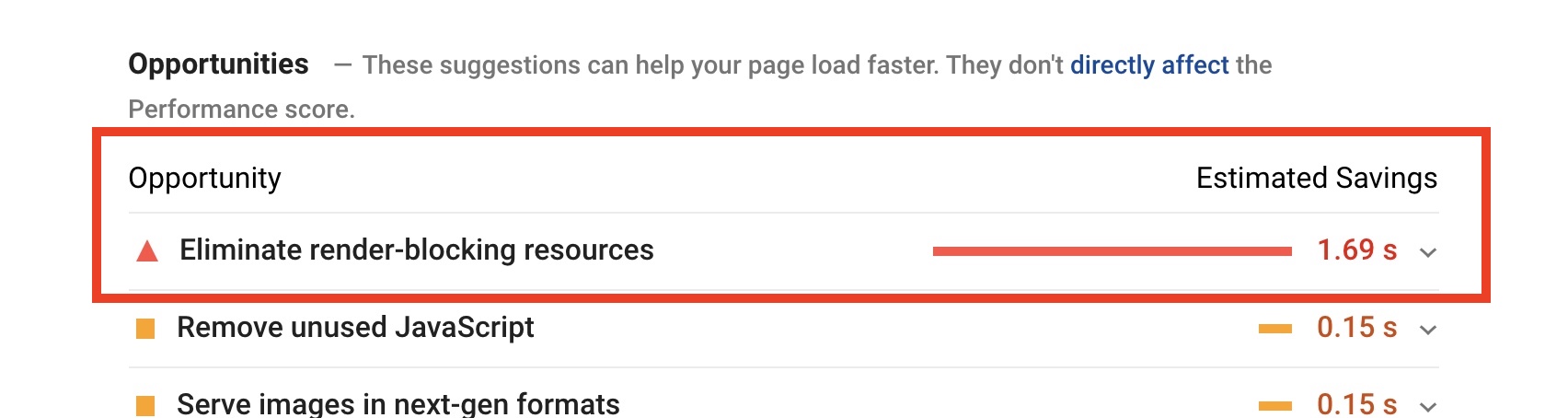
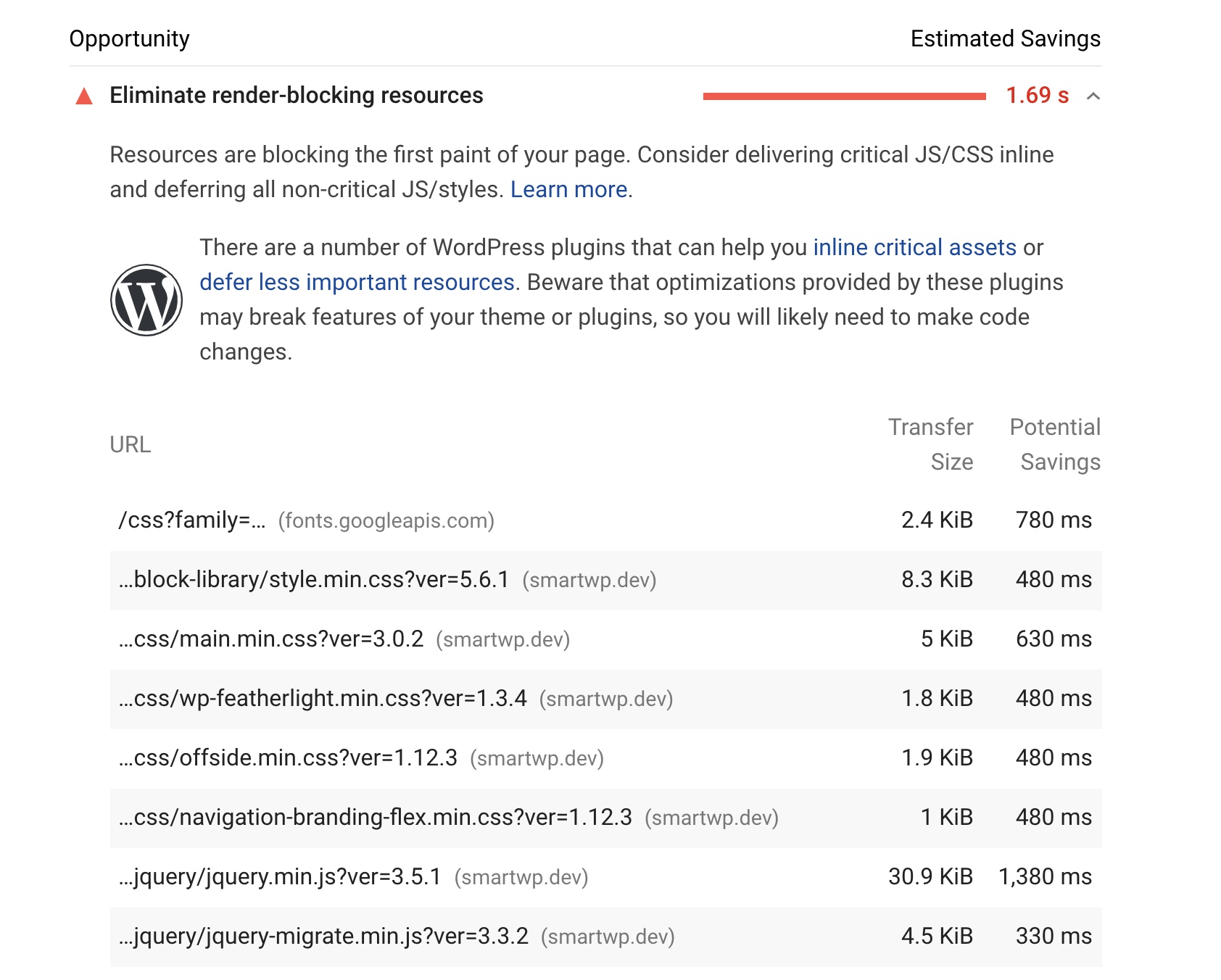
The report lists the exact files involved, usually your theme’s stylesheet, plugin stylesheets and a few JavaScript files such as jQuery. The fix is to let the browser paint first and fetch the rest afterwards: defer scripts, and inline the small amount of CSS needed for the top of the page (called critical CSS) so the full stylesheets can load without blocking.
What WordPress already does for you
Before reaching for a plugin, it is worth knowing how much recent versions of WordPress fixed on their own:
- Since WordPress 6.3, themes and plugins can load their scripts with
deferorasyncthrough the script API, and WordPress works out whether it is safe based on each script’s dependencies. - WordPress 6.9 made classic themes load block styles only for the blocks on each page, instead of the full block library stylesheet. Our guide to removing the block library CSS has the details and measurements.
- WordPress 6.9 also raised the size of stylesheets it prints inline, which saves separate requests, and moved the emoji detection script out of the head. See the WordPress 6.9 frontend performance field guide.
What is left on most sites is the theme’s own stylesheet and the files plugins add, which is where the options below come in.
How to fix it with WP Rocket
WP Rocket is a paid caching plugin, and it handles render-blocking files with a few settings. After installing it, go to Settings > WP Rocket and open the File Optimization tab:
- Turn on Optimize CSS delivery and choose Remove Unused CSS, which WP Rocket recommends. If that causes problems on your site, choose Load CSS asynchronously instead.
- Turn on Load JavaScript deferred.
- Optionally, turn on Delay JavaScript execution, which holds back scripts until the visitor interacts with the page. It helps with Total Blocking Time more than with render-blocking files.
- Save, clear the cache, and run PageSpeed Insights again.
If the warning is still there, WP Rocket’s documentation on Load JavaScript deferred suggests checking your exclusions: scripts you have excluded from deferring are still render-blocking.
How to fix it for free with Autoptimize
Autoptimize is free, has 800,000+ active installs and was updated in September 2026. After installing it, go to Settings > Autoptimize.

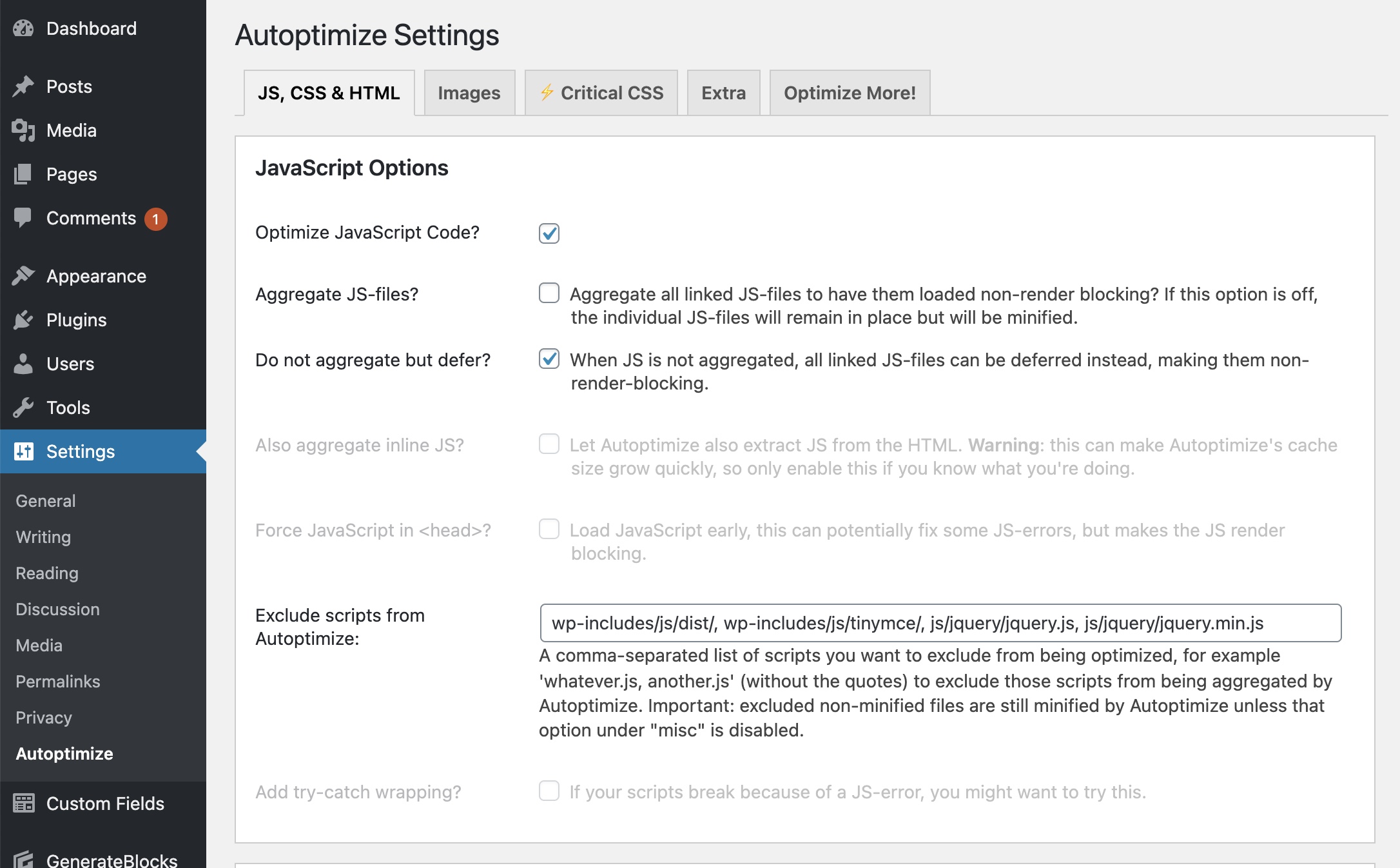
For JavaScript, check Optimize JavaScript Code? and then Do not aggregate but defer?. That defers your scripts without merging them into one file, which avoids the breakage merged files can cause. The Also defer inline JS? option goes further, but it can break small inline scripts that expect jQuery to be available immediately, so test after turning it on.
For CSS, check Optimize CSS Code? and then Eliminate render-blocking CSS? (older versions called this “Inline and Defer CSS”). Autoptimize then inlines the critical CSS you give it and loads the rest later. You have to supply that critical CSS yourself and update it when your design changes, or use the plugin’s Critical CSS tab, which generates it automatically through the paid criticalcss.com service.
This guide used to pair Autoptimize with the Async JavaScript plugin. Skip that one now: it was last updated in June 2023 and is only tested up to WordPress 6.2, which is a long time for a plugin that rewrites how your scripts load. For delaying individual scripts, Flying Scripts is maintained, or use the delay setting built into most caching plugins.
How to defer scripts in code (WordPress 6.3 and later)
If you add scripts in a theme or plugin, you no longer need a filter that rewrites script tags. Pass a strategy in the last argument of wp_enqueue_script():
<?php
function smartwp_enqueue_scripts() {
	wp_enqueue_script(
		'smartwp-main',
		get_stylesheet_directory_uri() . '/js/main.js',
		array(),
		'1.0.0',
		array(
			'strategy'  => 'defer', // Or 'async' for scripts nothing else depends on.
			'in_footer' => true,
		)
	);
}
add_action( 'wp_enqueue_scripts', 'smartwp_enqueue_scripts' );
To defer a script that another plugin adds, find its handle in the page source (the script tag’s ID is the handle followed by -js) and add the strategy to it after it has been registered:
<?php
add_action( 'wp_enqueue_scripts', function () {
	wp_script_add_data( 'some-plugin-script', 'strategy', 'defer' );
}, 20 );
The advantage over the old approach of adding defer to every script tag is that WordPress checks the dependency chain. If deferring a script would break another script that needs it straight away, WordPress quietly keeps it blocking instead of letting the page break. Add these snippets to your child theme’s functions.php file or a code snippets plugin.
Render-blocking resources vs Total Blocking Time
The two sound alike but measure different things. Render-blocking resources delay the first paint of the page. Total Blocking Time measures how long JavaScript keeps the browser too busy to respond after that. Deferring a script fixes the first problem, but the script still has to run, so it can still add to the second.
To reduce Total Blocking Time, run less JavaScript: remove plugins you do not need, delay scripts until the visitor interacts (WP Rocket’s Delay JavaScript execution, or Flying Scripts), and replace heavy embeds with lightweight previews. Our guide to speeding up WordPress covers the rest, and lazy loading helps with images further down the page.
Frequently asked questions
What does eliminate render-blocking resources mean?
It means some CSS or JavaScript files in your page’s head are stopping the browser from showing the page until they have downloaded. Fixing it means deferring scripts and loading non-critical CSS later, so the page appears sooner.
Why doesn’t PageSpeed Insights show “Eliminate render-blocking resources” anymore?
It was renamed. As of Lighthouse 13, which runs PageSpeed Insights, the audit is part of the Render-blocking requests insight. The files it lists and the fixes are the same.
Does WP Rocket eliminate render-blocking resources?
Yes. Under File Optimization, Load JavaScript deferred handles scripts and Optimize CSS delivery, with Remove Unused CSS or Load CSS asynchronously, handles stylesheets. Clear the cache and retest after changing them.
Is it safe to defer all JavaScript in WordPress?
Not always. Inline scripts that expect jQuery or another library to already be loaded can break when those files are deferred. Test your pages after deferring, and exclude any script that stops working. The native WordPress strategy API avoids most of these problems by checking dependencies.
What is critical CSS?
It is the small amount of CSS needed to style the top of the page. Inlining it in the head lets the browser paint that part immediately while the full stylesheets load in the background, which is how plugins remove render-blocking CSS.
For a broader look at page speed scores, see this in-depth Google PageSpeed optimization guide on ryrob.com.





9 Responses
Hi
Fine post:
I used to use async JavaScript with Fast Velocity Minify- no tender blocking- 100% scores.
Now the later plugin keeps updating and the two are not compatible. Scores vary a touch lower. I have SiteGround optimizer and am thinking — maybe use it with Rocket, and eliminate Fast Velocity??
Any ideas? — they will overlap in some areas Im aware of.
Thanks
Howard
Amazing Post! I was trying to eliminate render blocking resources and it took a lot of time. Thank you for suggesting these easy tricks. It was a good read and helpful too.
Finally I found something to eliminate render blocking without using any plugin.
Great post.
Hi. Currently I use WP Optimize. I feel that I might get better render-blocking using the combination of Autoptimize and Async JavaScript (as you suggest above). If I disable (then delete) WP Optimize, will this cause any conflicts with running the other two plugins? Many thanks for any advice you can give. Paul
Please help I am facing Eliminate render-blocking CS and JS issues. Unable to define which plugin should I use. WP-rocket is also causing high CPU usage and resources.
You totally saved my website. I’ve been battling with FOUC for ages and your advice finally worked for me. Thank you so much!
I have been looking for a manual way to eliminate render-blocking resources for my WordPress website since last week and but couldn’t get the real solution. At last, I got your post and your solution has worked nicely. Thanks for your life-saving post! Andy.
Hi Andy!
Thank you sooo much for providing what looks like a suuuuper useful tip for a guy like me who doesnt really understand PHP and JS. People like you save my day! ⭐️
Im using a child theme (of the Werkstatt theme), where I have customised a lot of CSS..
Im thinking that I will try pasting the last code snippet you posted in my child theme’s functions.php. But what is the first code snippet for? Should I also paste that?
Using Vanilla JavaScript is the best way to avoid render blocking resources these days.