If you’ve just opened your WordPress site and seen a blank white page reading “Error establishing a database connection”, your site can’t talk to its database, which means nothing on your front-end or in /wp-admin will load until it’s fixed.
The good news: in the vast majority of cases the cause is one of a handful of common issues, and you can fix it yourself in 5 to 15 minutes without touching code beyond a single config file. This guide walks through every cause in order of likelihood and shows you how to fix each one.
- This error means WordPress can’t reach its database, usually wrong credentials in wp-config.php or a database server that’s down.
- Around 70% of the time it’s an incorrect
DB_NAME,DB_USER,DB_PASSWORD, orDB_HOSTafter a migration or host change. - Try repairing the database with
WP_ALLOW_REPAIR, and check for “too many connections” on busy or shared hosts. - Enable
WP_DEBUGto surface the underlying error. - Most fixes are non-destructive; back up before editing wp-config.php just in case.
What “Error Establishing a Database Connection” Actually Means
WordPress stores everything (your posts, pages, users, comments, settings, plugin data) in a MySQL or MariaDB database. Every single page load starts with WordPress connecting to that database, running a few queries, and using the results to build the page.
When you see this error, WordPress is telling you exactly what it sounds like: it tried to connect to the database, and the connection failed. It hasn’t even gotten to the point of asking for any actual data yet. The connection itself is broken.
That can happen for a few reasons:
- The credentials in your wp-config.php file are wrong, so WordPress is being rejected at the door
- The database server itself is down or overloaded
- The database has become corrupted
- Your hosting account has hit a limit (too many connections, suspended account)
- WordPress core files have become corrupted
We’ll go through each of these in order of how likely it is, starting with the fix that resolves the error the vast majority of the time.
Fix #1: Verify Your wp-config.php Credentials
This is the cause behind the error roughly 70% of the time, especially if it appeared right after you migrated your site, switched hosts, or restored from a backup.
Connect to your site over SFTP, SSH, or your host’s file manager and open wp-config.php in the root WordPress directory (the same folder that contains wp-content and wp-admin). Look for these four lines near the top:
define( 'DB_NAME', 'your_database_name' );
define( 'DB_USER', 'your_database_user' );
define( 'DB_PASSWORD', 'your_database_password' );
define( 'DB_HOST', 'localhost' );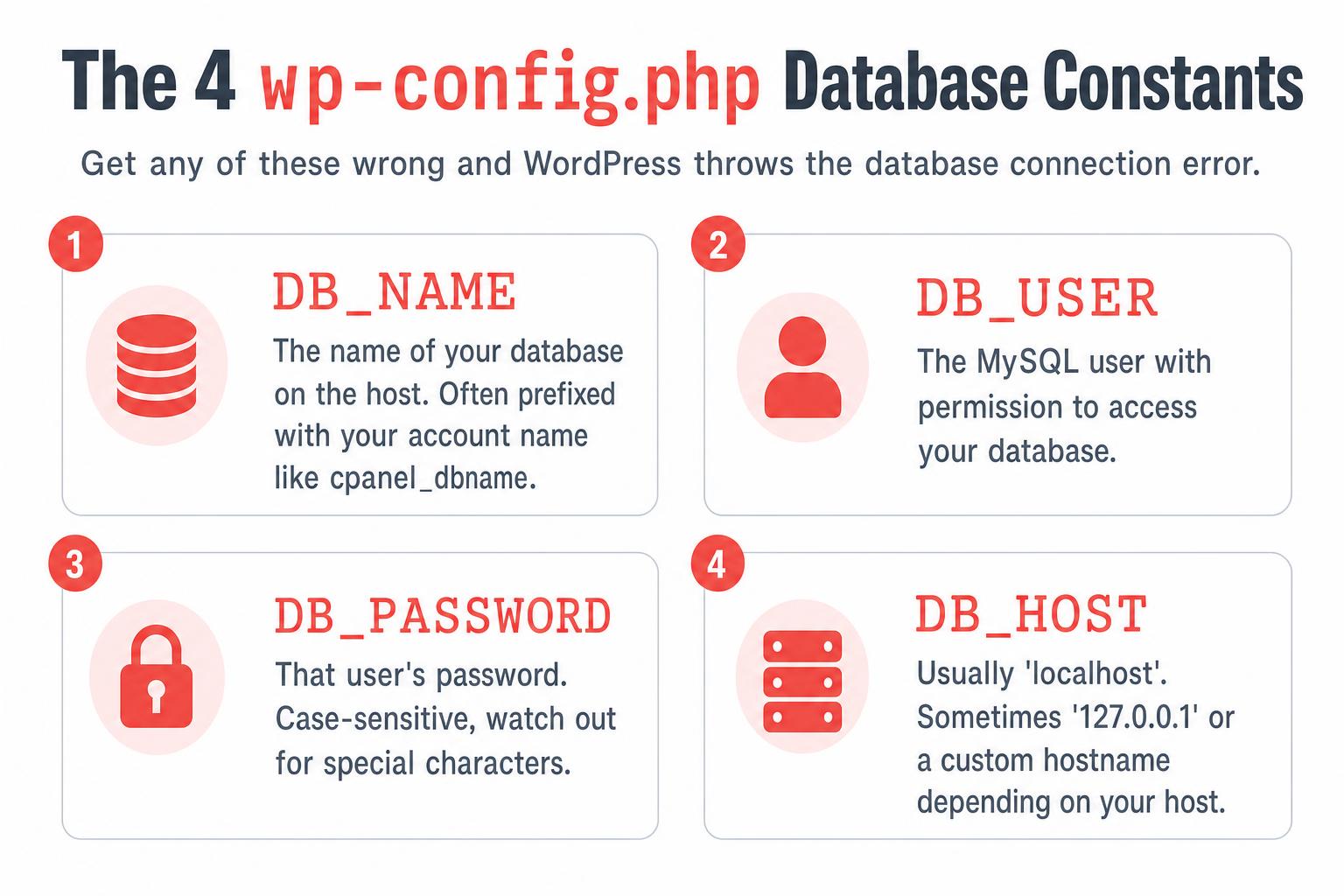
Each value needs to match exactly what your host has set up for your database. Even a single wrong character will cause the error. Common mistakes:
- DB_NAME includes a host-specific prefix you forgot. Many shared hosts namespace databases as
cpanelusername_databasenamerather than justdatabasename. - DB_USER uses the same prefix and was renamed during migration.
- DB_PASSWORD contains a special character that got mangled when copy-pasting.
- DB_HOST is set to
localhostwhen your host actually requires127.0.0.1or a custom hostname.
Where to find the correct values
Log in to your hosting control panel (cPanel, Plesk, your host’s custom dashboard, etc.) and find the MySQL Databases or Databases section. From there:
- Identify the database name your WordPress site uses
- Identify which user has access to that database
- If you don’t know the user’s password, reset it (you’ll need to update wp-config.php with the new password)
- Look for a “Remote MySQL” or “Connection Info” section to find the correct DB_HOST value
Save the file, reload your site, and the error should be gone if credentials were the problem. If you’re still stuck, move on to Fix #2.
Fix #2: Test the Database Connection Independently
Before you keep guessing, write a tiny PHP script that tries to connect to the database with the same credentials. This tells you whether the problem is with WordPress or with the underlying connection itself.
Create a new file called db-test.php in your WordPress root directory with this content:
<?php
$link = mysqli_connect( 'localhost', 'db_user', 'db_password', 'db_name' );

if ( ! $link ) {
    die( 'Connection failed: ' . mysqli_connect_error() );
}

echo 'Connection successful! Server version: ' . mysqli_get_server_info( $link );
mysqli_close( $link );
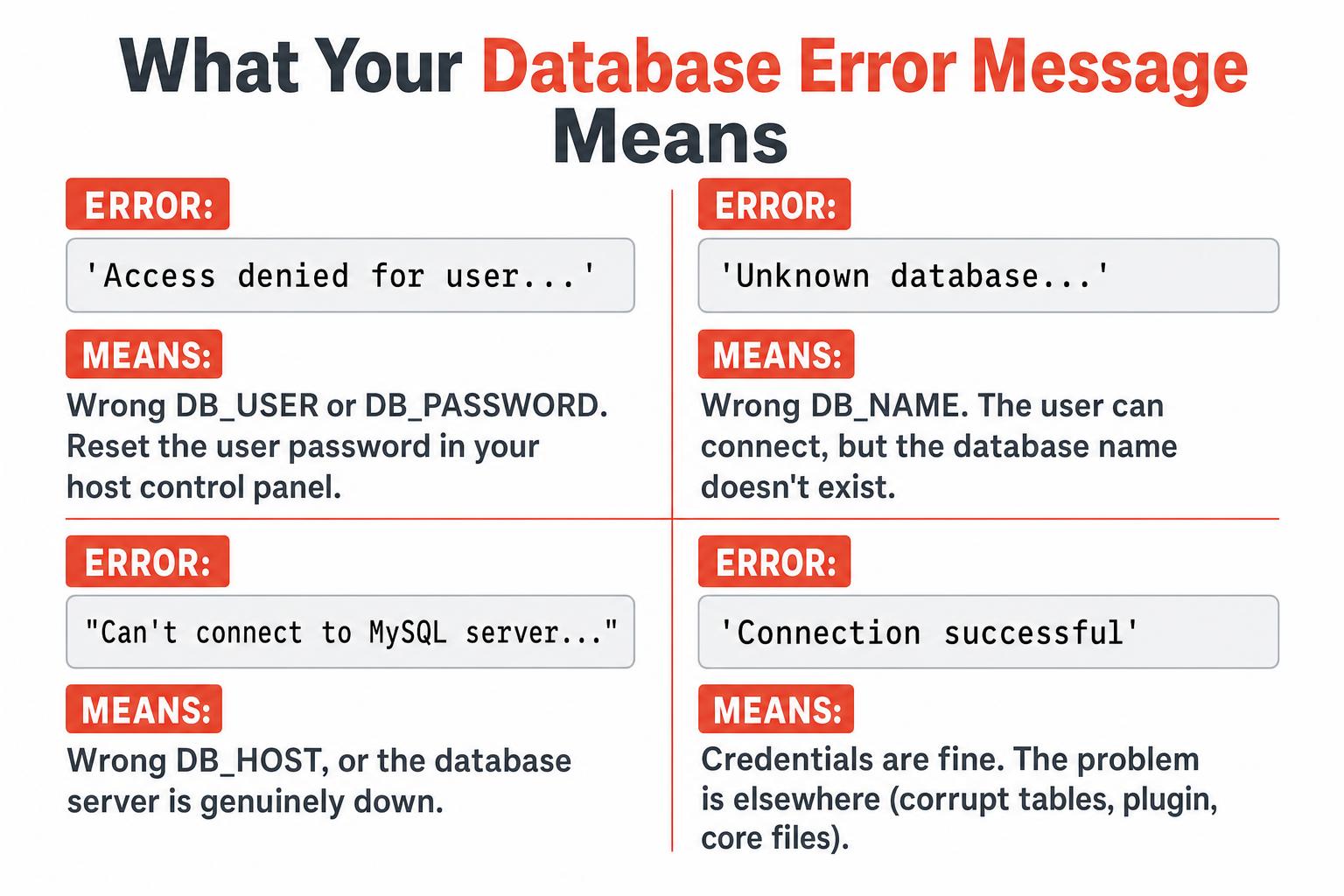
Replace the four values with the same ones from your wp-config.php, then visit https://yoursite.com/db-test.php in your browser. The error message you get back will tell you exactly what’s wrong:
- “Access denied for user…”: Your DB_USER or DB_PASSWORD is wrong. Reset the user’s password in your host control panel.
- “Unknown database…”: Your DB_NAME is wrong. The user can connect to MySQL but the database name doesn’t exist.
- “Can’t connect to MySQL server on…”: Your DB_HOST is wrong, or the database server is genuinely down. Skip to Fix #3.
- “Connection successful”: Credentials are fine. The problem is somewhere else (corrupted database, corrupted core files, plugin conflict). Skip to Fix #4.
Important: Delete db-test.php as soon as you’re done. Leaving database credentials in a public file is a security risk.
Fix #3: Try a Different Database Host Value
The DB_HOST value is set to localhost by default in WordPress, and it works on most hosts. But not all of them.
If your db-test.php returned “Can’t connect to MySQL server”, try these alternatives one at a time, saving wp-config.php and reloading your site after each change:
127.0.0.1instead oflocalhost(this fixes the issue on a surprising number of shared hosts)127.0.0.1:3306if the MySQL service runs on a non-standard portlocalhost:/var/run/mysqld/mysqld.sockif your host uses Unix sockets- A specific hostname your host provides, like
mysql.yourhost.comorinternal-db.yourhost.com
Some host-specific defaults worth knowing:
- Bluehost, HostGator, SiteGround, GoDaddy: typically
localhost - DreamHost: a custom hostname like
mysql.example.com - Kinsta, WP Engine: handled automatically, you usually don’t need to touch DB_HOST
- Cloud-managed databases (RDS, DigitalOcean Managed MySQL): a custom hostname plus a port
If none of those work, the database server might genuinely be down. Check your host’s status page or open a support ticket.
Fix #4: Repair the Database with WP_ALLOW_REPAIR
If your db-test.php script returned “Connection successful” but WordPress still throws the error, your database tables themselves may be corrupted. WordPress has a built-in repair tool you can enable temporarily.
Add this single line to your wp-config.php file, anywhere above the line that reads /* That's all, stop editing! Happy publishing. */:
define( 'WP_ALLOW_REPAIR', true );Save the file, then visit this URL in your browser:
https://yoursite.com/wp-admin/maint/repair.phpYou’ll see two buttons: Repair Database and Repair and Optimize Database. Click “Repair Database” first (the optimize step takes longer and isn’t always necessary). WordPress will run through every table and report what it finds.
When it’s done, remove the WP_ALLOW_REPAIR line from wp-config.php. The repair page is intentionally accessible without logging in, so leaving it enabled is a security risk.
Fix #5: Check for Corrupt Plugins or Themes
A misbehaving plugin or theme can sometimes flood the database with bad queries, hit the connection limit, or otherwise break things. Especially if the error appeared right after you installed or updated a plugin.
The fastest way to test this without admin access:
- Connect to your site via SFTP or your host’s file manager
- Navigate to
/wp-content/plugins/ - Rename the entire
pluginsfolder toplugins-disabled - Reload your site
If the site loads, a plugin was the culprit. Rename the folder back to plugins, then go inside and rename each plugin folder one at a time (adding -disabled to the name), reloading the site after each one. The plugin folder you rename when the error returns is the offender.
For themes, do the same thing: rename your active theme’s folder under /wp-content/themes/. WordPress will fall back to a default theme like Twenty Twenty-Five.
Recovery Mode (WordPress 5.2+)
WordPress 5.2 introduced Recovery Mode, which automatically detects fatal errors from plugins or themes and emails the site admin a special login link. The link gets you into a stripped-down dashboard where the offending plugin is already disabled, so you can investigate or update it without manual file renaming.
Check the inbox for the email address registered as the WordPress site admin. If a fatal error is being triggered (rather than just a connection failure), Recovery Mode often sends an email within a few minutes of the first failed page load.
Fix #6: Replace WordPress Core Files
If you’ve ruled out credentials, host, database corruption, and plugin/theme conflicts, the WordPress core files themselves may be damaged. This is rare but happens after a botched update, malware infection, or a partial file transfer.
To replace the core files cleanly:
- Download the latest WordPress release from wordpress.org/download
- Unzip it on your computer
- Delete the
wp-contentfolder from the unzipped copy (you want to keep your existing one with your themes, plugins, and uploads intact) - Upload everything else over your live site via SFTP, overwriting existing files when prompted
- Do not overwrite
wp-config.php
This replaces every WordPress core file (in wp-admin, wp-includes, and the root) with a fresh copy while preserving your content and configuration.
Fix #7: Hosting Limits and “Too Many Connections”
If your error is intermittent (works sometimes, breaks other times), you’ve probably hit a hosting limit rather than a configuration problem. Two common variants:
- “Too many connections”: Your database has more open connections than its
max_connectionssetting allows. Often caused by a traffic spike, a runaway plugin, or a botched cron job. - Account suspension: Some shared hosts pause your site temporarily if you exceed CPU or query limits. The error you see is the database connection failing because the entire account is gated.
The fix in either case is usually to talk to your host. They can see exactly what’s hitting your account in real time and either bump the limit, restart MySQL, or point you at the specific plugin or query that’s misbehaving.
If this happens regularly, it’s a strong signal that your site has outgrown its current hosting plan. A managed WordPress host (see our hosting recommendations) handles connection limits, query optimization, and traffic spikes far better than budget shared hosting.
See the Underlying Error: Enable WP_DEBUG
If you’re still stuck after trying the fixes above, turn on WordPress debug logging to see the actual underlying SQL or PHP error. Add these three lines to wp-config.php:
define( 'WP_DEBUG', true );
define( 'WP_DEBUG_LOG', true );
define( 'WP_DEBUG_DISPLAY', false );
Reload your site, then check /wp-content/debug.log for the actual error. The log usually surfaces a much more specific message than “Error establishing a database connection”, such as the exact MySQL error code, the failing query, or the specific table that’s missing or corrupt.
Our full guide to WordPress debug mode walks through this in more detail, including how to safely run debug mode on a live site without exposing errors to visitors.
How to Prevent It From Happening Again
Once the immediate fire is out, a few habits make this error far less likely to recur:
- Run regular automated backups with a plugin like UpdraftPlus or your host’s built-in backup tool. If the database does get corrupted, restoring from a recent backup is faster than repairing.
- Monitor uptime with a free tool like our uptime checker so you find out about downtime before your visitors do.
- Keep WordPress core, plugins, and themes updated. Many database-related bugs get patched in routine releases. Track WordPress versions if you want to know what changed.
- Choose a host that suits your traffic. Budget shared hosting works fine for small sites, but if you’re getting consistent traffic spikes, a managed WordPress host is worth the upgrade.
- Test wp-config.php changes locally before pushing to production. A bad value in DB_NAME or DB_USER will take a live site down instantly.
Frequently Asked Questions
Will I lose my content fixing this error?
No. Almost every fix above is non-destructive. Updating wp-config.php, repairing tables, replacing core files, and disabling plugins all leave your posts, pages, and uploads completely untouched. The one exception is restoring from a backup, where you’d lose any content created after the backup was made.
Why does this happen right after I migrate my site?
Migrations are by far the most common trigger because the database credentials almost always change between hosts. The new host has a different DB_NAME (often with a different prefix), a different DB_USER, a new DB_PASSWORD, and sometimes a different DB_HOST value too. Updating wp-config.php with the new host’s credentials fixes it 95% of the time.
What’s the difference between this error and the white screen of death?
“Error establishing a database connection” is a specific, named error WordPress shows when it can’t connect to MySQL. The white screen of death is a totally blank page with no message at all, usually caused by a fatal PHP error, and the critical error screen is what current WordPress shows for that same kind of fatal. The fixes overlap (both involve checking plugins, themes, and core files), but the database connection error has a much narrower set of likely causes.
Should I edit wp-config.php directly on the live site?
You can if it’s the only way to get the site back online, but always download a backup copy first. A typo in wp-config.php can break the site further or expose database credentials. If your host has a staging environment, edit there first.
Why does the repair.php URL work without me logging in?
By design. WordPress assumes that if your database is broken enough that you’re seeing the error, you probably can’t log in to wp-admin either. The repair tool is gated behind the WP_ALLOW_REPAIR flag in wp-config.php instead of behind a normal login. That’s why it’s important to remove the flag as soon as the repair finishes.
How do I know if my database is corrupt versus just disconnected?
Run the db-test.php script from Fix #2. If it returns “Connection successful”, the connection itself is fine and the problem is somewhere downstream (corrupt tables, missing rows, plugin issue). If it returns any kind of connection error, the database is unreachable and you should focus on credentials and host status.
Wrapping Up
“Error establishing a database connection” looks scary because it takes your entire site offline at once, but the actual fix is almost always quick. Start with wp-config.php credentials (Fix #1), use db-test.php to narrow down what’s failing (Fix #2), and only move on to repair, plugin checks, and core file replacement if those don’t resolve it.
If you want to get ahead of the next outage, the prevention checklist above is a solid place to start. And if you’re a developer working with WordPress regularly, our guides on wp-config.php and WordPress debug mode are worth bookmarking for the next time something breaks.
Let me know in the comments if any of these fixes worked for you, or if you ran into a variant we should add to the guide.