You open your WordPress site. You see a completely blank white page. No error message, no header, no footer, just empty white. That’s the WordPress White Screen of Death (WSOD), and it usually means PHP encountered a fatal error and stopped executing before WordPress could render anything. If you are seeing a message rather than a blank page, you have the newer version of the same fault, and our guide to the WordPress critical error covers the recovery mode route that applies there. Once you have recovered the underlying error message, our error log explainer will tell you which plugin or theme caused it.
The good news: it’s almost always fixable in under 10 minutes once you know what to check. This guide walks through every common cause in order of likelihood, including WordPress 5.2’s Recovery Mode (which often handles the fix automatically), and what to do when nothing works.
- The White Screen of Death is usually a PHP error or memory exhaustion, most often caused by a plugin or theme.
- Check your admin email first: WordPress Recovery Mode often sends a link to log in and disable the culprit.
- Work through it by deactivating plugins (the bisection method), switching to a default theme, and raising the PHP memory limit.
- Enable
WP_DEBUGto see the actual error instead of a blank page. - Almost every fix is non-destructive, so your content stays intact.
First, Check Your Email for a Recovery Mode Link
This is the step almost every other WSOD guide skips because they were written before WordPress 5.2.
Since WordPress 5.2 (released May 2019), WordPress automatically detects when a fatal PHP error breaks the site and emails the site admin a special recovery login link. The email subject is “Your Site is Experiencing a Technical Issue”.
Open the inbox of whatever email address is set under Settings -> General -> Administration Email. If the email is there:
- Click the recovery link (valid for 1 day by default).
- WordPress logs you into a special Recovery Mode dashboard.
- The plugin or theme that triggered the error is automatically paused.
- You can then update, deactivate, or replace it from inside Recovery Mode.
- Click Exit Recovery Mode when done. The site is back.
If the recovery email is in your inbox, this is the fastest fix on the entire page. Use it before anything else. If there’s no email, or you can’t access that inbox, keep reading.
The 6 Most Common Causes of WSOD
Before you start randomly trying fixes, it helps to know what’s actually likely. Roughly 80% of WSODs come from a small handful of causes:
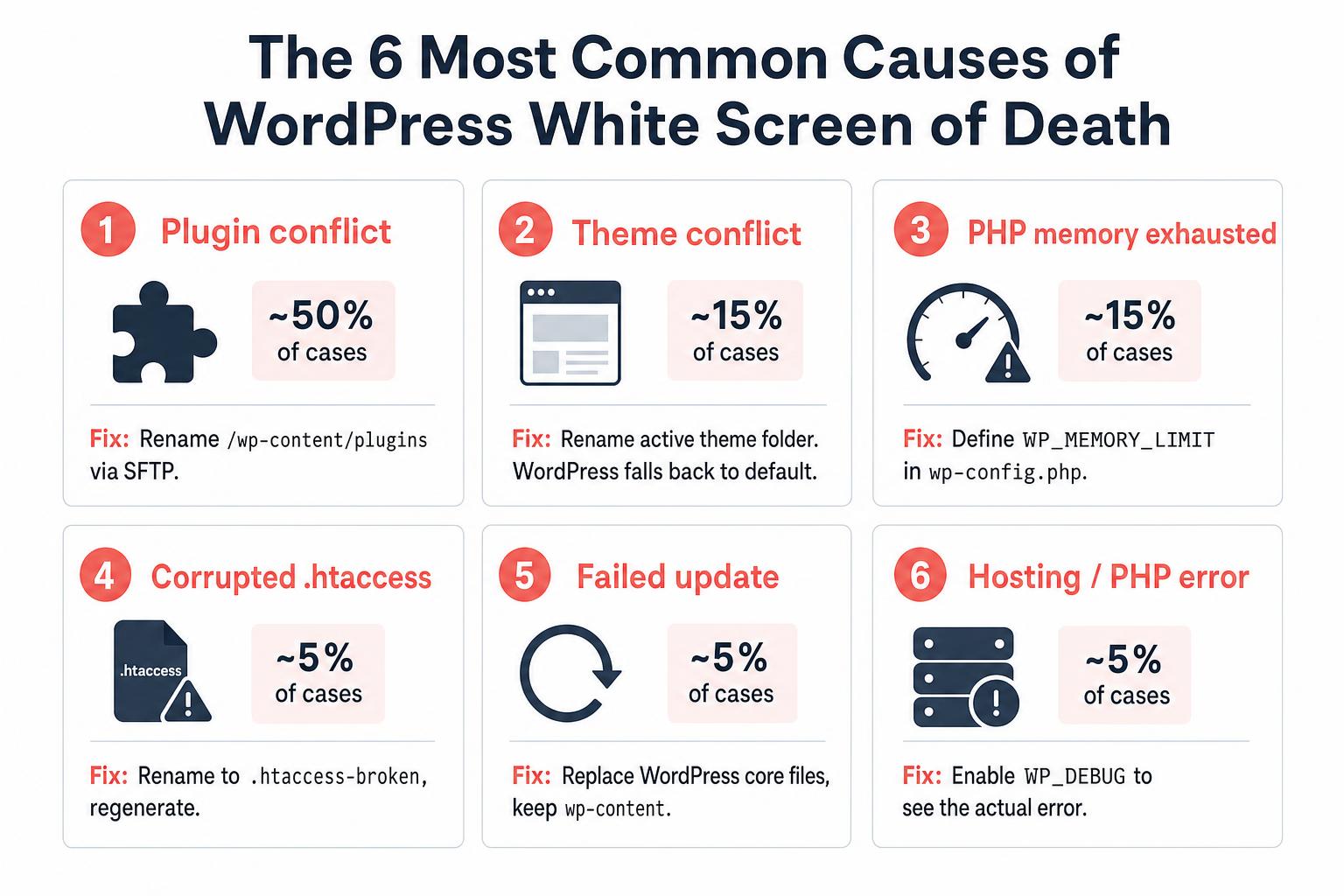
- Plugin conflict: a plugin update broke compatibility with your PHP version, theme, or another plugin. By far the most common (~50% of cases).
- Theme conflict: a theme update or a custom theme function throws a fatal error.
- PHP memory exhaustion: WordPress ran out of memory mid-render. Common after installing memory-hungry plugins or running heavy admin tasks.
- Corrupted .htaccess file: a stray character or bad rewrite rule breaks request routing entirely.
- Failed core update: a WordPress auto-update interrupted partway through, leaving core files inconsistent.
- Hosting / PHP issue: server out of memory, PHP-FPM crashed, file permissions broken, or a PHP version your code doesn’t support.
Work through them in order of likelihood. The plugin check is the most likely fix on its own.
Fix #1: Disable Plugins via SFTP (the bisection method)
This is the single most useful WordPress troubleshooting move and it works without admin access. Connect to your site via SFTP, SSH, or your host’s file manager:
- Navigate to
/wp-content/. - Rename the entire
pluginsfolder toplugins-disabled. - Reload your site.
If the site loads, a plugin was the culprit. To identify which one:
- Rename
plugins-disabledback toplugins. (All your plugins are still deactivated because WordPress noticed the folder was missing.) - Inside the plugins folder, rename each individual plugin’s folder one at a time, adding
-disabledto each name. - Log into
wp-adminand reactivate plugins one at a time, reloading the site after each one. - The plugin you reactivate when WSOD returns is the offender. Don’t reactivate it until you’ve updated it or replaced it.
This bisection method works on every WordPress install regardless of host, theme, or version. It’s the answer to “I can’t even reach wp-admin” because nothing here requires admin access.
Fix #2: Switch to a Default Theme
If disabling plugins didn’t restore the site, the next suspect is your active theme. The fastest way to test this without admin access:
- Connect via SFTP and navigate to
/wp-content/themes/. - Rename your active theme’s folder (add
-disabledto the name). - WordPress will fall back to the default theme (Twenty Twenty-Five at the moment), assuming it’s still installed.
- Reload the site.
If the site loads on the default theme, you’ve narrowed the issue to your previous theme. From there you can either look for a theme update from the developer, switch to a different theme, or hire someone to fix the specific function that’s throwing the error.
If no default theme is installed (some custom installs delete them to save space), download the latest Twenty Twenty-Five from wordpress.org/themes/twentytwentyfive/ and upload its folder to /wp-content/themes/ via SFTP.
Fix #3: Increase the PHP Memory Limit
If WSOD shows up specifically when you’re loading the WordPress admin, importing content, or running a heavy plugin (page builder, backup plugin, eCommerce sync), memory exhaustion is a likely cause.
WordPress’s default memory limit is 40MB on the front-end and 256MB inside wp-admin, which isn’t enough for some plugin combinations. To raise it, open wp-config.php and add these two lines above /* That's all, stop editing! */:
define( 'WP_MEMORY_LIMIT', '256M' );
define( 'WP_MAX_MEMORY_LIMIT', '512M' );
The first line raises the front-end limit. The second raises the admin limit (only kicks in inside wp-admin if a process needs more than the front-end limit). Save the file, reload the site.
If your hosting plan has a hard cap below your requested limit, the increase silently fails. Check with your host (or upgrade your plan). On managed WordPress hosts like Kinsta and WP Engine, memory is usually well-provisioned and the issue is more often a plugin running away than the limit being too low.
Fix #4: Rename or Regenerate .htaccess
A corrupted .htaccess file can break request routing entirely, sometimes causing WSOD on Apache hosts (LiteSpeed too).
- Connect via SFTP and find
.htaccessin the WordPress root (same folder aswp-config.php). It’s a hidden file, so make sure your file manager is showing hidden files. - Rename it to
.htaccess-broken. - Reload your site. WordPress permalinks will be broken until you regenerate the file, but if WSOD goes away you’ve found the cause.
- Log into
wp-adminand go to Settings -> Permalinks. Just click Save Changes without changing anything. WordPress regenerates a fresh default.htaccess. - If you had custom rules in the old file (redirects, security headers, browser caching), open the renamed
.htaccess-brokenin a text editor and copy them back into the new file outside the# BEGIN WordPressmarkers.
Fix #5: Replace WordPress Core Files
If WSOD started right after a WordPress auto-update or a manual upload that didn’t finish cleanly, core files may be corrupt or incomplete. The fix is to overwrite them with a fresh copy:
- Download the latest WordPress release from wordpress.org/download.
- Unzip it on your computer.
- Delete the
wp-contentfolder from the unzipped copy. You want to keep your existing one with your themes, plugins, and uploads intact. - Upload everything else to your live site via SFTP, overwriting existing files when prompted.
- Do not overwrite
wp-config.php(it contains your database credentials and salts).
This replaces every core file in wp-admin, wp-includes, and the root, while preserving your content and configuration.
Fix #6: Enable Debug Mode to See the Actual Error
If none of the steps above brought the site back, the underlying error is something more specific and you need to see it. WordPress’s debug mode surfaces the exact PHP error that’s causing the WSOD without exposing it to visitors.
Add these three lines to wp-config.php (above the /* That's all, stop editing! */ line):
define( 'WP_DEBUG', true );
define( 'WP_DEBUG_LOG', true );
define( 'WP_DEBUG_DISPLAY', false );
Reload the site, then check /wp-content/debug.log for the actual fatal error message. The log usually surfaces something specific like a PHP version mismatch, a missing function, or a class conflict between two plugins. Once you have that error, you know exactly what to fix.
Our full WordPress debug mode guide covers the production-safe variant of this snippet (six constants), how to read the log effectively, and Query Monitor as a debugging plugin alternative.
When you’re done debugging, set all three back to false or remove them entirely. Leaving debug logging on permanently grows the log file indefinitely.
When You Can’t Even Access SFTP
Some shared hosts give you a web-based file manager but no SFTP credentials by default. Every major host (cPanel-based ones, Bluehost, SiteGround, Hostinger, Kinsta, WP Engine, Rocket.net, etc.) has a “File Manager” tool inside its dashboard that lets you do everything we covered above (rename folders, edit files, replace core).
If you’re locked out entirely (can’t reach the dashboard, no file manager, no SFTP), the fastest path is your host’s support chat. Most hosts will rename a plugin folder for you in five minutes if you describe the WSOD to them.
How to Prevent the White Screen of Death
Once the immediate fire is out, a few habits make WSOD far less likely to recur:
- Use a staging environment for plugin and theme updates. Most managed WordPress hosts (and many shared hosts) include one-click staging. Update there first, click around, then push to production.
- Set
WP_AUTO_UPDATE_COREto'minor'in wp-config.php so security patches still auto-apply but major version updates wait for you to push the button. - Run regular automated backups with a plugin like UpdraftPlus or your host’s built-in backup tool. If WSOD does happen, restoring from yesterday’s backup is often faster than diagnosing.
- Keep your PHP version current. Hosts running PHP 7.x in 2026 are common, but most modern plugins target PHP 8.1 or higher. PHP version mismatches are a top WSOD source.
- Don’t pile on plugins. Every plugin is a potential WSOD vector. If you can replace a plugin with a code snippet in
functions.phpor a single line in wp-config.php, do it. - Pick a host with good rollback support. Managed WordPress hosts can usually restore your site to “an hour ago” if something breaks. See our hosting recommendations.
Frequently Asked Questions
What’s the difference between WSOD and a 500 error?
Both are server-side errors, but they’re different layers of the stack. WSOD is a totally blank white page, which means PHP started executing, hit a fatal error, and aborted before sending any output. A 500 error is a server-level “something went wrong” page (usually with the host’s branding), often caused by .htaccess issues or PHP-FPM crashes happening before any PHP code ran. The fixes overlap, but WSOD almost always points to PHP / WordPress, while a 500 often points to web server config.
Why does WordPress show a blank page instead of a real error?
Out of the box, WordPress and PHP are configured to NOT display errors to visitors. That’s a security best practice (you don’t want PHP stack traces leaking server paths and code structure to attackers). When a fatal error happens with display turned off, the result is just a blank page. Enabling debug mode (Fix #6 above) is what flips this so you can see the underlying error.
Will I lose my content fixing this?
Almost never. Every fix on this page (renaming plugins, switching themes, replacing core files, increasing memory) is non-destructive. Your posts, pages, comments, uploads, and database stay completely untouched. The one exception is if you restore from a backup, where you’d lose any content created after the backup was made.
Does Recovery Mode (WP 5.2+) prevent WSOD entirely?
Mostly, yes. Recovery Mode catches fatal errors that originate in plugins or themes (most WSODs) and pauses the offending code while sending you a recovery link. It does NOT catch errors that come from WordPress core itself, your wp-config.php, your server (PHP-FPM crash, out of memory at the OS level), or before WordPress’s recovery handler loads. So WSODs from those sources still show as a blank page.
Why didn’t I get a Recovery Mode email?
Common reasons: (1) The error wasn’t a WordPress-level fatal error (server crashed instead). (2) Your site can’t send email at all (no SMTP configured, transactional email plugin failing). (3) The Administration Email under Settings -> General is wrong or no longer accessible. (4) The email landed in spam, so always check your spam folder. (5) The error happens before WordPress’s recovery handler loads, which can happen with corrupt core files.
How do I fix WSOD without admin access?
That’s actually the standard scenario for WSOD, since admin access requires the site to render. Every fix on this page works without wp-admin: renaming the plugins folder, switching themes, editing wp-config.php, regenerating .htaccess, replacing core files. All you need is SFTP, SSH, or your host’s file manager.
Wrapping Up
The WordPress White Screen of Death looks scary because it takes the whole site offline at once with no message. The first thing worth confirming is whether the site is down for everyone or just you, which our free uptime checker shows in a second. The actual fix is almost always quick: check your email for a Recovery Mode link first, then disable plugins via SFTP, then test the theme, then look at memory and .htaccess. Six or seven minutes from “site is down” to “site is back” once you know the order.
If you want to see the actual underlying error rather than guess, our WordPress debug mode guide walks through how to enable it without leaking errors to visitors. And if WSOD turns into a different kind of failure (database error, 401 from the REST API, broken redirects), our database connection guide and .htaccess guide cover the cluster.
Let me know in the comments if any of these fixes worked for you, or if you ran into a variant worth adding to the list.