
By default, Elementor gives you the Font Awesome icon library, which covers a lot but still leaves gaps. The TikTok logo isn’t included, for example, and you may want your own brand icons or custom SVGs.
To add custom icons to Elementor, turn your icon into an icon font kit (using a free tool like Fontello), then upload that kit under Elementor’s Custom Icons screen. Once uploaded, your icons appear in the icon library of every Elementor widget. Uploading a full icon set needs Elementor Pro, but you can add a single SVG icon in any widget with the free version too (covered near the end).
In this guide I will show you step-by-step how to add custom icons to Elementor, including missing brand icons and your own custom SVG icons.
- Custom icon sets are added under Elementor > Custom Icons. Recent versions place this inside the Elementor Home screen.
- Uploading a full icon set requires Elementor Pro. Uploading a single SVG inside a widget works in the free version.
- Turn any SVG into an icon font kit with a free tool like Fontello, and give each kit a unique prefix so the icons don’t collide.
- Elementor sanitizes SVG uploads automatically once you enable unfiltered file uploads under Elementor > Settings > Advanced.
- For Font Awesome Pro, paste your Kit ID under Elementor > Settings > Integrations instead of uploading a ZIP.
Video Tutorial
Prefer to watch a video? Here’s my step-by-step guide in video form.
Below is the full step-by-step tutorial.
1.. Download (or make) the Custom Icon You want to Add to Elementor
To add to the Elementor icon library you’ll need SVG files. These are like image files that are scalable, so they can be used at any size by Elementor.

Want to create custom icons? You can make custom SVG files by using a vector image editor like Adobe Illustrator.
If you’re just looking to add an existing logo like the TikTok logo, for example, there are plenty of resources to do so. You could Google “*Brand Name* SVG” to find SVG files of your favorite logos and symbols.
In this example, we’ll be using SimpleIcons.org to download the TikTok logo, but there are over 3,200 brand icons to use on this site.
You can use the search on the top left to find the icon you want. So typing TikTok will show the TikTok logo for download.

2.. Create a Custom Icon Pack on Fontello
Now that you have an SVG graphic to use, you’ll need to turn it into an icon pack for Elementor. This can easily be done using the online tool Fontello.
Fontello offers a slew of icons to use, but in this example we’ll be using the custom TikTok logo we just downloaded. This will also work with any SVG graphic you’ve made or downloaded.
Simply drag your SVG file into Fontello.
Once the icon is in Fontello, click the icon to add it to your pack.
Set a unique prefix first. Click the wrench (tools) icon in Fontello and give your pack a unique name and CSS prefix. This keeps your custom icons from clashing with Font Awesome or another icon set once they are in Elementor, which is a common cause of an icon showing up as the wrong symbol.
Once you’ve picked the icons you want in Fontello, give your pack a name on the top right and click “Download webfont”.
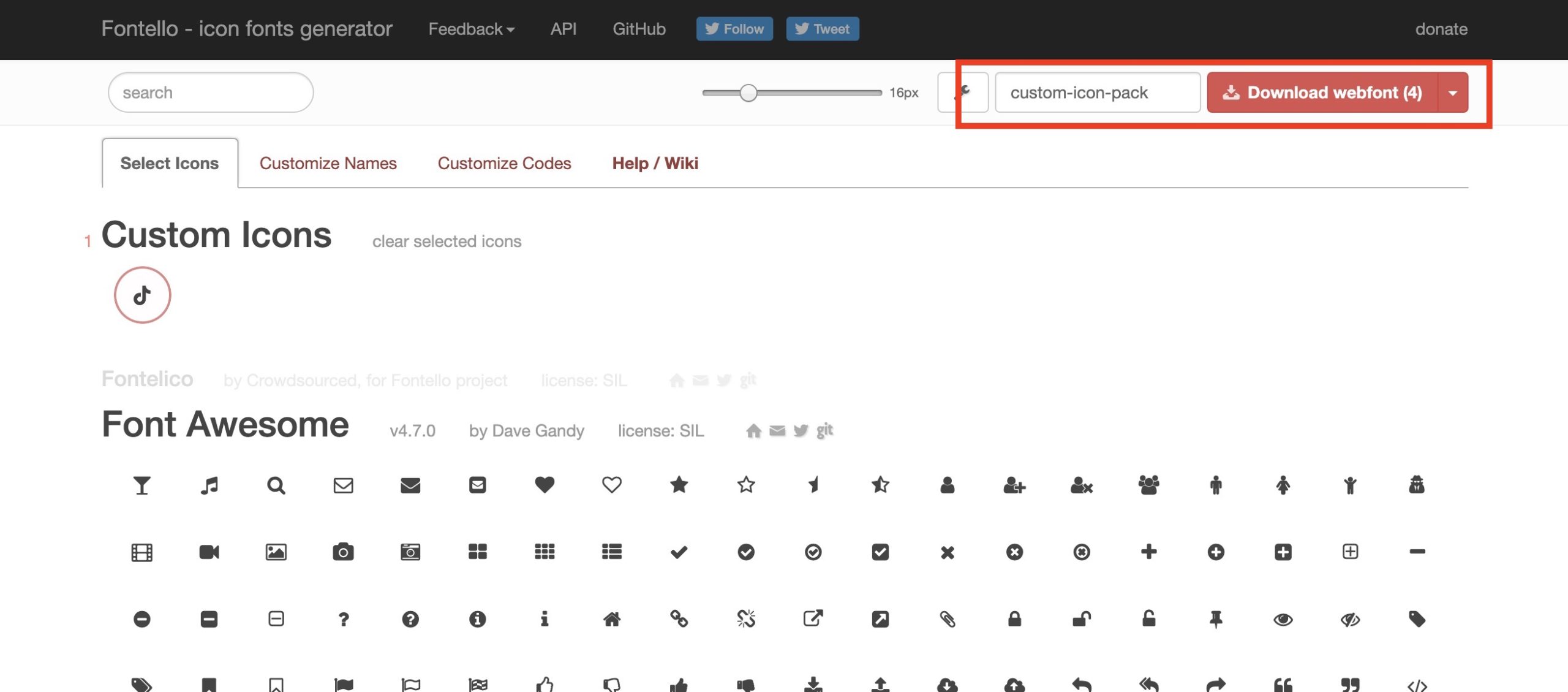
This will download a zip file to your computer. Once you have your zipped webfont you can bring it over to Elementor.
For Safari users: Safari will automatically unzip the file that is downloaded. You can download the zip using a different browser, or right-click the folder on Mac and click “compress” to re-add it to a zip file.
3.. Adding the Custom Icons Webfont in Elementor
Now that you have your custom webfont, head to Elementor>Custom Icons. In recent versions of Elementor this screen moved into the Elementor Home hub, so if you don’t see it in the sidebar, open Elementor and look for Custom Icons there.
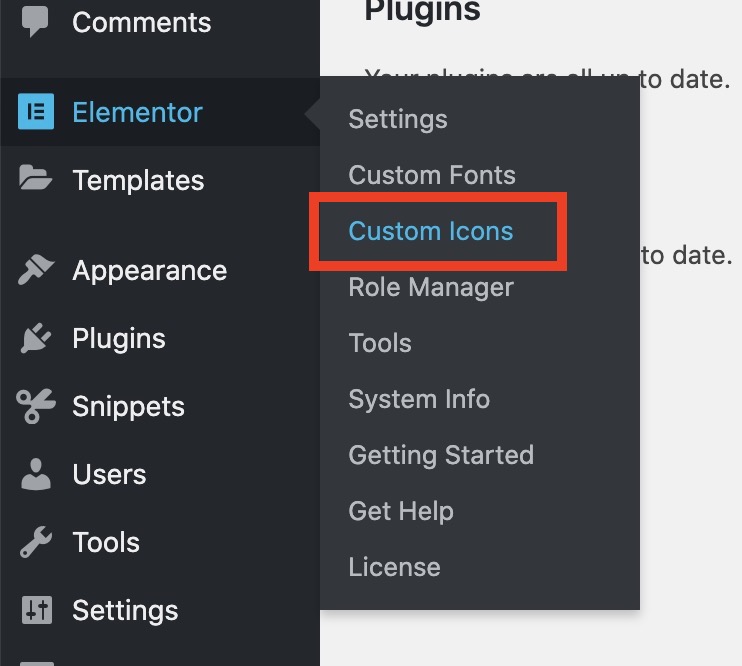
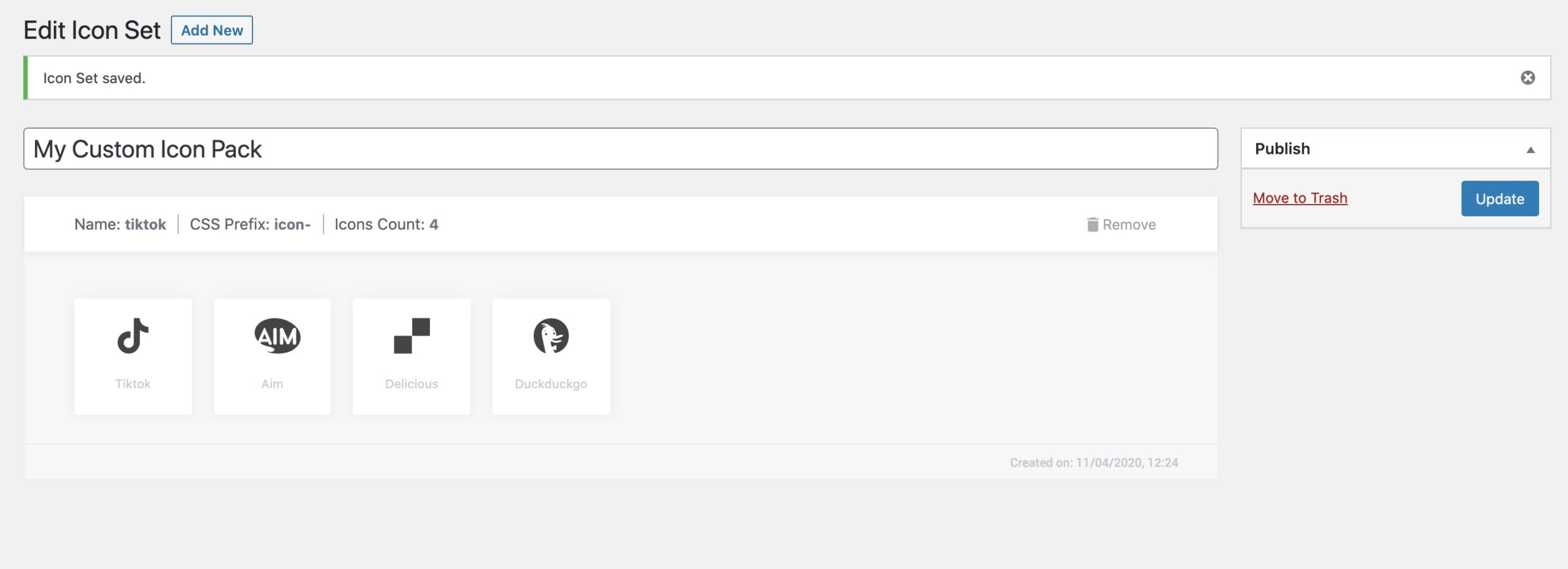
Click Add New Icon Set, then upload your newly created zip file to inject the icons into Elementor. You can upload the zip like you do any file in WordPress.

Once you upload your icon pack to this page, it’ll instantly show your icon pack.
4.. Using Custom Icons in Elementor
Now that your custom icons are added to Elementor, you can use them anywhere in Elementor that has the option to add icons. For example, the social icons block in Elementor lets you select icons for each social network.
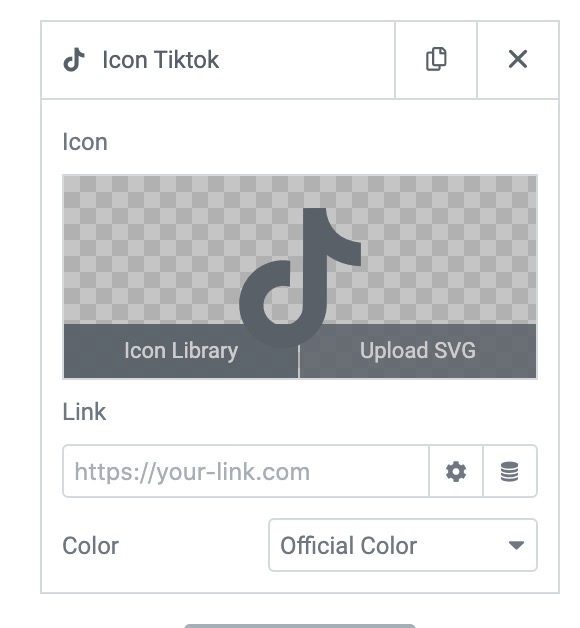
By clicking on icon library, it’ll bring up all of the icons in Elementor, including the ones you’ve added.
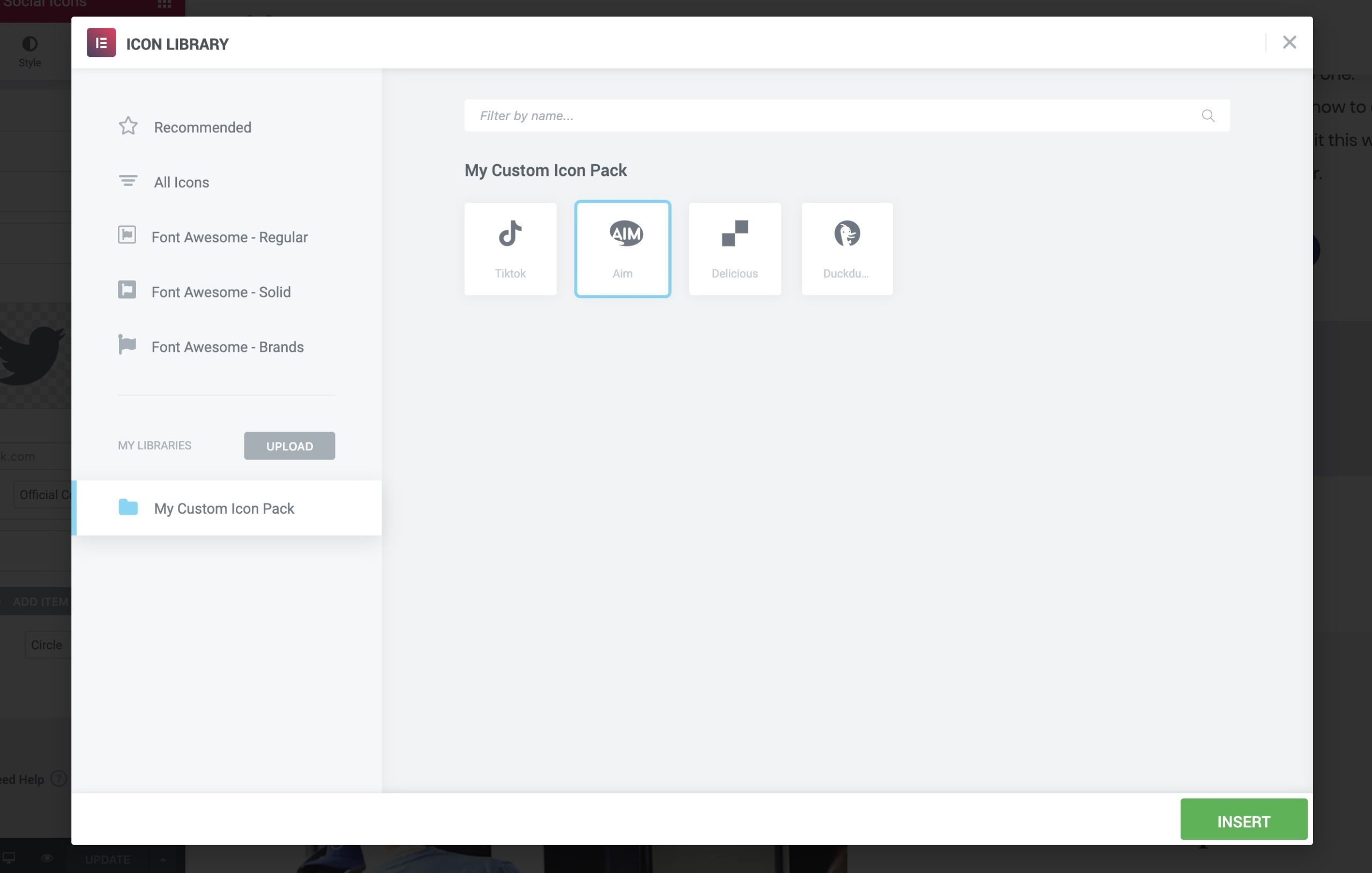
After selecting your icon, you’ll now see it on the front end of your site.
Add a Single SVG Icon Without Elementor Pro
If you only need one icon and don’t want to build a font kit, the free version of Elementor lets you upload an SVG directly. In any widget with an icon control, click the icon, then choose Upload SVG instead of the icon library.
The first time you upload an SVG, Elementor shows a security prompt. You can enable it there, or ahead of time under Elementor>Settings>Advanced by setting Enable Unfiltered File Uploads to Enable. Elementor sanitizes SVG files on upload and inserts them inline, so the main rule is to only upload SVGs from sources you trust. For an extra layer of safety, the Safe SVG plugin adds its own sanitization, though it is optional.
Using Font Awesome Pro Icons in Elementor
If you have a Font Awesome Pro subscription, you don’t need to upload a kit at all. Go to Elementor>Settings>Integrations, find the Font Awesome Pro section, and paste your Kit ID. Your Pro icons (Light, Duotone, and the rest) then appear directly in the Elementor icon library alongside the free Font Awesome set.
Troubleshooting Custom Icons in Elementor
A few issues come up often when adding custom icons:
- Icons show as the wrong symbol: two icon sets are sharing a prefix. Re-export your kit from Fontello with a unique CSS prefix.
- The icon won’t resize: your SVG has a fixed width and height baked in. In the widget’s Advanced tab, add custom CSS:
selector svg { width: 100% !important; height: 100% !important; } - The color picker won’t change the icon: set the SVG’s fill to
#000000in the source file so Elementor can recolor it. For Font Awesome Pro, set your kit to Web Font rather than SVG, since an SVG fill is not controlled by the WordPress color picker.
Success! If you have any issues adding icons to Elementor, feel free to let us know in the comments below.





8 Responses
very helpful thank you! i see the icons in the editor of page edit mode. but in frontend icon is missing. the neccessary new css-file is missing in frontend. why?
me too, i hope there is an easy remedy to this… coz it really wasted my time..
Weird it works for me, can you send your fontello zip file? You can send it on dropbox. Did you give it a name in fontello? I think if you leave that blank it’ll cause issues.
I keep getting an error upon attempting to upload my fontello-processed zip file. Frustrating 🙁
Thanks for this — it was maddening trying to figure this out.
hi, i did this method but the icon image didn’t get uploaded, just the icon name
see image – https://snipboard.io/iTdZ5n.jpg
I have the same issue. Any suggestions yet?
same for me