The fastest way to customize your WordPress login page is with a plugin like Login Customizer by Colorlib (drag-and-drop, no code). If you’d rather not add a plugin, you can change the logo, link, and styling with a few lines in functions.php using WordPress’s built-in login hooks. This guide covers both.
Whether you’re rebranding the admin area for a client site, building a multi-author blog, or just want the login screen to match your theme, both approaches work. The plugin route is faster for non-developers; the code route gives you full control and one less plugin to maintain.
- The fastest way to customize the login page is a plugin like Login Customizer by Colorlib (drag-and-drop, no code).
- Without a plugin, a few functions.php snippets change the logo, link, and styling using WordPress’s built-in login hooks.
- Swap the WordPress logo, restyle the form, and repoint the logo URL with the
login_headerurland related hooks. - Use a generic login error message so you don’t leak which usernames exist (a small security win).
Video Tutorial
Read below for the full tutorial on customizing the WordPress admin login page:
How to Customize your WordPress Login using a Plugin
There are a lot of WordPress plugins that let you customize the WordPress login page but the one we recommend is Custom Login Page Customizer by Colorlib. The plugin adds simple to use settings to the WordPress customizer where you can easily design your admin login page.

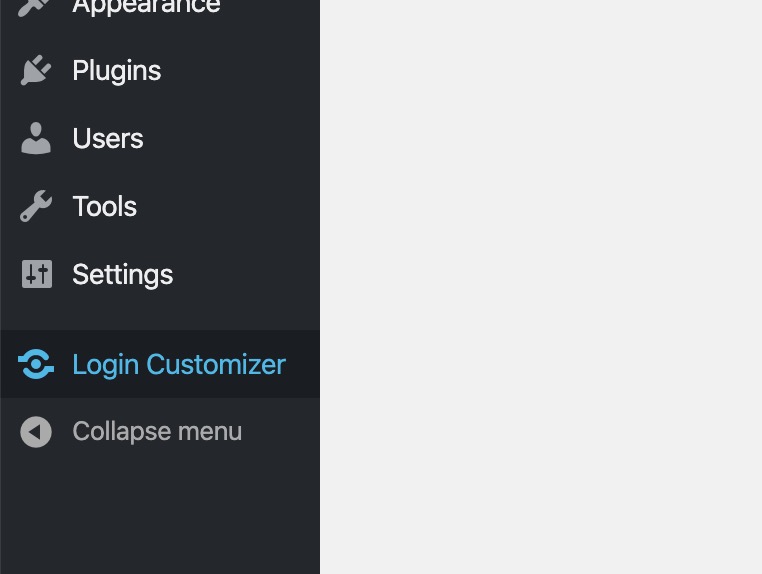
After installing and activating the plugin you’ll see the “Login Customizer” option in your WordPress admin sidebar.
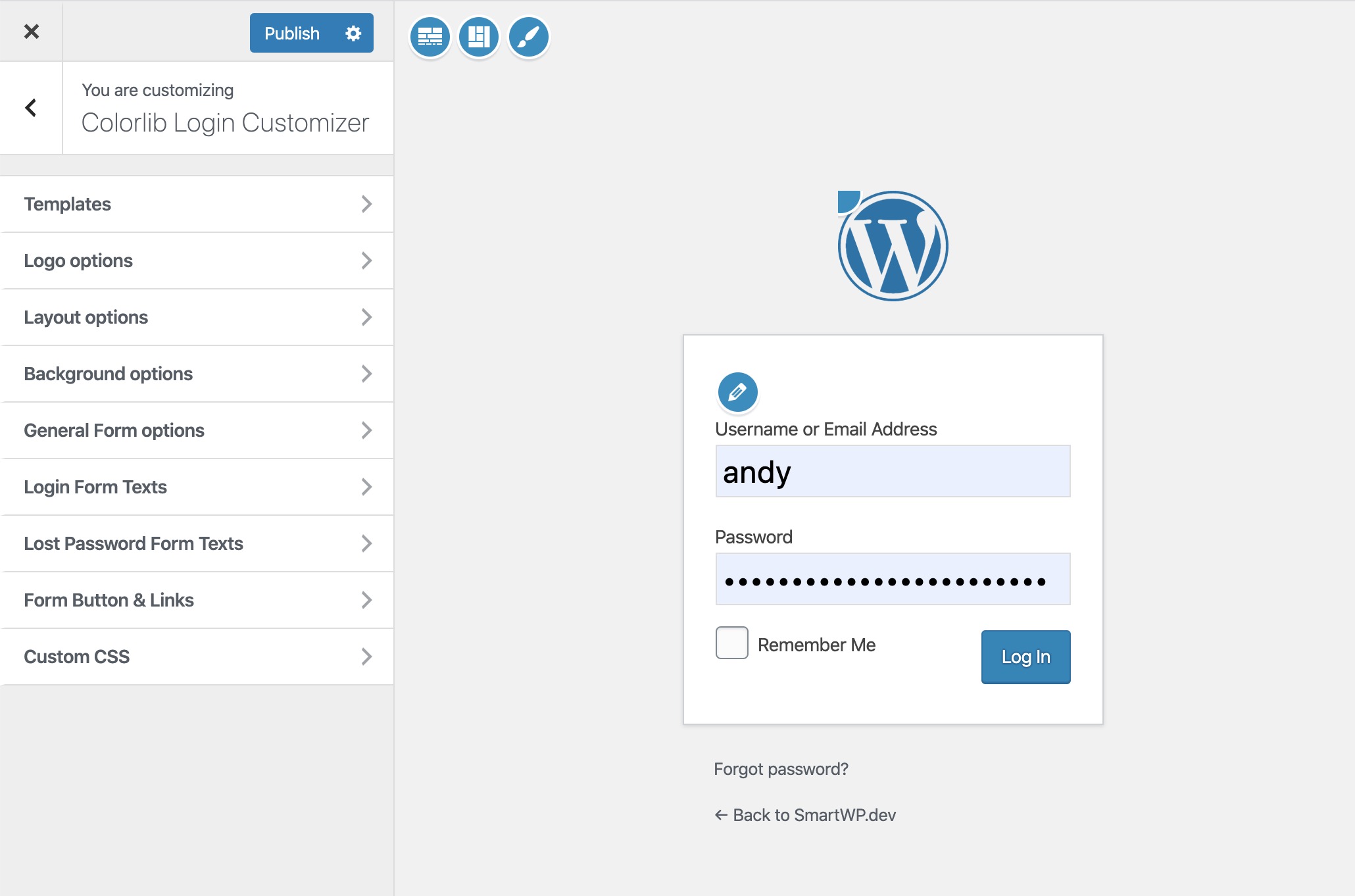
After going to the customizer you’ll be greeted with many options for your WordPress login page. This includes templates, logo options, layout options, background options, form options, text options, and for advanced users custom CSS.
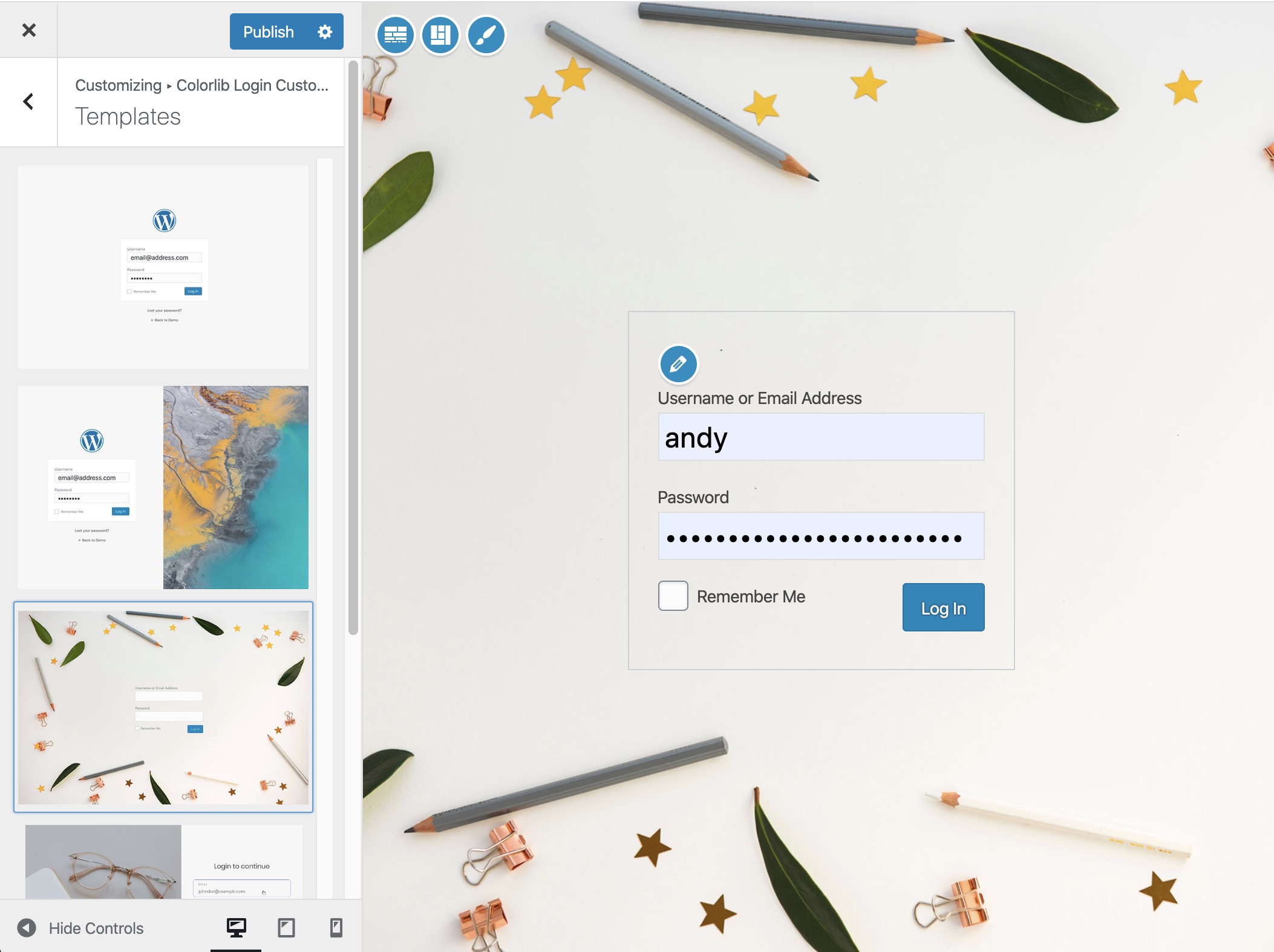
If you don’t feel like customizing it yourself there are a handful of templates as well to class up your login.
Most users will want to change the logo on the WordPress login page. This plugin allows you to set a custom image file, set a height and width, and even change the URL of where clicking the logo goes.
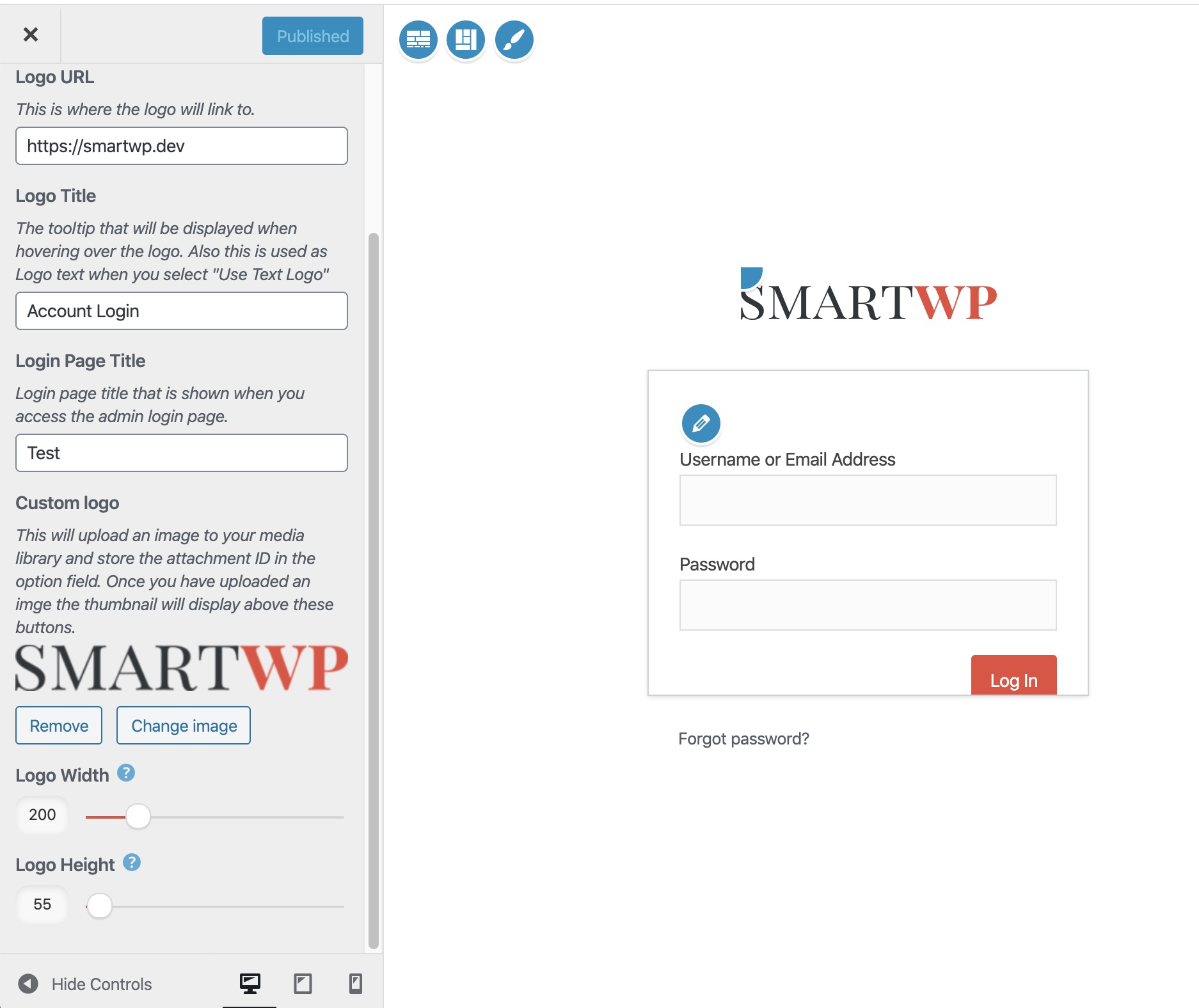
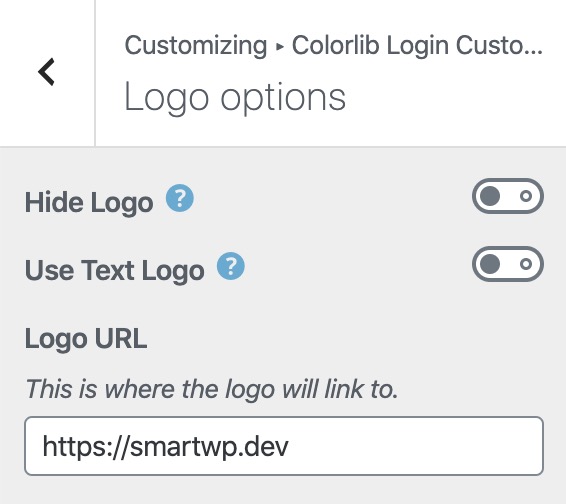
In the logo options you’ll also have the ability to hide the logo all together or use a text as the logo.
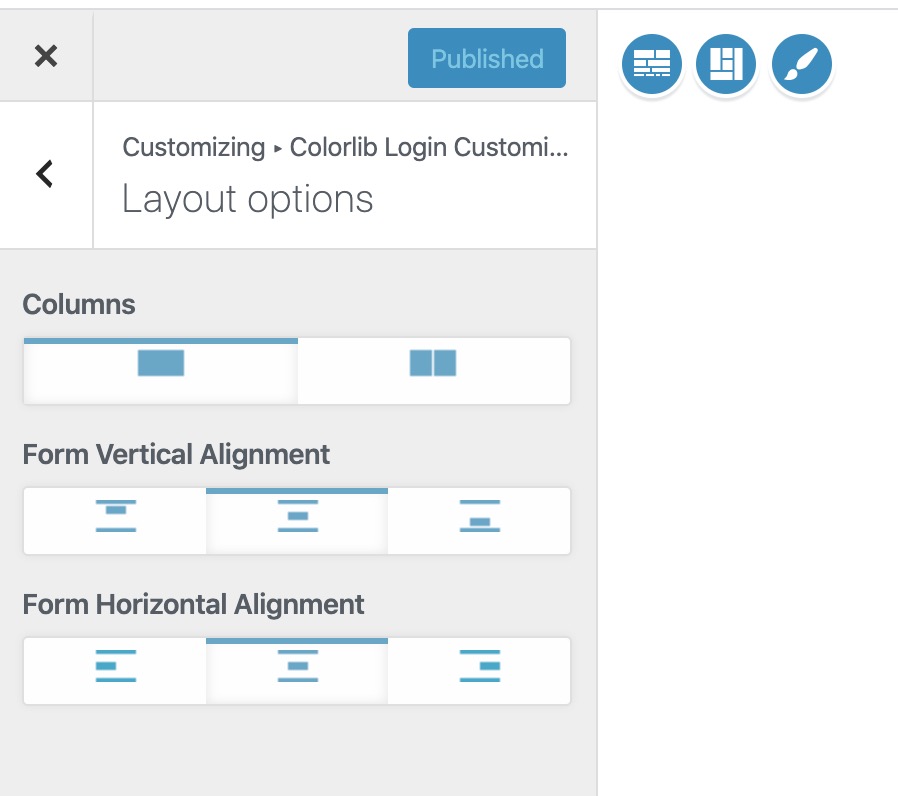
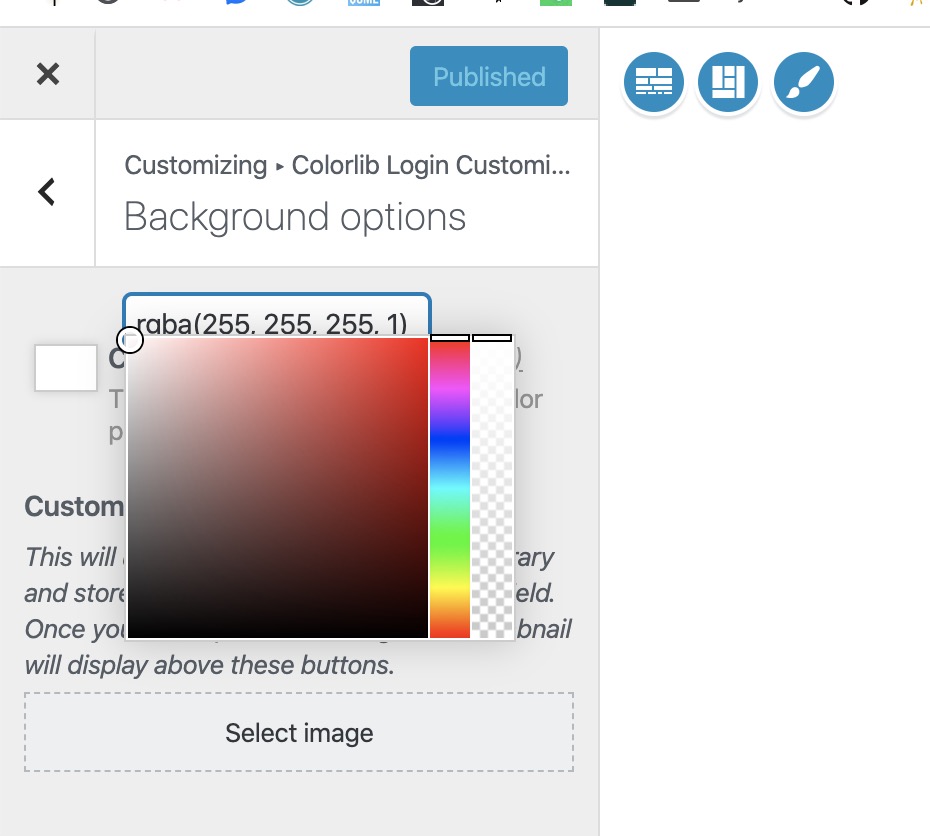
The rest of the options in the plugin are self explanatory but you can change the layout of the login page, colors of buttons, and even the background design.
For color ideas check out ColorKit’s color palettes.
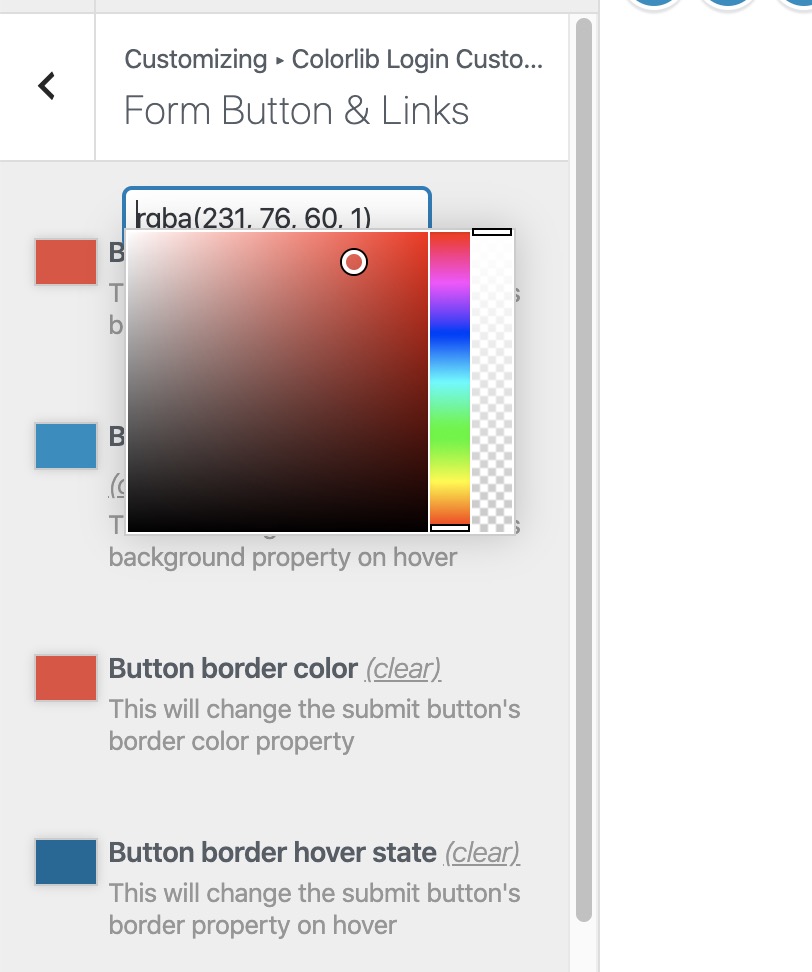
Additionally the plugin allows you to edit texts of the login page so if you want to change the wording “Lost your password?” to “Forgot Password?” you can easily do that.
Adding Custom CSS to WordPress Login Page using Functions.php
Here is how to add custom CSS to your WP login if you are familiar with modifying your function.php or using a plugin like Code Snippets to add code to your site.
Drop this into your theme’s functions.php file (or a custom plugin). It hooks into the login_enqueue_scripts action and inlines a <style> block on the login page only:
function smartwp_login_page_custom_css() {
    ?>
    <style>
        body.login {
            background: #f3f4f6;
        }
        body.login h1 a {
            background-image: url('https://yoursite.com/wp-content/uploads/logo.png');
            background-size: contain;
            width: 320px;
            height: 80px;
        }
        body.login #loginform {
            border-radius: 8px;
            box-shadow: 0 1px 3px rgba(0,0,0,.1);
        }
        #backtoblog {
            display: none;
        }
    </style>
    <?php
}
add_action( 'login_enqueue_scripts', 'smartwp_login_page_custom_css' );
That swaps the WordPress logo for your own, restyles the form container, hides the “Back to {site}” link, and gives the page a softer background. The reference for every CSS class used on the login screen is in the Customize Login Screen guide on developer.wordpress.org.
Useful Login Hooks (Logo URL, Error Messages, Redirect)
The CSS above changes how the login page looks. These three filters change how it behaves. All three go in functions.php alongside the snippet above.
Change where the logo links to:
add_filter( 'login_headerurl', function() {
    return home_url();
} );

add_filter( 'login_headertext', function() {
    return get_bloginfo( 'name' );
} );
By default the WordPress logo links to wordpress.org. These two filters point it at your home page and update the title attribute to your site name.
Hide the “Lost your password?” link or rename it:
add_filter( 'gettext', function( $translated, $original, $domain ) {
    if ( 'Lost your password?' === $original ) {
        return 'Forgot your password?';
    }
    return $translated;
}, 10, 3 );
Generic error messages (security best practice):
add_filter( 'login_errors', function() {
    return 'Login failed. Please check your credentials and try again.';
} );
WordPress shows different errors for wrong username vs. wrong password, which leaks information about which usernames exist on your site. The filter above replaces both with a single generic message.
Other Login Customizer Plugins
Login Customizer by Colorlib is a solid free option, but a few others are worth knowing about depending on what you need:
- LoginPress: the most popular paid option. Free version covers logo, background, and form styling; Pro adds session expiry, custom redirects, hCaptcha integration, and a library of templates.
- Theme My Login: lets you build a fully custom login page using your theme’s templates (so the login screen visually matches the rest of your site). Useful for membership and learning sites.
- Custom Login Page Customizer by WPBrigade: same idea as Colorlib’s plugin, slightly different UI. If Colorlib’s isn’t updated frequently enough for your taste, this is the obvious alternative.
If you’re already running a security plugin like Wordfence or Kadence Security, check whether it includes a custom login page feature first. There’s no need to stack a separate customizer plugin if your existing security plugin already does it.
Frequently Asked Questions
Do I need a plugin to customize my WordPress login?
No. The functions.php approach above gives you full control over the logo, styling, and link behavior with about 30 lines of code. Plugins make the same changes faster if you don’t want to touch code, but they’re not required.
Will customizing the login page affect security?
Changing the look doesn’t affect security one way or the other. But if you customize the error messages (using the login_errors filter above) you actually improve security by not leaking whether a username exists. Pairing login customization with a plugin like a custom login URL or two-factor auth gives you a real security upgrade.
Can I customize the login page for specific user roles?
Yes, but it takes more code. The login_redirect filter lets you redirect users to different pages based on their role after they log in. For a fully role-specific login experience (different styling for editors vs. subscribers, for instance), Theme My Login is the cleanest option since it uses your theme’s template system.
Where is the WordPress login page file?
The login page is rendered by wp-login.php in your WordPress root directory. Don’t edit that file directly: WordPress overwrites it on every core update. Use the action and filter hooks shown in this guide instead.
How do I change the URL of the WordPress login page itself?
That’s a different problem (security through obscurity to reduce bot login attempts). See our guide on how to change your WordPress login URL for the recommended plugins and approach.
That covers both routes: a plugin if you want to drag and drop, or 30 lines of functions.php if you want full control without an extra dependency. For a polished result, my preference is the code route paired with a security plugin that already handles login URL changes and brute-force protection. Less plugin sprawl, same result.
While you’re tightening up the login experience, see our guides on changing your WordPress login URL and application passwords for the security-and-flexibility side of the equation. For what actually keeps the login itself safe, see our guide to WordPress login security.