
To stop WordPress spam comments fast, combine three things: WordPress’s built-in comment settings (Settings → Discussion, which is also where you set the order comments display in), a spam-filtering plugin like Akismet or Antispam Bee, and a bot-blocking layer like Cloudflare Turnstile or reCAPTCHA. That stack alone kills 90%+ of automated spam. For the rest (AI-generated comments that slip past traditional filters), you need an AI-powered filter.
Below I’ll walk through 13 specific methods, from the free WordPress-native settings to modern tools like Cloudflare Turnstile, honeypots, and AI-based solutions. I’ll also flag the three or four that actually matter most (in my experience running WordPress sites for the last 15 years) and an FAQ for the questions that come up once spam has already gotten out of hand.
If you want the fastest path to zero spam, the AI-powered service I built, RightComments, handles the whole problem automatically. More on that at the bottom.
- Stop comment spam by combining WordPress’s built-in Discussion settings, a spam-filter plugin like Akismet, and a CAPTCHA or honeypot.
- Require comment approval and turn off comments on older posts where spam tends to pile up.
- Spam comments hurt your site’s quality signals, page speed, and reputation if they slip through.
- For a hands-off fix, disable comments entirely on pages that don’t need them.
Why spam comments hurt your WordPress site
Spam comments do far more damage than clutter your moderation queue:
- Search engines can penalize sites stuffed with low-quality outbound links, which is exactly what spam comments create.
- Real readers won’t comment on a blog where the first three comments are promotional garbage. Engagement dies.
- Plenty of spam comments contain malicious phishing links. Letting them through is a security liability for your visitors.
- Server and database cost grows as junk comments pile up in the database over years of neglect.
13 ways to stop WordPress spam comments
1. Enable comment moderation manually
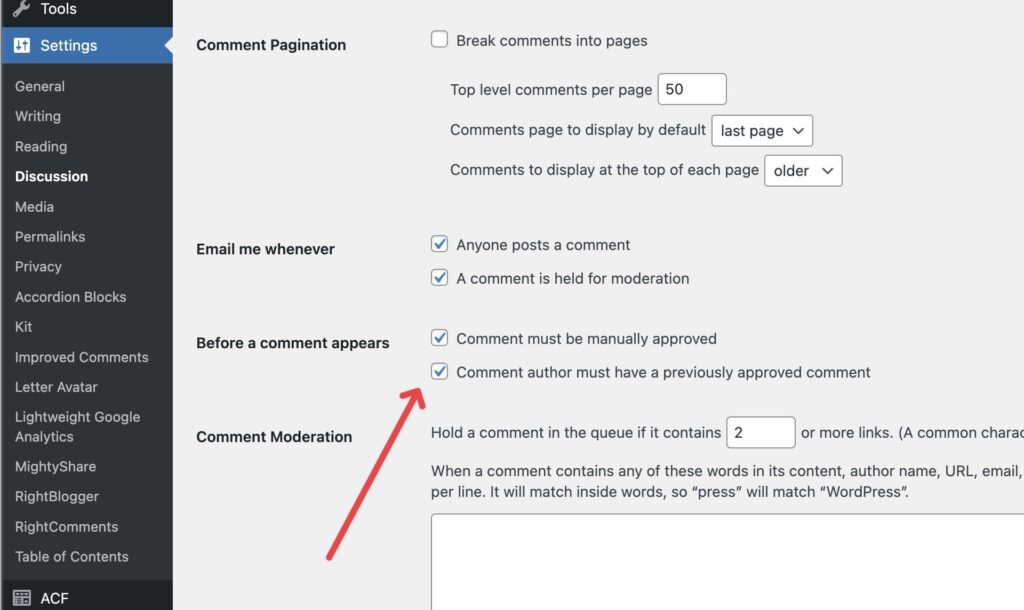
The simplest starting point. Manually approve every comment before it goes live. Visit Settings → Discussion and check:
- Comment must be manually approved
- Comment author must have a previously approved comment (optional, handy for returning readers)
Incoming comments now show up in your moderation queue waiting for approval. It works, but it’s time-consuming on any site that gets more than a few dozen comments a week.
2. Blocklist spammy words and phrases
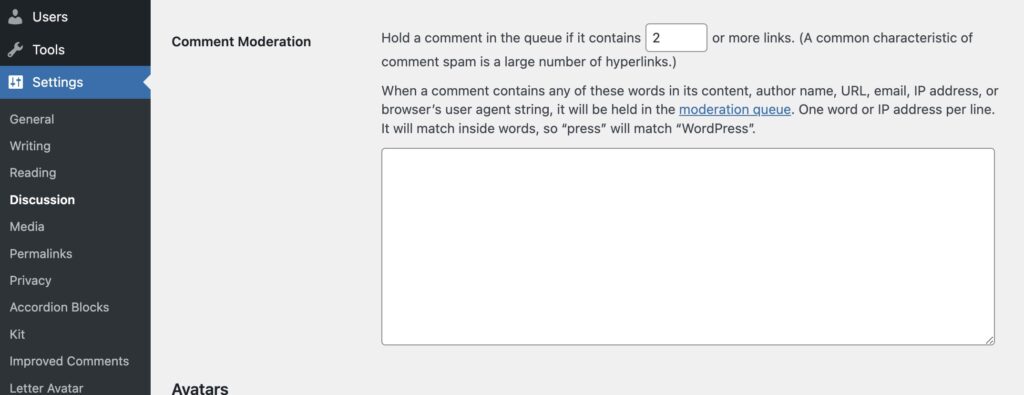
Spam comments reuse the same giveaway phrases. Navigate to Settings → Discussion and find the Disallowed Comment Keys box. Each line is a string WordPress will match against comment content, author name, URL, email, or IP. If there’s a match, the comment goes straight to trash. Common starter entries:
- free download
- click here
- visit my website
- cheap pills / loans / meds
- suspicious SEO keywords specific to your niche
Watch the false-positive risk: words like “free” or “download” are common in legitimate comments too. Stick to multi-word phrases.
3. Disable anonymous comments
Allowing anonymous comments generates more spam. Force commenters to provide a name and email:
- Go to
Settings → Discussion - Check “Comment author must fill out name and email”
For more granular control (blocking specific countries, limiting comment length, redirecting first-time commenters), the Yoast Comment Hacks plugin adds a bunch of these as separate toggles. I also wrote a dedicated guide on limiting comment length in WordPress if that’s the specific pattern you’re fighting.
4. Limit comment links automatically
Most spam exists to plant links. Cap the number of links per comment:
- Go to
Settings → Discussion - Under “Comment Moderation,” set the allowed number of links to 0 or 1. Any comment with more hits the moderation queue instead of going live.
Zero is aggressive; 1 is a reasonable middle ground that still lets a legit commenter cite one source.
5. Cloudflare Turnstile (the modern CAPTCHA replacement)
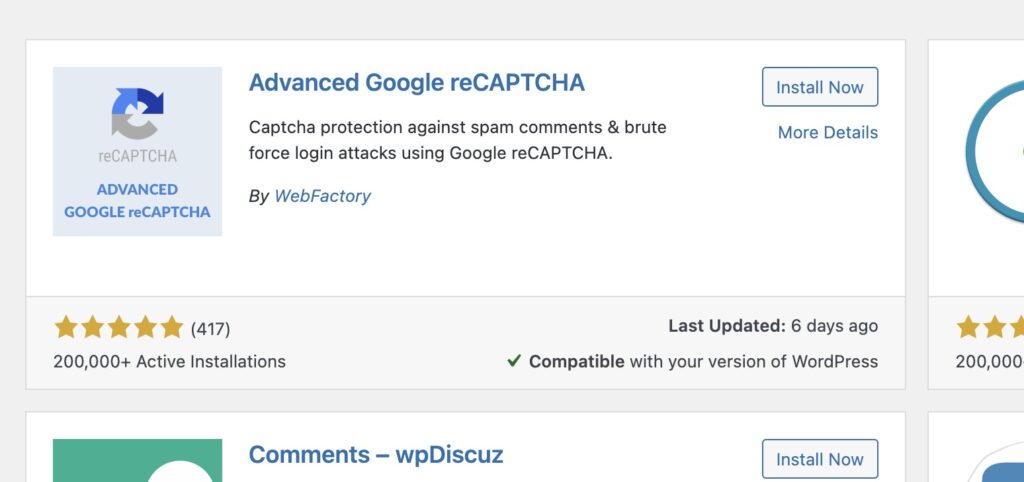
Google reCAPTCHA was the default for years, but Cloudflare Turnstile has taken over as the default in 2025-2026. It’s free, privacy-friendly, and usually invisible to real users (no “click all the traffic lights” test). It also works whether or not your site runs behind Cloudflare, which makes it a drop-in choice for any site.
The Simple Cloudflare Turnstile plugin adds it to the WordPress comment form with one checkbox. I’ve got a full walkthrough on adding Cloudflare Turnstile to WordPress if you want the step-by-step.
If you prefer Google reCAPTCHA v3, it’s also invisible and works well. The main reason I’ve switched sites to Turnstile is the privacy angle (no Google tracking) and the fact that it’s not constantly asking users to prove they’re human on low-signal sessions.
6. Add a honeypot field
A honeypot is an invisible form field that real humans can’t see (because it’s hidden with CSS) but bots auto-fill with their usual spam payload. If WordPress sees the honeypot filled, the comment gets rejected before it ever touches the database.
Plugins that implement this well:
- Antispam Bee (Method 10) uses honeypots by default.
- WPBruiser (free) is honeypot-only and very lightweight.
- CleanTalk (also Method 10) adds honeypots alongside its other checks.
The win here is no friction for real readers: there’s no CAPTCHA to solve, no extra form field to fill. Bots fail the test; humans don’t know it exists.
7. Require user registration before commenting
Limit commenting to logged-in users. Spammers rarely bother creating accounts, so this alone kills most automated spam:
- Go to
Settings → Discussion - Check “Users must be registered and logged in to comment”
The trade-off: legitimate one-time readers also need to sign up, which kills spontaneous comments. Worth it on membership or community sites, probably not on a general blog. For context on what each role can actually do when you open signups, see my guide on WordPress user roles and permissions.
8. Disable pingbacks and trackbacks
Pingbacks and trackbacks were a 2000s-era feature that WordPress still ships with. They’re almost entirely abused by spammers now. Unless you have a specific reason to keep them, turn them off:
Navigate to Settings → Discussion, then uncheck Allow link notifications from other blogs (pingbacks and trackbacks).
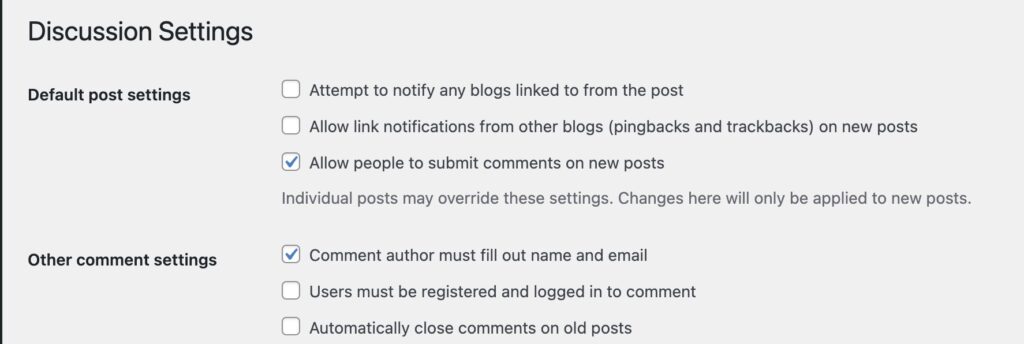
This setting only affects new posts. To turn them off for all existing posts in one batch, bulk-edit posts in the admin and set the Pings option to Do not allow.
9. Remove the URL field from the comment form
Most comment spam is a backlink play. Take the bait off the table by removing the Website field entirely. Drop this into your theme’s functions.php or a code snippets plugin. It uses the comment_form_default_fields filter hook to remove the URL field before the form renders:
function remove_comment_url_field( $fields ) {
    unset( $fields['url'] );
    return $fields;
}
add_filter( 'comment_form_default_fields', 'remove_comment_url_field' );
No URL field, no backlink, no incentive for most low-effort spam scripts. Real commenters rarely complain about this being missing.
The classics. All three work well, with slightly different philosophies:
- Akismet ships bundled with WordPress. Free for personal sites, paid for commercial. 500+ billion spam comments filtered over 15 years.
- Antispam Bee is the privacy-friendly free alternative. No third-party data sharing. Uses honeypots, regex filters, and custom rules. My personal favorite on most sites.
- CleanTalk is a paid cloud-based service with real-time filtering, invisible CAPTCHA, and cross-site learning.
You usually only need one. Stacking three creates weird conflicts and slows comment submission.
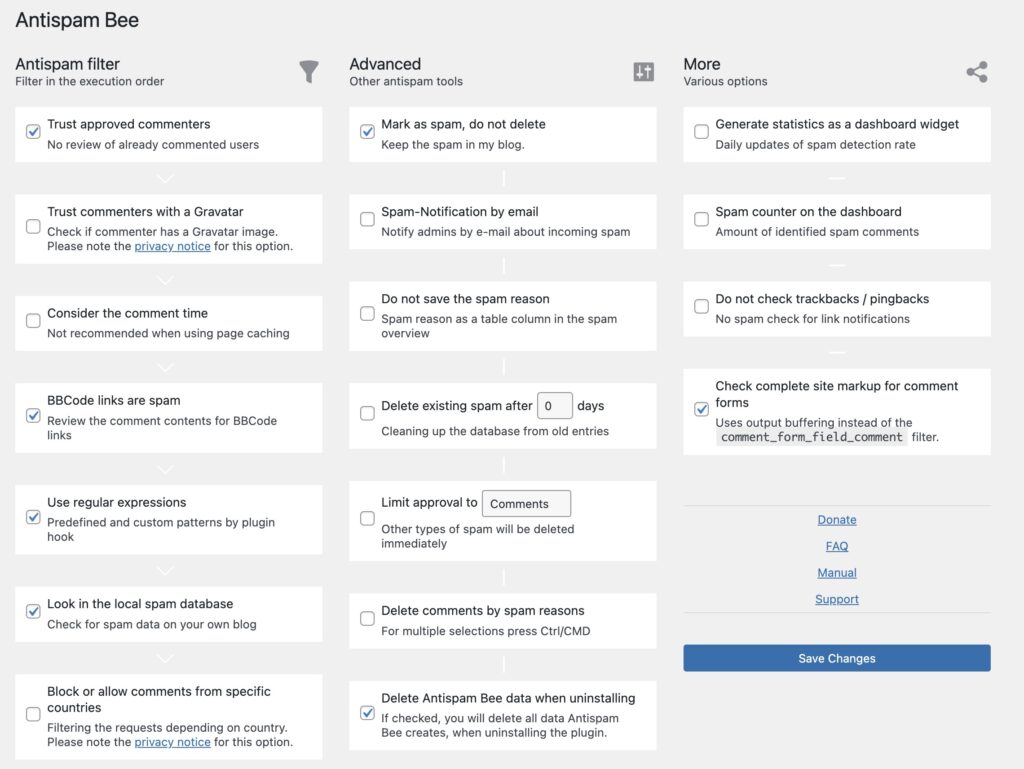
11. Block spam at the firewall level (Cloudflare, Sucuri, Wordfence)
Most of the methods above filter spam after it hits your server. A web application firewall blocks malicious traffic before it ever reaches WordPress.
- Cloudflare (free tier is genuinely useful) offers bot fight mode, challenge pages, and rate limiting.
- Sucuri is a paid service with malware scanning plus a cloud WAF.
- Wordfence runs a firewall inside WordPress itself (no external dependency, slightly heavier on your server).
If you already use Cloudflare for DNS and CDN, turning on Bot Fight Mode from the dashboard takes 30 seconds and kills a lot of form-submitting bots outright.
12. Close comments on older posts
Spammers target old posts disproportionately because those posts have more authority and the owners are less likely to notice new comments. Auto-close commenting on posts after a set number of days:
- Go to
Settings → Discussion - Check “Automatically close comments on posts older than X days” and set a value (90 or 180 days is typical)
This alone usually cuts spam volume in half on older sites without meaningfully reducing real engagement.
13. Disable comments entirely (if they aren’t worth it)
If your site isn’t a community or conversation hub, the honest answer might be to turn comments off site-wide:
- Go to
Settings → Discussion - Uncheck “Allow people to submit comments on new posts”
For existing posts, the Disable Comments plugin does it everywhere in one click. Plenty of well-known tech blogs have done this and nobody complains. For the full breakdown of every method (including code-only routes and how to clean up the leftover admin menu and dashboard widget), see our guide on how to disable WordPress comments.

Bonus: use AI to eliminate comment spam entirely
Traditional anti-spam plugins catch pattern-based spam (bulk copy-paste, link-stuffing, known bot signatures). What they increasingly miss is AI-generated spam: comments written by LLMs that read naturally and don’t trip any keyword filters.
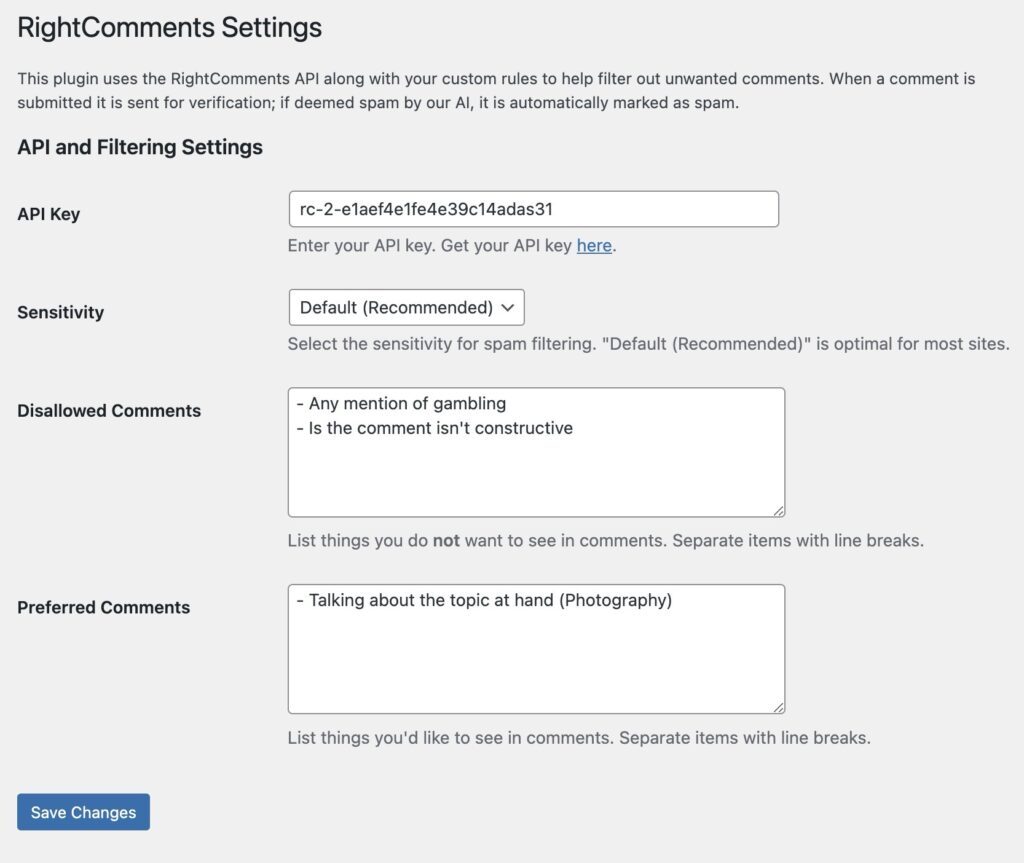
I got tired of dealing with this and built RightComments, a WordPress plugin that puts every comment through an AI model before it lands on your site. What you get:
- AI-powered spam detection that catches LLM-written comments traditional plugins miss.
- Customizable rules for how aggressive the filter is and what it treats as spam.
- Optional automatic replies that engage real commenters (off by default if you’d rather reply yourself).
Setup takes a couple minutes:
- Register at RightComments.com
- Install and activate the RightComments plugin in WordPress
- Paste your API key and you’re done
Frequently asked questions
Why am I getting so many spam comments on WordPress?
Automated bots scrape the web for WordPress sites and submit comments at scale to plant backlinks. If your site is indexed in Google, you’re on the list. Volume spikes on older posts, posts that rank for high-traffic keywords, and sites without a CAPTCHA or firewall. None of it is personal.
Is Akismet enough to stop WordPress spam?
For most sites, Akismet plus WordPress’s built-in comment moderation settings catches 90-95% of spam. The gap is AI-generated comments (harder to detect) and the occasional sophisticated bot. Add a CAPTCHA layer like Cloudflare Turnstile and you’re above 99%. For the last 1% (AI-generated comments), an AI-based filter is the reliable answer.
Should I disable comments on my WordPress site?
If your site gets very few real comments and a lot of spam, yes. A blog with zero comments and zero spam is cleaner than one with a moderation queue full of junk. If you want engagement, keep them on but layer Akismet plus Cloudflare Turnstile plus the built-in WordPress settings. Disabling is the nuclear option; it’s fine, but it’s not the only path. If you go that route, here’s every way to disable WordPress comments.
What’s the difference between Cloudflare Turnstile and Google reCAPTCHA?
Both are invisible-first bot-detection tools. Turnstile is free, privacy-friendly (no Google tracking), and doesn’t require your site to be on Cloudflare. reCAPTCHA v3 works similarly but sends user data to Google. For most WordPress sites in 2026, Turnstile is the cleaner default. See the full guide on adding Turnstile to WordPress.
How do I delete thousands of existing spam comments?
In WP admin, go to Comments, click the Spam tab, and use the Empty Spam button to delete everything in the spam queue in one click. For legit-looking comments that are actually spam, bulk-select them, move to spam, then empty. For very large queues (100,000+), a single WP-CLI command is faster: wp comment delete $(wp comment list --status=spam --format=ids) --force.
Do spam comments hurt SEO?
Indirectly, yes. Google doesn’t penalize a site simply for having a spam queue, but approved spam comments create low-quality outbound links and user-experience signals that can hurt rankings. Keeping comments in moderation (not auto-publishing) and using rel="nofollow" on comment author links (WordPress does this by default) covers most of the risk.
Can AI-generated spam get past Akismet?
Some of it, yes. Akismet’s models are trained on years of pattern-based spam, and LLM-generated comments can look natural enough to slip through. This is a growing problem and the reason AI-powered filtering is becoming more important for active comment sections.
Will requiring registration stop all spam?
Close, but not all. Requiring registration kills automated spam because bots rarely sign up. Determined manual spammers still register accounts. If you’re on a community-style site and expect manual spam, pair registration with role-based moderation (new users start as Contributors, need an admin to promote them).
Bottom line
If you want the tight recipe that works on 95% of WordPress sites: (1) tighten your Settings → Discussion options, (2) install Akismet or Antispam Bee, (3) add Cloudflare Turnstile to the comment form. That combination kills nearly all automated spam with almost no friction for real readers.
If you’re still seeing AI-written spam slipping through, or you just want the whole problem handled without thinking about it, RightComments is the AI-based option I built to solve exactly that.





3 Responses
Hi, I’m Muhammed Ashir, a Google Certified Freelance Digital Marketing Expert in Dubai, UAE, and a skilled Graphic Designer. I help businesses grow by enhancing their digital marketing strategies. As a digital marketing expert in Dubai, I offer solutions for online marketing through SEO, SEM, SMM, Content Marketing, Web Development, and SEO Copywriting.If you’re looking for a reliable, results-driven digital marketing expert in Dubai, I’m here to guide your brand to success.
Absolutely loved how you balanced manual and AI methods. This guide makes spam control feel less overwhelming. Thank you for sharing.
Absolutely loved how you balanced manual and AI methods. This guide makes spam control feel less overwhelming. Thank you for sharing.