The functions.php file is where most WordPress developers learn to add custom code, and where most of them eventually break a site by adding the wrong thing or putting the right thing in the wrong place. It’s actually a smaller, more specific tool than its reputation suggests, and knowing what does and doesn’t belong inside it is the difference between a clean WordPress site and a fragile one.
This guide walks through what functions.php actually is, what code belongs inside it (vs in a plugin, mu-plugin, or Code Snippets plugin), how to edit it without taking your site down, and what to do when an edit goes wrong.
- functions.php adds custom code and functionality to your theme, and it loads on every page.
- Code here disappears when you switch themes, so use a child theme or a small plugin for anything you want to keep.
- A single syntax error in functions.php can take your whole site down, so always edit it carefully and keep a backup.
- For site-wide functionality, a custom plugin or mu-plugin is safer than functions.php.
- A code snippets plugin is the no-FTP way to add snippets without touching the file.
What functions.php Actually Is
The most common misconception about functions.php is that it’s a WordPress core file. It isn’t. functions.php is a theme file: every WordPress theme contains its own copy, and only the active theme’s functions.php runs. Switch themes and you’re running a different functions.php, with different code in it.
WordPress loads functions.php early in the request lifecycle, before the theme renders any HTML. That makes it behave like a theme-scoped plugin: you can register hooks, define helper functions, enqueue scripts and styles, and modify how WordPress behaves throughout the request. The full path on disk:
/wp-content/themes/your-theme/functions.phpOne small note that comes up often: block themes (Full Site Editing themes introduced in WordPress 5.9) still use functions.php. The “block themes don’t need PHP” framing you sometimes see online is overstated. Most block themes ship a functions.php for theme setup, registering blocks, and similar work that the templates can’t do on their own.
What Belongs in functions.php
The right scope for functions.php is code that’s specific to this theme: things that should stop working when the theme is replaced. The clearest fits:
- Theme setup: registering navigation menus, theme support flags (post thumbnails, custom logo, HTML5), custom image sizes, and similar via
after_setup_theme. - Enqueueing the theme’s CSS and JS: the
wp_enqueue_scriptshook is where you load the stylesheet and any JavaScript the theme needs. - Theme-specific action and filter hooks: behavior tied to how this theme renders content (modifying excerpt length for the theme’s design, customizing the search form, etc.).
- Helper functions used inside templates: a
my_theme_format_byline()function called fromsingle.phporcontent.php. - Theme-specific shortcodes: shortcodes that only make sense in the context of this theme’s layout.
If your code is scoped tightly to the theme, functions.php is fine. If it’s broader, keep reading.
What Doesn’t Belong in functions.php
This is where most WordPress sites accumulate technical debt. The shortcut “just add it to functions.php” is fine when the code is theme-specific, but most of what people put there is actually site-wide functionality that should survive a theme switch.
Code that should not live in functions.php:
- Custom post types and taxonomies. If you switch themes, your “Properties” or “Recipes” custom post type vanishes from the admin (the data stays in the database, but it’s not editable). Use a plugin.
- Site-wide security tweaks (disabling XML-RPC, hiding the WordPress version, removing user enumeration endpoints). These should still apply when the theme changes. Use a plugin or mu-plugin.
- Analytics and tracking scripts. Same reason: switching themes shouldn’t remove your Google Analytics or Plausible setup.
- Anything that modifies the database: creating tables, modifying schema, bulk updates. Use a plugin with proper activation/deactivation hooks so the work runs once and cleans up after itself.
- Code you can’t easily back out of.
functions.phpedits are a “permanent until you remember to change it” pattern. If the change has long-term consequences (rewriting URLs, modifying core behaviors), put it somewhere with a clearer activation/deactivation lifecycle.
The simplest test: “Should this still work if I switch themes?” If yes, it doesn’t belong in functions.php.
functions.php vs Plugin vs mu-plugin vs Code Snippets Plugin
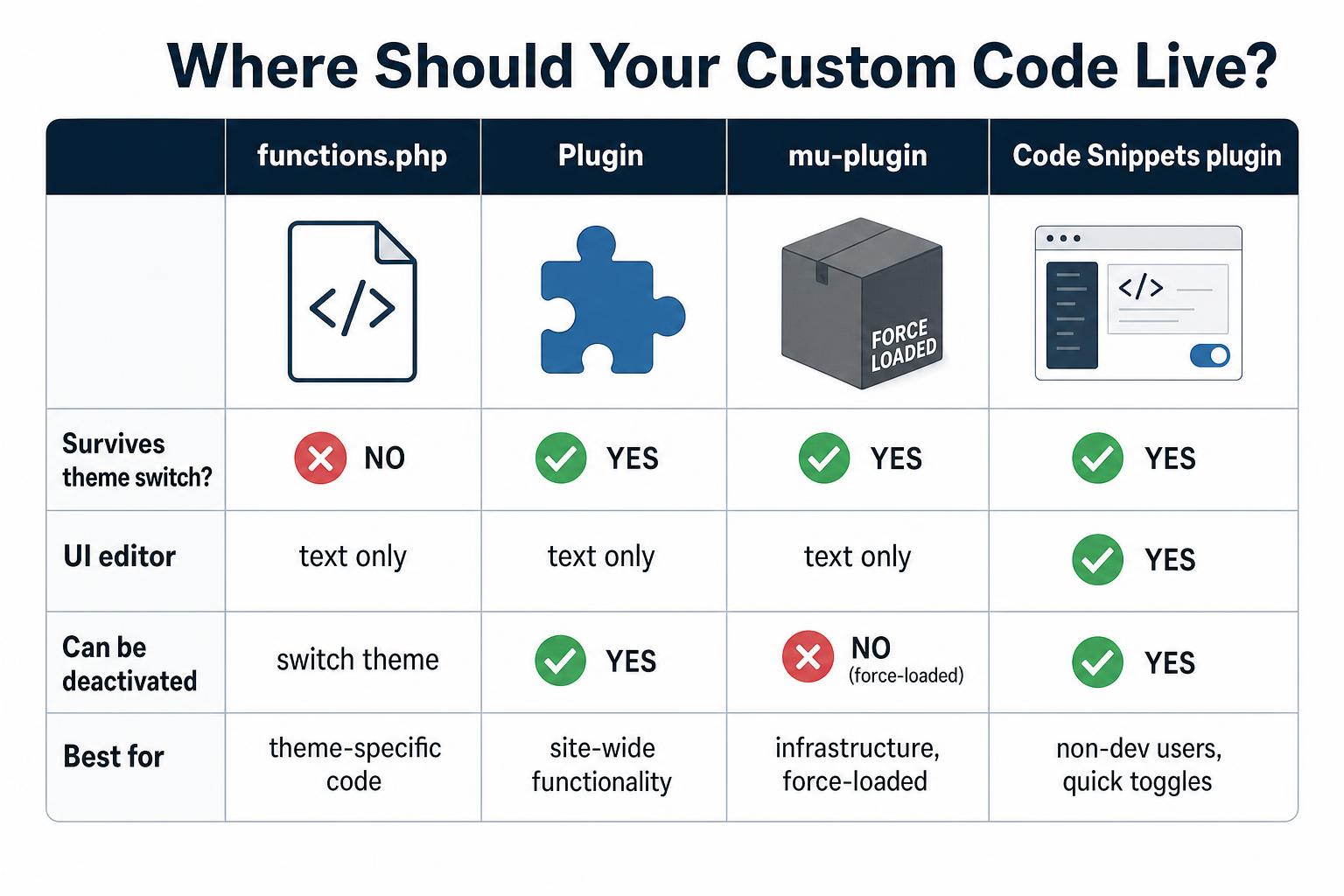
The four places WordPress code can live, with the trade-offs spelled out:
functions.php
Lives inside the active theme. Easiest to edit (one file in your theme folder). Best for theme-specific code. Disappears when you switch themes, which is a feature for theme-bound code and a bug for everything else.
A custom plugin
A folder under /wp-content/plugins/your-plugin/ with a header comment that lets WordPress recognize it. Survives theme switches. Can be activated and deactivated like any other plugin. Best for site-wide functionality. Slightly more work to set up than dropping code into functions.php, which is why people skip it (and create the technical debt above).
Bare-minimum plugin file:
<?php
/**
 * Plugin Name: My Site Customizations
 * Description: Site-wide tweaks that should survive theme switches.
 * Version: 1.0
 */

// Your code goes here.
Save that as /wp-content/plugins/site-customizations/site-customizations.php, then activate from the Plugins screen. That’s it.
A must-use plugin (mu-plugin)
A single PHP file dropped into /wp-content/mu-plugins/. WordPress loads every file in that directory automatically, with no UI to activate or deactivate. Best for infrastructure-level code that must always run: a site you manage for a client where you don’t want them disabling your customizations, agency-managed multisite networks, or critical security policies.
The trade-off: harder to disable temporarily for debugging (you have to physically rename the file), and the file doesn’t get the standard plugin lifecycle hooks (no activation/deactivation hooks).
Code Snippets plugin
The Code Snippets plugin gives you a UI inside the WordPress admin to add, edit, enable, and disable individual PHP snippets. Snippets survive theme switches (because they’re stored in the database, not a theme file), and you can toggle them on and off without touching code.
Best for non-developers and for quick iteration during testing. The plugin adds a small overhead (it loads on every request to fire registered snippets), but it’s a clean alternative to functions.php for anyone who’d rather work in a UI than over SFTP.
How to Edit functions.php Safely
Almost every WordPress site that’s been broken by a functions.php edit was broken in one of a few specific ways. The safety routine that prevents most of them:
- Use a child theme if you’re editing the functions.php of a theme you didn’t write. Otherwise the next theme update overwrites your changes.
- Download a copy of the file before editing. The fastest way to recover from a syntax error is uploading yesterday’s working version back over the broken one.
- Edit in a code editor that knows PHP (VS Code, PhpStorm, Sublime, Cursor, etc.). The editor will catch missing semicolons, mismatched braces, and undefined functions before you save.
- Test on staging first. Most managed WordPress hosts include one-click staging environments. Use them for theme edits.
- Have SFTP/SSH ready in case the edit takes the site down. The recovery procedure (covered below) requires file-system access.
The Appearance > Theme File Editor inside wp-admin can also edit functions.php directly. It’s convenient, but a syntax error there immediately takes the site down with no easy in-dashboard recovery. Many security plugins (and most managed hosts) disable this editor by default. If yours is enabled, treat it as a “last resort” rather than a daily-driver tool.
Common functions.php Mistakes That Break Your Site
- PHP syntax error (missing semicolon, mismatched brace, typo’d function name). The site goes down immediately, these days with the critical error screen rather than the older white screen of death. The fix is uploading your backup or fixing the typo via SFTP.
- Whitespace before the opening
<?phptag. PHP sends the response headers when it first sees output. A blank line or accidental space before<?phpsends headers prematurely, breaking session-handling, redirects, and feeds. The fix: make sure<?phpis the very first thing in the file, with nothing before it. - UTF-8 BOM character. Some editors save files as “UTF-8 with BOM,” which prepends an invisible byte-order-mark to the file. PHP treats it as output, so headers go out before WordPress is ready. Save as “UTF-8” (without BOM) instead.
- Defining a function that already exists. Copying a snippet from a tutorial without checking can collide with a function already defined elsewhere (the theme, a plugin, WordPress itself). PHP throws a fatal error. The fix: wrap your function in
if ( ! function_exists( 'my_function' ) ) { ... }. - Echoing output before WordPress is ready.
echostatements at the top offunctions.phpsend output to the browser before WordPress loads, breaking the page. If you need debug output, write toerror_log()instead, or use the WP_DEBUG_LOG flow. - Missing closing
?>tag is actually fine and recommended. PHP allows omitting the closing tag in pure-PHP files, and it prevents the trailing-whitespace problem above. If you see “?>” at the end of someone’sfunctions.php, you can safely delete it.
A Few Useful functions.php Snippets
Theme-specific code that genuinely belongs in functions.php:
Disable WordPress emojis
Removes the small emoji-detection script that WordPress injects on every page (it’s a holdover from the early emoji-support days; modern browsers don’t need it):
remove_action( 'wp_head', 'print_emoji_detection_script', 7 );
remove_action( 'wp_print_styles', 'print_emoji_styles' );
Limit post revisions
Caps the number of revisions WordPress stores per post. Prevents the database from filling up with hundreds of historical drafts. (You can also set this in wp-config.php via WP_POST_REVISIONS; both methods work.)
add_filter( 'wp_revisions_to_keep', function() {
    return 5;
} );
Add a custom image size
Registers a new size that WordPress will auto-generate for every uploaded image. Use it inside templates with the_post_thumbnail( 'card-thumb' ):
add_action( 'after_setup_theme', function() {
    add_image_size( 'card-thumb', 600, 400, true );
} );
Allow SVG uploads (with caution)
WordPress blocks SVG uploads by default because malicious SVGs can carry XSS payloads. If you trust your editors and want to allow SVG, this enables it. Only use this on sites where you control who’s uploading. For sites with multiple authors, use the Safe SVG plugin instead, which sanitizes uploads:
add_filter( 'upload_mimes', function( $mimes ) {
    $mimes['svg'] = 'image/svg+xml';
    return $mimes;
} );
Custom dashboard welcome message
Adds a small welcome panel to the WordPress admin dashboard. Useful for client sites where you want to leave a “if you need help, contact us” note for the people logging in:
add_action( 'wp_dashboard_setup', function() {
    wp_add_dashboard_widget(
        'site_welcome',
        'Welcome',
        function() {
            echo '<p>Need help? Email [email protected].</p>';
        }
    );
} );
When functions.php Breaks Your Site
The most common bad outcome of a functions.php edit is the white screen of death. Recovery is straightforward if you have file-system access:
- Connect to the site via SFTP, SSH, or your host’s file manager.
- Navigate to
/wp-content/themes/your-theme/. - Either upload your backup of
functions.phpover the broken file, or rename the file tofunctions.php.brokenso the theme falls back to running without one (you’ll lose theme setup until you fix it). - If you can’t even identify which theme is active, rename the entire active-theme folder. WordPress falls back to a default theme (Twenty Twenty-Five at the moment), and the site comes back.
- Once the site is up, enable WordPress debug mode to see the actual PHP error from the broken edit. The error log usually points to the exact line.
WordPress 5.2’s Recovery Mode often catches functions.php errors automatically and emails the site admin a special login link that lets you fix or revert the change without manual file-system work. Always check the admin email inbox before assuming you need SFTP.
Frequently Asked Questions
Where is functions.php located?
Inside the active theme’s folder: /wp-content/themes/your-theme-name/functions.php. Each theme has its own copy. Only the currently-active theme’s functions.php runs.
What if my theme doesn’t have a functions.php?
functions.php is technically optional. Some minimalist themes don’t ship one. If yours doesn’t, create a new file named exactly functions.php in the theme root and start it with <?php on the first line. WordPress picks it up automatically the next time the theme runs.
Should I use the Code Snippets plugin instead?
If you’re not comfortable editing files over SFTP, yes. Code Snippets gives you a UI for adding, editing, and toggling individual PHP snippets, and snippets survive theme switches (functions.php changes don’t). For developers comfortable with code editors, functions.php and a small custom plugin cover the same ground without adding a plugin to the dependency list.
Will updating my theme overwrite my functions.php changes?
Yes, if you’re editing the parent theme directly. Theme updates replace every theme file with the new version. The standard fix is using a child theme: child themes inherit from the parent but have their own functions.php that survives parent-theme updates.
Why did my site break right after editing functions.php?
Almost certainly a PHP syntax error: missing semicolon, mismatched brace, accidentally-deleted character. WordPress can’t load the broken file, so the theme can’t render, so the page comes back blank (the WSOD). Either upload your backup over the broken file via SFTP, or fix the syntax error in place. Enabling debug mode will surface the exact line.
Do block themes still use functions.php?
Yes. Block themes (introduced in WordPress 5.9) shifted layout and template work into block-based files, but theme setup, registering blocks, enqueueing assets, and theme-specific PHP logic still live in functions.php the same way. The “block themes don’t need PHP” framing is overstated.
Wrapping Up
The single most useful mental model for functions.php: it’s a theme file, not a site-wide file. Theme-specific code goes here. Site-wide functionality goes in a plugin or mu-plugin so it survives theme switches. The Code Snippets plugin is a fine alternative for non-developers or quick toggles.
Most functions.php disasters trace back to two things: editing the parent theme without a child theme (so updates wipe your changes), or saving a syntax error that takes the site down. The first is solved with a child theme; the second is solved with a backup, a PHP-aware editor, and SFTP access.
For the broader “where code lives in WordPress” picture, functions.php sits next to two other foundational config files: wp-config.php (database credentials, debug constants, security keys) and .htaccess (server-level URL routing, redirects, security headers). Knowing which file owns which behavior is most of what makes a WordPress dev efficient.
Let me know in the comments if you’ve got a functions.php snippet worth adding to the list, or a horror story worth turning into a warning.