A WordPress permalink is the permanent URL for any post, page, category, tag, or archive on your site. It’s what people copy when they share your article, what Google indexes, and what every internal link in your site points to. Get the structure right early and you barely think about it again. Get it wrong and you’ll either live with ugly URLs forever or spend a weekend setting up 301 redirects to fix it.
This guide walks through what permalinks actually are, the 6 structures WordPress ships with, which one to pick for your site, how to change yours safely without losing rankings, and what to do when permalinks break (because they will, eventually).
- Permalinks are the permanent URLs for your posts and pages, set under Settings > Permalinks.
- “Post name” (
/sample-post/) is the best default for most sites: clean, readable, and SEO-friendly. - Changing the structure on an established site changes every URL, so set up redirects to avoid losing rankings.
- If custom post types or new pages 404, re-save permalinks to flush the rewrite rules.
What Is a WordPress Permalink?
“Permalink” is short for permanent link. It’s the full URL that points to a specific resource on your site and doesn’t change over time (unless you change it). The permalink for this post is https://smartwp.com/wordpress-permalinks/. The /wordpress-permalinks/ part is the slug, and the rules that turn that slug into a real page request live in your permalink structure.
Under the hood, WordPress doesn’t actually have a folder called /wordpress-permalinks/. Every request to that URL gets routed through index.php, which looks at the URL, matches it against WordPress’s internal rewrite rules, figures out which post to load from the database, and returns the page. The .htaccess file (on Apache) or the equivalent server config (on Nginx) is what tells the server to hand all those pretty URLs to index.php in the first place.
You don’t need to understand any of that to use permalinks. But it helps later when you hit the inevitable “my permalinks aren’t working” issue.
The 6 WordPress Permalink Structures
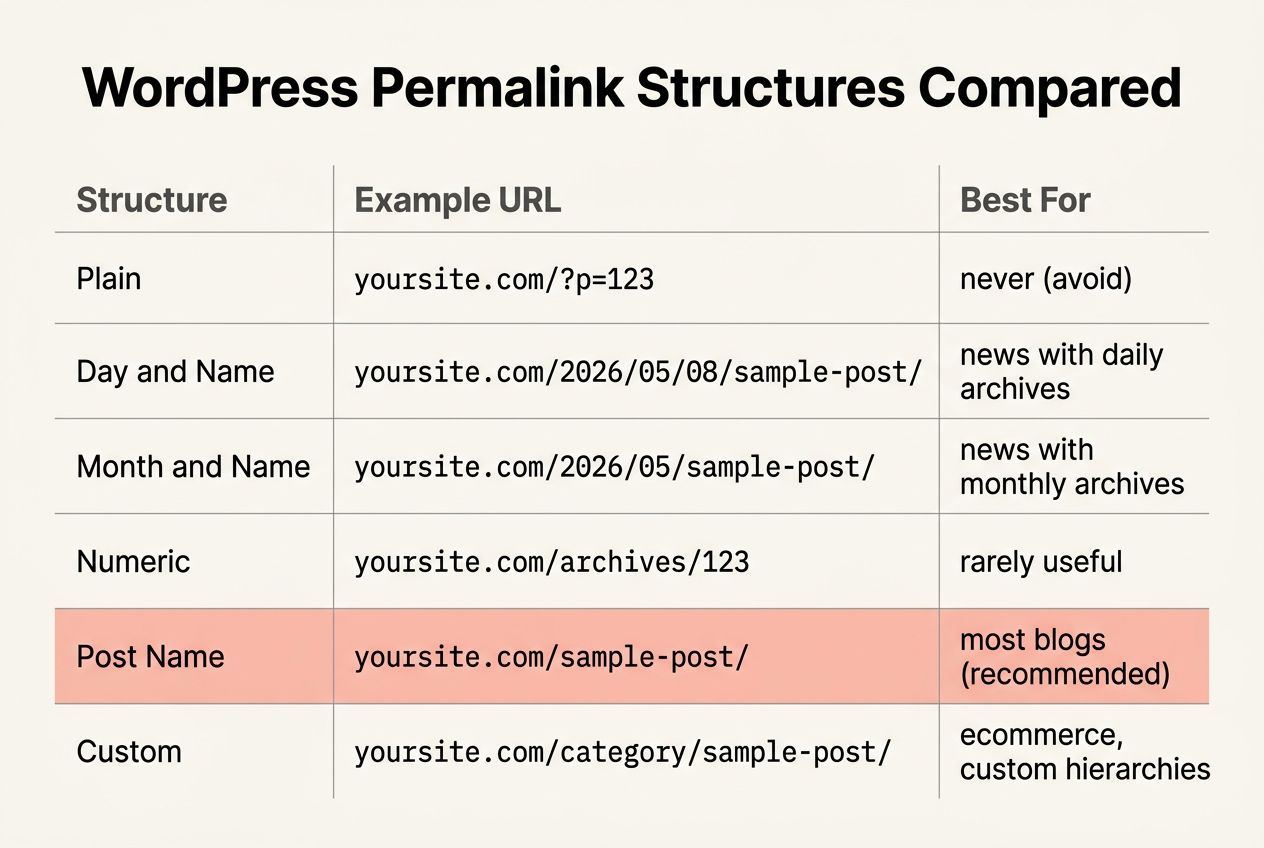
Go to Settings > Permalinks in your WordPress admin and you’ll see 6 options out of the box:
1. Plain
Format: yoursite.com/?p=123
This is WordPress’s default if you never visit Settings > Permalinks. It uses query strings instead of pretty URLs. It works on any server with zero configuration (no .htaccess, no Nginx rewrites needed) but it’s terrible for SEO, terrible for shareability, and tells visitors nothing about what they’re about to click. Use it never.
2. Day and Name
Format: yoursite.com/2026/05/08/sample-post/
Includes year, month, day, and slug. Good for news sites where readers care which day a story dropped. Bad for evergreen content: a 2022 date in the URL makes a still-accurate post look outdated and tanks click-through rate years later.
3. Month and Name
Format: yoursite.com/2026/05/sample-post/
Same idea as Day and Name but without the day. Still bakes the publish month into every URL, which still hurts evergreen content. Useful for news magazines that publish monthly issues or sites where the month is genuinely part of the identity. For everyone else, skip it.
4. Numeric
Format: yoursite.com/archives/123
Replaces the slug with the post ID. About as user-hostile as Plain, just slightly prettier on the surface. There’s no scenario where this is the best pick.
5. Post Name (recommended)
Format: yoursite.com/sample-post/
Just the slug. Clean, short, descriptive, evergreen, easy to share, easy to remember. This is the right choice for most WordPress sites: blogs, portfolios, business sites, documentation, and almost anything that isn’t a date-driven news outlet. If you’re not sure which to pick, pick this one.
6. Custom Structure
Format: anything you want, built from structure tags like %postname%, %category%, %year%, etc.
Custom is where you go when none of the above fits. Common picks:
/%category%/%postname%/for sites where the category adds useful context (a recipes site might want/desserts/chocolate-cake/)./blog/%postname%/if you want all posts under a single prefix so the rest of your site can use top-level pages without colliding with post slugs./%year%/%postname%/if you want a year but not month/day (useful for annual-archive sites).
Be careful with %category%: a post in multiple categories will only use one in the URL (WordPress picks the category with the lowest term ID, which is usually but not always the one you’d expect), and changing a post’s category later changes its URL, which breaks the link. For most sites, the extra category context isn’t worth the maintenance overhead.
Which Permalink Structure Should You Use?
Short answer for 80% of WordPress sites: Post Name (/%postname%/).
The longer version, by site type:
- Blogs and content sites: Post Name. Short, evergreen, shareable.
- News sites: Day and Name if the date is genuinely part of the story (breaking news, sports scores, market reports). Otherwise still Post Name and put the date inside the article instead.
- Ecommerce / WooCommerce: Post Name for blog content, with the WooCommerce permalink settings (Settings > Permalinks > Product permalinks) controlling product URLs separately. A common pick is
/shop/%product_cat%/%product%/. - Documentation sites: Post Name, or a custom structure like
/docs/%postname%/if you want all docs under one prefix. - Niche sites with strong category logic:
/%category%/%postname%/, but only if your categories are stable. If you’re going to recategorize posts later, stick with Post Name.
If you’re building a custom structure, these are the tags WordPress recognizes:
%postname%: the slug (e.g.,sample-post)%year%: the 4-digit year (e.g.,2026)%monthnum%: the 2-digit month (e.g.,05)%day%: the 2-digit day (e.g.,08)%hour%,%minute%,%second%: for anyone who really needs second-precision URLs (you probably don’t)%post_id%: the database post ID (e.g.,123)%category%: the post’s category slug (alphabetically first if multiple)%author%: the author’s slug (useful on multi-author sites, risky if authors leave)
End your custom structure with a trailing slash. Any custom structure must contain %postname% or %post_id% somewhere, or WordPress will reject it as invalid.
How to Change Your Permalink Structure (Without Breaking Your Site)
Changing permalinks on a new site is harmless. Changing them on an established site is the kind of mistake that turns into a Google Search Console nightmare two weeks later. Every existing URL becomes a 404 unless you set up redirects.
The safe workflow:
- Back up your site. Files and database. Use UpdraftPlus, Solid Backups, or your host’s backup tool. Verify the backup actually downloads before you touch Settings > Permalinks.
- Export a list of your current URLs. Run
wp post list --post_type=post --field=permalink > old-urls.txtfrom WP-CLI, or use a sitemap plugin to grab the full list. You’ll need this to test redirects later. - Install the Redirection plugin before you change anything. Redirection (by John Godley, free) can monitor permalink changes and auto-create 301 redirects for you. Turn that monitoring on in Redirection > Options > Monitor changes to posts.
- Change Settings > Permalinks. Pick your new structure, hit Save Changes. WordPress regenerates the rewrite rules and updates the database.
- Test 10-20 of your old URLs. Paste them into a browser. Each one should either redirect to the new URL (301) or load the new URL directly. Anything that 404s needs a manual redirect.
- Submit your updated sitemap to Google Search Console. Yoast SEO, Rank Math, or All in One SEO will regenerate it automatically. Submit the new sitemap URL and let Google re-crawl.
- Monitor Search Console for 2-4 weeks. Watch the Coverage report for spikes in 404s and the Performance report for ranking changes. A small short-term ranking dip is normal; a sustained one means a redirect is missing.
Skip step 3 (the Redirection plugin) and you’ll be writing redirects manually in .htaccess for every old URL. That’s tedious for 50 posts and miserable for 500.
Permalinks and Rewrite Rules: What’s Actually Happening
When you save a permalink structure, WordPress writes rewrite rules into your .htaccess file (on Apache) that look something like this:
# BEGIN WordPress
<IfModule mod_rewrite.c>
RewriteEngine On
RewriteBase /
RewriteRule ^index\.php$ - [L]
RewriteCond %{REQUEST_FILENAME} !-f
RewriteCond %{REQUEST_FILENAME} !-d
RewriteRule . /index.php [L]
</IfModule>
# END WordPress
The rules say: if the requested URL isn’t a real file or directory, hand it to index.php. WordPress then takes over, parses the URL against its internal rewrite rules (stored in the wp_options table as rewrite_rules), finds the matching post, and renders the page.
This is why “I changed my permalinks and now everything 404s” usually has the same fix: re-visit Settings > Permalinks and hit Save Changes again, even without changing the structure. That action regenerates both the .htaccess rules and the internal rewrite rules table. It’s the WordPress equivalent of “turn it off and turn it on again,” and it works more often than any other single fix.
For a deeper look at the .htaccess side, see our WordPress .htaccess guide. For the database side (and what other rewrite rules WordPress registers behind the scenes), the Rewrite API documentation on developer.wordpress.org is the canonical reference.
Common Permalink Problems and Fixes
“My permalinks aren’t working” (everything 404s)
Go to Settings > Permalinks and click Save Changes, without changing anything. This regenerates the rewrite rules. Fixes it about 90% of the time.
From the command line, the equivalent is wp rewrite flush via WP-CLI. Useful when you can’t access wp-admin (because the 404s include the admin URL) or when you’re scripting a deploy and want to flush rewrite rules automatically after a change.
If neither of those works, check your .htaccess file actually exists in your WordPress root and contains the # BEGIN WordPress block shown above. On a fresh server, the file might be missing entirely, or the WordPress block might have been removed by a host or another plugin.
REST API returns 404 from /wp-json/
Same fix: Settings > Permalinks > Save Changes. The REST API registers its routes via the same rewrite-rules system, so anything that breaks the main permalink structure usually breaks REST routing too. If that doesn’t fix it, a security plugin (Wordfence, Kadence Security, etc.) is probably blocking /wp-json/ at the firewall level.
Pages work but custom post types 404
Custom post types register their own rewrite rules when WordPress loads. If you added a custom post type via code in functions.php or a plugin, the rewrite rules don’t take effect until WordPress regenerates them. Hit Save on Settings > Permalinks (yes, again) to force the flush.
Nginx server: permalinks won’t save changes
Nginx doesn’t use .htaccess. The permalink rules need to live in your Nginx config (usually /etc/nginx/sites-available/yoursite.conf) and look something like:
location / {
    try_files $uri $uri/ /index.php?$args;
}
After adding that block, reload Nginx (sudo systemctl reload nginx) and permalinks will work. WordPress won’t auto-generate this for you the way it does with .htaccess.
Trailing slash vs. no trailing slash
WordPress defaults to trailing slashes (/sample-post/) and auto-redirects no-slash URLs to the slash version. You almost never need to change this. If you do (some developers prefer no trailing slash), it’s done via a filter in functions.php, not in Settings > Permalinks. Pick one and stick with it forever; flipping back and forth creates redirect chains that hurt page speed.
Permalinks for Custom Post Types and Categories
Settings > Permalinks controls posts and pages. Two other URL settings live on the same screen but are easy to miss:
- Category base. The slug used for category archive URLs. Default is
/category/, so a “Tutorials” category lives atyoursite.com/category/tutorials/. Change it to something shorter like/topic/if you want, or leave it. - Tag base. Same idea for tags. Default is
/tag/.
Both are optional, both can be left blank to inherit defaults. Changing them later requires the same backup-and-redirect dance as changing the main structure.
Custom post types and custom taxonomies registered via plugins or code have their own rewrite rules separate from these settings. WooCommerce, for example, exposes its own “Product permalinks” section further down the Settings > Permalinks screen that controls product URLs independently.
Frequently Asked Questions
What is the best permalink structure for SEO?
Post Name (/%postname%/) for almost every site. It’s short, descriptive, evergreen, and doesn’t bake the publish date into the URL. The only real exception is a news site where readers genuinely care which day a story dropped; in that case Day and Name is defensible. For everyone else, Post Name is the default answer.
Will changing my permalinks hurt my SEO?
If you do it without 301 redirects, yes. Every existing URL becomes a 404, Google sees a wave of broken links, and rankings drop within days. If you set up redirects properly (using the Redirection plugin or manual .htaccess rules), the impact is usually a small short-term dip while Google recrawls and updates its index, then traffic returns within 2-6 weeks. Always back up first, install Redirection before you change the setting, and monitor Search Console for the next month. If the numbers move and you are not sure what you are looking at, here is how to tell normal position fluctuation from a real ranking problem.
Why do my WordPress permalinks return a 404?
The most common cause is that WordPress’s rewrite rules got out of sync with what’s in .htaccess. The fix is almost always the same: go to Settings > Permalinks and click Save Changes (without changing anything). That regenerates both. If that doesn’t fix it, the .htaccess file is either missing the WordPress rewrite block, or your server isn’t allowing .htaccess overrides (an Apache AllowOverride directive issue). On Nginx, you need the rewrite rules in your Nginx config; WordPress can’t write them for you.
Can I include the category in my URL?
Yes, with a custom structure of /%category%/%postname%/. The trade-off: a post in multiple categories will only show one in the URL (WordPress picks the category with the lowest term ID), and changing a post’s category later changes its URL (which breaks the link). For most sites the extra context isn’t worth the maintenance overhead, but for niche sites with stable, clearly-separated categories (recipes, tutorials, product categories), it can work well.
What’s the difference between a slug and a permalink?
The slug is the URL-friendly version of the post title (the sample-post part). The permalink is the full URL the slug lives inside (https://yoursite.com/sample-post/). You can edit a post’s slug independently in the post editor (right-side panel under URL) without affecting the overall permalink structure.
Does WordPress support permalinks without trailing slashes?
Yes, but not via Settings > Permalinks. WordPress defaults to trailing slashes and auto-redirects the no-slash version. To switch to no trailing slash, you need a filter in functions.php (search for the user_trailingslashit filter for examples). Pick one and stick with it; flipping back and forth creates redirect chains that hurt page speed.
How long are the URLs of top-ranking pages?
The top-ranking URLs in Google search results average around 50-60 characters. Shorter is generally better for click-through rate and shareability, but readability matters more than character count. A 70-character URL that clearly describes the page beats a 30-character URL that’s all abbreviations. Aim for descriptive over short.
Do I need to use hyphens or underscores in slugs?
Hyphens. Google treats hyphens as word separators and underscores as word joiners, so sample-post is read as two words while sample_post is read as one. WordPress defaults to hyphens when auto-generating slugs from post titles; don’t switch to underscores.
Wrapping Up
Three things to remember and you’ll never wrestle with WordPress permalinks again: Post Name structure for almost every site, Redirection plugin before you ever change the setting on an established site, and Settings > Permalinks > Save Changes as the fix for roughly 90% of “my permalinks broke” problems.
If you want to go deeper into what’s actually happening under the hood, the .htaccess guide covers the server-level side and the REST API guide covers how those same rewrite rules route the JSON endpoints under /wp-json/.