The WordPress REST API is what turns a WordPress site into a backend you can read from and write to from any programming language. It’s how the official mobile app talks to your site, how Gutenberg loads and saves blocks, and increasingly in 2026, how AI-assisted apps built in Cursor or Claude treat WordPress as a content database.
This guide covers what the REST API actually is, the four authentication methods (and which one is right for what you’re building), the endpoints you’ll actually use, how to read and write data with real curl + JavaScript examples, the gotchas that consistently break first attempts (HTTP_AUTHORIZATION, CORS, capabilities), and how to extend it with custom endpoints.
- The WordPress REST API turns your site into a backend you can read from and write to from any language, served at
/wp-json/. - It powers the mobile app, the block editor, and increasingly AI-assisted apps built in tools like Claude and Cursor.
- Authenticate write requests with Application Passwords, using a dedicated user on the least-privilege role.
- Set
'show_in_rest' => trueto expose custom post types and fields to the API.
What the WordPress REST API Is
WordPress ships with a built-in JSON API that exposes most of its content (posts, pages, users, comments, media, categories, tags, custom post types, settings) over standard HTTP requests. It’s been part of WordPress core since version 4.7 (December 2016), and modern WordPress relies on it heavily, the Block Editor itself is essentially a REST API client.
The base URL for any WordPress site is:
https://yoursite.com/wp-json/Hit that URL in a browser and you’ll see a JSON document describing every available endpoint, including the routes registered by your active plugins. The default endpoints live under /wp/v2/:
https://yoursite.com/wp-json/wp/v2/posts        # all published posts
https://yoursite.com/wp-json/wp/v2/posts/123    # one post by ID
https://yoursite.com/wp-json/wp/v2/pages        # all pages
https://yoursite.com/wp-json/wp/v2/users        # users (requires auth)
https://yoursite.com/wp-json/wp/v2/media        # uploaded media
https://yoursite.com/wp-json/wp/v2/categories   # taxonomy: categories
Read operations (GET) on public content (published posts, pages, public taxonomies) work without authentication. Write operations (POST, PUT, DELETE) and access to non-public data (drafts, users, settings) require authentication. We’ll cover both.
Why You’d Actually Use It in 2026
The REST API has been around for a decade, but the use cases have shifted. The 2026 reality:
- Vibe-coded apps: prompting Cursor or Claude to build “a Next.js app that pulls from my WordPress site” works because the REST API is documented well enough that LLMs can reason about it. Apps built this way treat WordPress as a content backend without the developer ever opening the WordPress admin.
- Headless and hybrid builds: pulling WordPress content into a Next.js, SvelteKit, Astro, or Hono frontend so the public site is fast and CDN-friendly while editors still get the WordPress admin they know.
- Mobile and desktop apps: the official WordPress mobile app speaks REST under the hood. Custom apps for clients usually do the same.
- AI agents and MCP servers: agents that read or post content via the WordPress REST API are increasingly common. Pressable shipped an MCP server for WordPress in 2025, and several plugins now expose AI-friendly endpoints.
- Background jobs and integrations: cron scripts, GitHub Actions deploys, Zapier-style automations all hit the REST API to read or post content.
- The WordPress admin itself: every Gutenberg save, every quick-edit, every Site Editor change goes through the REST API.
If you’ve been writing PHP inside WordPress for years and never touched the REST API, the modern dev shift is: less editing PHP, more calling endpoints from outside.
Authentication: Pick the Right Method
This is the part that confuses most people on first contact. WordPress supports four authentication methods and they each have a clean use case.
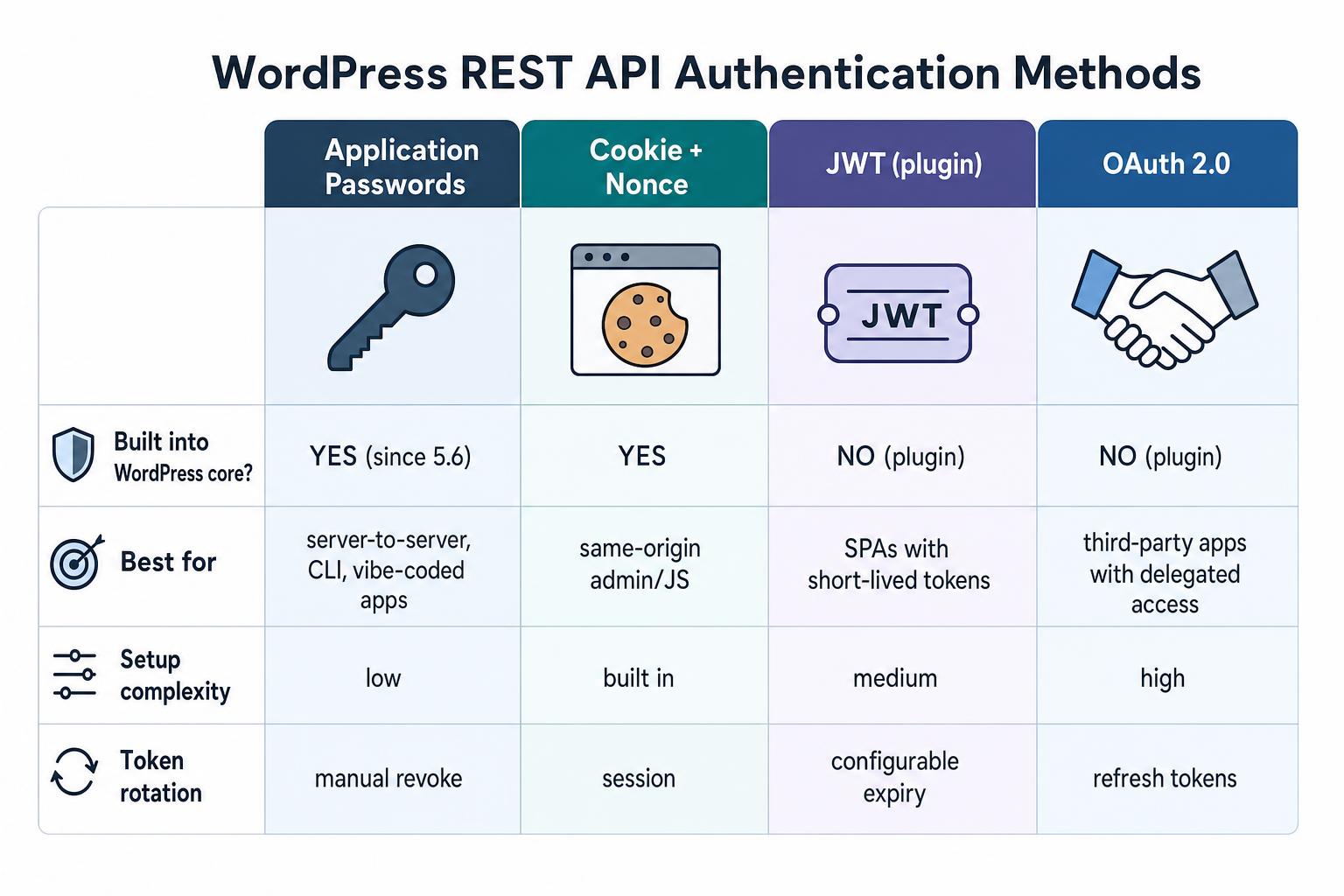
Application Passwords (default for almost everything)
Built into WordPress core since 5.6 (December 2020). Each user can generate per-app passwords from Users -> Profile -> Application Passwords. Use them with HTTP Basic Auth:
curl -u "username:xxxx xxxx xxxx xxxx xxxx xxxx" \
  https://yoursite.com/wp-json/wp/v2/posts?status=draft&context=edit
This is the right choice for: server-to-server scripts, CLI tools, deploy pipelines, mobile apps, vibe-coded apps, and anything where you control both ends. Full guide to Application Passwords covers generation, revocation, and the HTTP_AUTHORIZATION gotcha that bites about 30% of first-time users.
If your code runs in the same browser session as a logged-in WordPress user (admin-side JavaScript, custom Gutenberg blocks, theme JS that talks to WordPress), use cookie auth with a nonce. The traditional way is wpApiSettings.nonce when your scripts are enqueued with wp-api as a dependency. Modern Gutenberg-side code uses the @wordpress/api-fetch package, which handles the nonce automatically. Both end up sending the same X-WP-Nonce header:
fetch( '/wp-json/wp/v2/posts/123', {
    method: 'POST',
    headers: {
        'Content-Type': 'application/json',
        'X-WP-Nonce': wpApiSettings.nonce,
    },
    body: JSON.stringify( { title: 'Updated from JS' } ),
} );
Doesn’t work cross-origin (a Next.js app on a different domain can’t use this). For that, use Application Passwords.
JWT (plugin)
JSON Web Token authentication isn’t built into WordPress core, but several plugins add it. The most-installed option historically is JWT Authentication for WP REST API; the more actively maintained option in 2026 is JWT Authentication for WP REST APIs, since the older jwt-auth plugin has not shipped a release in over two years. The flow is the same: the user POSTs username + password once to a /wp-json/jwt-auth/v1/token endpoint, gets back a token, and uses it in subsequent requests as a Bearer header.
JWT makes sense for SPAs that want short-lived tokens (every token has an expiry) and don’t want to store user passwords. For most server-to-server use cases in 2026, Application Passwords are simpler.
OAuth 2.0 (plugin)
OAuth is the right choice when an end user authorizes a third-party app to access their data on someone else’s WordPress site. The classic delegated-auth flow. There are several OAuth2 plugins for WordPress (the original WP-API team’s OAuth2 server is the historical reference but isn’t actively maintained; OAuth2 Provider is one of the actively-maintained alternatives in 2026), all handling the authorization flow, refresh tokens, and scope-based permissions.
Overkill for any single-developer use case. Right answer if you’re building something like a third-party WordPress integration on a marketplace.
Reading Data: GET Requests
The simplest case. Hit an endpoint, get JSON back. No auth needed for public content:
# Get the 10 most recent published posts
curl https://yoursite.com/wp-json/wp/v2/posts

# Get one specific post by ID
curl https://yoursite.com/wp-json/wp/v2/posts/123

# Get posts in a specific category
curl https://yoursite.com/wp-json/wp/v2/posts?categories=5

# Search posts
curl https://yoursite.com/wp-json/wp/v2/posts?search=woocommerce

# Pagination
curl https://yoursite.com/wp-json/wp/v2/posts?per_page=50&page=2
The same endpoints from JavaScript:
// Get the 20 most recent posts with their featured images embedded
const res = await fetch(
    'https://yoursite.com/wp-json/wp/v2/posts?per_page=20&_embed'
);
const posts = await res.json();

posts.forEach( post => {
    console.log( post.title.rendered );
    const featured = post._embedded?.[ 'wp:featuredmedia' ]?.[0];
    if ( featured ) {
        console.log( featured.source_url );
    }
} );
The ?_embed parameter tells WordPress to include related resources (author, featured media, terms) inline so you don’t need a follow-up request for each one. It’s the single most useful query parameter for headless builds.
Pagination headers: the response includes X-WP-Total and X-WP-TotalPages headers so you can build “page N of M” UI without a separate count query:
const res = await fetch( '/wp-json/wp/v2/posts?per_page=20' );
const total      = res.headers.get( 'X-WP-Total' );
const totalPages = res.headers.get( 'X-WP-TotalPages' );
Writing Data: POST, PUT, DELETE
Authenticated requests can create, update, and delete content. Examples using Application Passwords:
Create a post
curl -u "username:xxxx xxxx xxxx xxxx xxxx xxxx" \
  -H "Content-Type: application/json" \
  -X POST \
  -d '{
    "title": "Hello from the REST API",
    "content": "Posted programmatically.",
    "status": "publish"
  }' \
  https://yoursite.com/wp-json/wp/v2/posts
Update a post
curl -u "username:xxxx xxxx xxxx xxxx xxxx xxxx" \
  -H "Content-Type: application/json" \
  -X POST \
  -d '{ "content": "Updated content here." }' \
  https://yoursite.com/wp-json/wp/v2/posts/123
Note: WordPress accepts both POST and PUT for updates. POST to /posts (no ID) creates a new post. POST or PUT to /posts/123 updates that specific post. Pick whichever method matches your client conventions; the WordPress endpoints handle both.
Delete a post
# Move to trash
curl -u "username:app_password" -X DELETE \
  https://yoursite.com/wp-json/wp/v2/posts/123

# Force-delete (skip the trash)
curl -u "username:app_password" -X DELETE \
  https://yoursite.com/wp-json/wp/v2/posts/123?force=true
Upload a media file
Upload binary data with Content-Type: multipart/form-data or pass the file’s bytes directly with the right Content-Disposition:
curl -u "username:app_password" \
  -H "Content-Disposition: attachment; filename=image.jpg" \
  -H "Content-Type: image/jpeg" \
  --data-binary @/path/to/image.jpg \
  https://yoursite.com/wp-json/wp/v2/media
The response includes the new media ID, which you can pass as featured_media when creating or updating a post.
The Three Errors That Bite Everyone
The most common first-attempt failure. Many shared hosts strip the HTTP Authorization header from incoming requests before PHP sees it, which means WordPress receives the request with no auth and rejects it as 401, even though your credentials are correct.
The fix is a one-line addition to your .htaccess:
RewriteRule .* - [E=HTTP_AUTHORIZATION:%{HTTP:Authorization}]Goes inside the # BEGIN WordPress block, right after RewriteEngine On. WordPress added this rule to the default .htaccess block around the time Application Passwords shipped (5.6, late 2020), so newer installs typically include it. Older installs that haven’t regenerated .htaccess (or sites running Nginx, which doesn’t read .htaccess) need to add it manually. Re-saving Settings -> Permalinks forces WordPress to regenerate the file with the modern block.
CORS errors (cross-origin)
If you’re calling the REST API from a frontend on a different domain (Next.js on Vercel hitting WordPress on yoursite.com, for example), the browser blocks the request unless WordPress sends the right CORS headers.
The simplest fix is hooking into rest_pre_serve_request from your functions.php or a custom plugin:
add_action( 'rest_api_init', function() {
    remove_filter( 'rest_pre_serve_request', 'rest_send_cors_headers' );
    add_filter( 'rest_pre_serve_request', function( $value ) {
        $allowed = [
            'https://yourapp.vercel.app',
            'https://staging.yourapp.com',
        ];
        $origin = get_http_origin();

        if ( $origin && in_array( $origin, $allowed, true ) ) {
            header( 'Access-Control-Allow-Origin: ' . esc_url_raw( $origin ) );
            header( 'Access-Control-Allow-Methods: GET, POST, PUT, DELETE, OPTIONS' );
            header( 'Access-Control-Allow-Credentials: true' );
            header( 'Access-Control-Allow-Headers: Authorization, Content-Type, X-WP-Nonce' );
        }
        return $value;
    } );
}, 15 );
Don’t use Access-Control-Allow-Origin: * with Allow-Credentials: true, browsers reject that combination. Always allowlist specific origins.
403 Forbidden (rest_cannot_view, rest_cannot_edit)
Different from 401. This means WordPress recognized you, but the user doesn’t have the capability to perform the action. The fix is checking the user’s role: most write operations require the Editor or Administrator role. The error response includes a hint:
{
  "code": "rest_cannot_create",
  "message": "Sorry, you are not allowed to create posts as this user.",
  "data": { "status": 403 }
}
Either grant the user the right role, or generate the Application Password under a different user that has the right role for what your script needs to do.
Custom Endpoints with register_rest_route()
The default endpoints cover most needs, but sometimes you want a single endpoint that returns exactly the data shape your frontend wants. Register a custom route from your functions.php or a custom plugin:
add_action( 'rest_api_init', function() {
    register_rest_route( 'myapp/v1', '/featured-posts', array(
        'methods'             => 'GET',
        'permission_callback' => '__return_true', // public
        'callback'            => 'myapp_featured_posts',
    ) );
} );

function myapp_featured_posts( $request ) {
    $posts = get_posts( array(
        'posts_per_page' => 5,
        'meta_key'       => 'is_featured',
        'meta_value'     => '1',
    ) );

    return array_map( function( $post ) {
        return array(
            'id'        => $post->ID,
            'title'     => $post->post_title,
            'permalink' => get_permalink( $post ),
            'excerpt'   => get_the_excerpt( $post ),
            'image'     => get_the_post_thumbnail_url( $post, 'large' ),
        );
    }, $posts );
}
That registers /wp-json/myapp/v1/featured-posts. The pattern: namespace (myapp/v1), route (/featured-posts), method, permission callback, and the actual handler.
For an authenticated endpoint, swap the permission callback for a capability check:
'permission_callback' => function() {
    return current_user_can( 'edit_posts' );
},
Custom endpoints are the right pattern for headless frontends that need a tightly-shaped response (smaller payload, fewer round-trips), and for backend integrations that don’t fit the default CRUD model.
A Real Vibe-Coded Example: Next.js + WordPress
If you ask Claude or Cursor to “build a Next.js blog that pulls posts from my WordPress site”, the resulting code looks roughly like this:
// app/page.tsx in Next.js App Router
export const revalidate = 3600; // ISR: refresh once per hour

export default async function HomePage() {
    const res = await fetch(
        'https://yoursite.com/wp-json/wp/v2/posts?per_page=10&_embed',
        { next: { revalidate: 3600 } }
    );
    const posts = await res.json();

    return (
        <main>
            <h1>Latest Posts</h1>
            {posts.map( ( post: any ) => (
                <article key={post.id}>
                    <h2 dangerouslySetInnerHTML={{ __html: post.title.rendered }} />
                    <div dangerouslySetInnerHTML={{ __html: post.excerpt.rendered }} />
                </article>
            ) )}
        </main>
    );
}
That’s the entire integration. Your editors keep using the WordPress admin they know; your public site is a Vercel deploy that pulls fresh data once an hour. Application Passwords aren’t even needed here because public posts don’t require auth.
For previews of draft posts (or any non-public content), pass the credentials:
const username = process.env.WP_USERNAME!;
const password = process.env.WP_APP_PASSWORD!;
const auth = Buffer.from( `${username}:${password}` ).toString( 'base64' );

const res = await fetch(
    'https://yoursite.com/wp-json/wp/v2/posts?status=draft&context=edit',
    { headers: { Authorization: `Basic ${auth}` } }
);
Store the WP_APP_PASSWORD as an environment variable, never in source. Generate it from Users -> Profile -> Application Passwords in WordPress.
Debugging Failed Requests
When a request isn’t behaving, the standard checks:
- Hit the endpoint in a browser first (without auth) to confirm the URL is right and WordPress is reachable.
https://yoursite.com/wp-json/should return JSON listing every namespace. - Test with curl from the command line before debugging your app code. Curl strips most layers (no CORS, no app middleware), which isolates whether WordPress itself is rejecting the request.
- Check
context=edit: most fields are only returned when this query param is present. If your draft post is missing the rawcontent, that’s why. - Read the actual error body: WordPress returns structured JSON errors with
code,message, anddata.status. The code (e.g.,rest_invalid_param,rest_no_route) tells you exactly what’s wrong. - Enable WordPress debug mode to surface PHP errors thrown inside your custom endpoints.
WP_DEBUG_LOGwrites them to/wp-content/debug.loginstead of dumping them in the response.
Should You Disable the REST API?
Some older “WordPress hardening” guides recommend disabling the REST API for security. Don’t do this. WordPress core itself uses the REST API extensively (Block Editor saves, theme/plugin installation, the Site Editor). Disabling it breaks the admin in non-obvious ways.
What you can reasonably do: restrict the /users endpoint to authenticated requests only (it’s accessible to anyone by default if you’ve ever published anything). One filter does it:
add_filter( 'rest_endpoints', function( $endpoints ) {
    if ( ! is_user_logged_in() ) {
        unset( $endpoints['/wp/v2/users'] );
        unset( $endpoints['/wp/v2/users/(?P<id>[\d]+)'] );
    }
    return $endpoints;
} );
That blocks unauthenticated user enumeration without breaking anything else. Most security plugins (Wordfence, Kadence Security) include this rule by default in 2026.
Frequently Asked Questions
Is the WordPress REST API enabled by default?
Yes, since WordPress 4.7 (December 2016). Every modern WordPress site exposes the REST API with no setup required. If you’re hitting /wp-json/ directly and getting a 404, your permalink structure is set to “Plain”, which is the only permalink mode where the pretty URL doesn’t work. The REST API still functions; you just have to use the alternate query-string form: https://yoursite.com/?rest_route=/wp/v2/posts. Switching to “Post name” (or any non-plain permalink) makes the /wp-json/ URL work too.
What’s the difference between /wp-json/wp/v2/ and other namespaces?
/wp/v2/ is the core WordPress namespace (posts, pages, users, etc.). Plugins and custom code register their own namespaces (/woocommerce/v3/, /jetpack/v4/, /myapp/v1/). Hit /wp-json/ in a browser to see every namespace your site exposes.
Can I use the REST API without authentication?
For read-only access to public content (published posts, pages, public taxonomies, public custom post types), yes. For drafts, private content, users, settings, and any write operation, you need authentication. Application Passwords is the simplest auth method for almost every use case.
How do I get the raw post content (not the rendered version)?
Add ?context=edit to your request and authenticate as a user with edit_posts capability. By default the REST API returns rendered content (HTML with shortcodes processed). With context=edit, you get the raw block markup as it lives in the database, which is what you want for round-trips that update content.
Does the REST API work with custom post types?
Yes, but only if the custom post type was registered with 'show_in_rest' => true. Older custom post types (or ones from older plugins) often have this set to false by default, which is why they don’t appear in the REST API. The fix is editing the register_post_type() call to enable REST support, or filtering it via register_post_type_args.
How do I rate-limit the REST API?
WordPress core doesn’t include rate limiting. For public-facing endpoints, do it at the host level (Cloudflare rate-limiting rules, Nginx limit_req, or your managed host’s WAF). Plugins like Wordfence and Kadence Security include REST API rate limiting as part of their broader security feature sets.
Can AI agents use the WordPress REST API?
Yes, and this is increasingly common in 2026 (see our WordPress MCP guide for the agent-driven version). The pattern is: generate an Application Password under a dedicated agent user, give that user the minimum role required for the agent’s job (Editor for content creation, Author if it should only post under its own name, custom roles for narrower scopes), then have the agent authenticate with Basic Auth on every request. Pressable shipped a hosted MCP server in 2025 that does this orchestration for you, and several plugins now expose AI-friendly endpoints.
Wrapping Up
The WordPress REST API is the most flexible part of modern WordPress. The core mental model: every piece of content WordPress knows about is reachable via a JSON endpoint, you authenticate with Application Passwords for almost everything, and you can extend it with custom routes when the defaults aren’t enough.
If you’re starting fresh in 2026 and want to use WordPress as a backend for a Next.js / SvelteKit / Astro / Hono frontend (or as a content database for an AI-assisted app), the REST API is the right surface. The cluster of nearby pillars is worth bookmarking together: Application Passwords for auth, .htaccess for the HTTP_AUTHORIZATION fix, debug mode for surfacing errors, functions.php for registering custom routes, and hooks for plumbing the lot together.
Have a vibe-coded WordPress app you’ve shipped or want to ship? Drop a note in the comments.