Headless WordPress means using WordPress as a content backend (admin, database, editorial workflow, media library) while serving the actual front-end with a completely separate stack, usually Next.js, Astro, SvelteKit, Nuxt, or another modern framework. WordPress still owns the content. The browser never touches it directly.
The idea has been around for years but it’s gone from “interesting architecture experiment” to a real, common setup in 2026, mostly because the WordPress REST API matured, WPGraphQL got mature enough to trust in production, and the JAMstack hosting space (Vercel, Netlify, Cloudflare Pages) made deploying a separate frontend almost frictionless. The combo also fits the wave of “vibe-coded apps” where a developer wants WordPress’s editorial UX and a fully custom front-end.
This guide walks through what headless WordPress actually means architecturally, when it’s a great pick and when it’s a trap, the REST-vs-GraphQL decision, the major frontend framework options, hosting setup, and the gotchas that bite teams who weren’t ready for them.
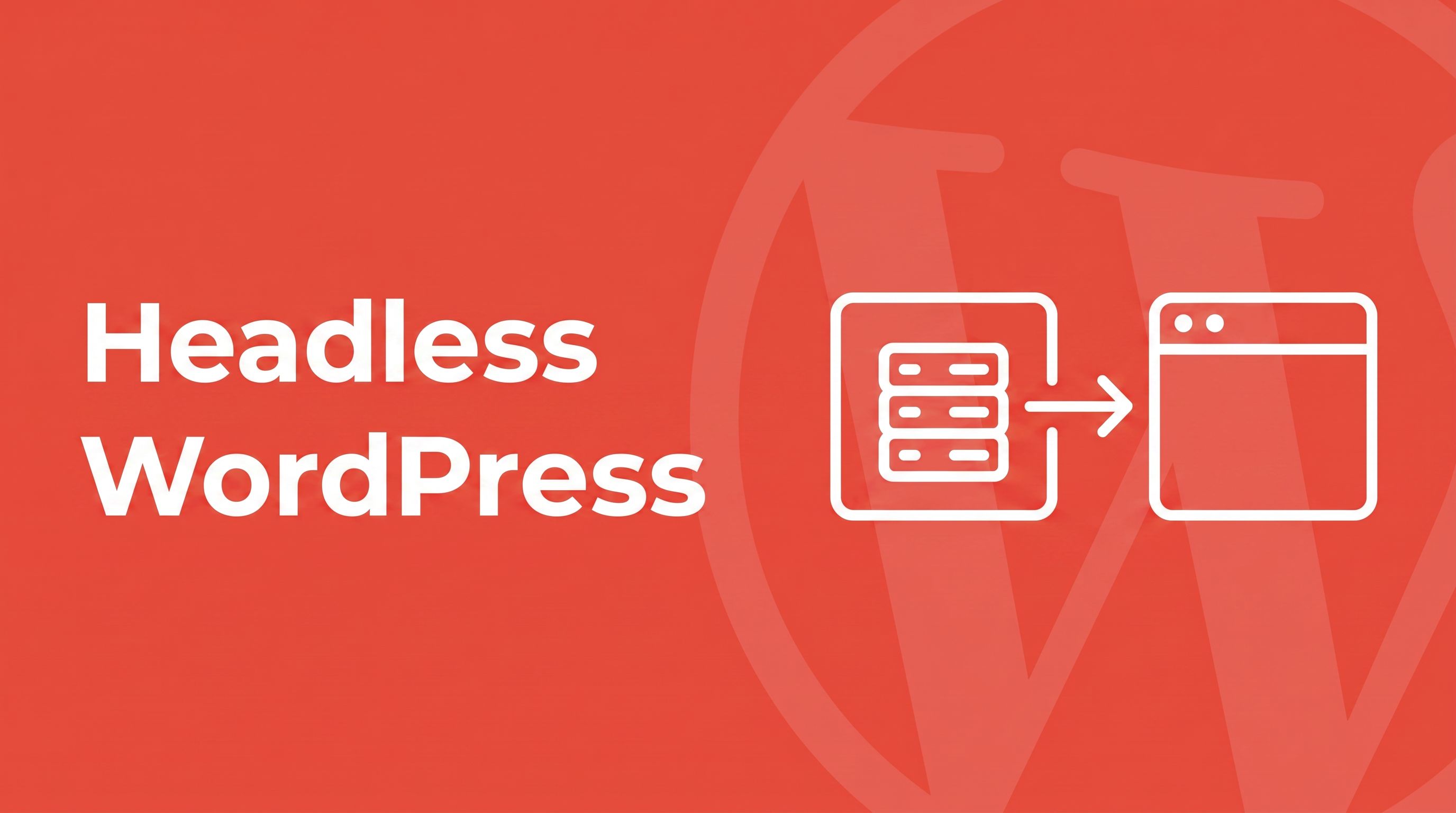
- Headless WordPress uses WordPress purely as a content backend, with a separate frontend (React, Next.js) pulling content through an API.
- The two API layers are the REST API and WPGraphQL; WPGraphQL is usually more efficient for complex frontends.
- It’s worth it for app-like performance, multi-channel content, or a team that wants a modern stack, and overkill for a standard blog or brochure site.
- You give up themes, many plugins’ frontend features, and the live preview unless you rebuild them.
What Headless WordPress Actually Means
A traditional WordPress site is a single PHP application: when a visitor hits a URL, PHP queries the database, runs the active theme’s templates, and sends back HTML. The “head” (theme, templates, frontend rendering) and the “body” (content management, database, admin UI) live in one process.
Headless WordPress decouples those two pieces. WordPress still runs on a server somewhere, with the same admin dashboard, the same Posts and Pages, the same plugins, the same user roles. But instead of rendering HTML directly, WordPress exposes the content through an API, either the built-in REST API or the WPGraphQL plugin. A completely separate frontend application fetches that content and renders the actual web pages users see.
In practical terms: editors log into cms.yoursite.com/wp-admin and write posts the way they always have. The public site at yoursite.com is a Next.js (or Astro, or SvelteKit) app deployed to Vercel, fetching content from cms.yoursite.com/wp-json/wp/v2/posts. Your editors see no difference. Your developers get to use modern tooling end to end.
When Headless WordPress Makes Sense (and When It Doesn’t)
Going headless is a meaningful architectural commitment. It’s right for some teams and wrong for others.
Headless makes sense when:
- You want full control over the frontend. Custom design systems, complex interactions, animations, or anything that doesn’t fit cleanly inside the Block Editor / Site Editor model.
- You’re building cross-platform. Same WordPress backend, multiple frontends (web app, mobile app, kiosk display). One source of truth, many surfaces.
- Performance is a hard requirement. Static or edge-rendered frontends from Vercel/Netlify/Cloudflare can hit Core Web Vitals scores that a traditional WordPress site would need aggressive caching and a CDN to match.
- Your team is already React/Vue/Svelte-native. Reusing existing frontend skills and tooling rather than learning PHP and theme.json.
- You like WordPress’s editorial experience but not its frontend. The block editor for content creators, modern frameworks for the public site.
Headless doesn’t make sense when:
- You rely on WordPress plugins for frontend functionality. Contact forms, social sharing, comments, lightboxes, sliders, AdSense. All plugins that add frontend behavior assume WordPress is rendering the page. Headless breaks most of them.
- You want to use the Site Editor or block themes. Full Site Editing is a traditional-WordPress feature; headless setups don’t use it.
- You have a small team that doesn’t want to maintain two stacks. Headless means two deploys, two hosts, two error-monitoring setups, two sets of dependencies.
- The site is mostly editorial content with conventional patterns. A standard blog or business site with good Core Web Vitals can be served by traditional WordPress + decent hosting + caching for less effort than headless.
If you’re reading this and unsure, the test is simple: does the gain from a custom frontend outweigh the cost of losing the plugin ecosystem? For most sites, the answer is no. For some, it’s an obvious yes.
The Two API Layers: REST API vs WPGraphQL
The first real decision in any headless build: how does the frontend talk to WordPress? Two options.
WordPress REST API (built-in)
The REST API has been part of WordPress core since 4.7 (December 2016). Every modern WordPress site exposes it at /wp-json/ with no setup. Posts, pages, custom post types, taxonomies, users, media, they’re all there.
Pros: built into core, no extra plugin, predictable URL structure, well-documented, the integration surface developers tend to learn first. Works fine for simple-to-moderately-complex sites.
Cons: over-fetches (you can’t ask for just the title + slug, you get the whole post object), under-fetches in the other direction (related posts, custom field connections often need multiple requests), and the query syntax for filtering is limited to URL parameters.
For a deeper look at REST API itself (authentication, common patterns, code examples), our WordPress REST API guide covers it end to end.
WPGraphQL (plugin)
WPGraphQL is a free plugin that adds a single GraphQL endpoint at /graphql. Instead of hitting a bunch of REST routes and combining responses, you write one GraphQL query that asks for exactly the fields you need, exactly nested the way the UI consumes them.
Pros: single request for complex nested data (a post + its category + its author + 3 featured related posts in one shot), strict typing, schema introspection, plays well with Apollo/Relay/urql/SWR. Almost always faster on the wire than the equivalent REST calls.
Cons: it’s a plugin (third-party dependency), the learning curve is steeper if your team doesn’t already know GraphQL, and you’re now also maintaining a schema layer alongside WordPress itself.
Which to pick
For most starter headless builds: REST API. It’s built-in, well-documented, and good enough for moderate content models. Switch to WPGraphQL when you start writing two or three REST requests for what should be one logical query, or when your frontend framework is GraphQL-native (Apollo Client, Relay).
Frontend Framework Options
The frontend is where the design and rendering live. The popular picks for headless WordPress in 2026:
- Next.js. The most common pairing. React-based, supports static generation, server-side rendering, ISR (incremental static regeneration), and app-router patterns. Faust.js is a Next.js-specific framework built on top that handles WP authentication, preview, and routing for headless WordPress specifically.
- Astro. Excellent for content-heavy sites that don’t need much interactivity. Ships almost zero JavaScript by default, ideal for blogs and marketing sites where SEO and CWV matter.
- SvelteKit. Smaller bundle sizes than React, faster runtime performance, growing ecosystem. The pick for teams who want Svelte’s developer experience.
- Nuxt. The Vue equivalent of Next.js. If your team is Vue-native, Nuxt is the natural choice.
- Gatsby. Still around, less recommended for new projects in 2026. The original SSG-with-WordPress framework, but development pace has slowed.
- Pure React or Vue (no framework). Possible but rare. You’d give up routing, SSR, image optimization, and image lazy-loading conventions. Worth it only for very specific app-like builds.
For most teams shipping a content-heavy site in 2026, the boring-and-correct answer is Next.js + WPGraphQL deployed to Vercel, or Astro + REST API deployed to Cloudflare Pages.
Authentication Between Frontend and WordPress
For public content (published posts, pages, public custom post types), you don’t need authentication at all. The frontend fetches via the REST or GraphQL endpoint and WordPress returns the same data it’d return to an anonymous browser.
You need authentication when the frontend writes data (form submissions, comments, user signups), reads private/draft content (previewing unpublished posts), or hits authenticated-only routes. Options:
- Application Passwords (recommended for most cases). Built into WordPress since 5.6 (late 2020). One-line setup: an admin creates a per-user app password, the frontend sends it in a Basic Auth header. Full setup guide here.
- JWT (via plugin). Token-based auth via the JWT Authentication plugin. Useful if your frontend already speaks JWT and you want short-lived access tokens with refresh.
- OAuth (via plugin). For third-party integrations where you need standardized authorization flows. Heavier setup; usually overkill for your own frontend.
Default to Application Passwords. Only reach for JWT if you have a specific reason (mobile app with refresh tokens, etc.).
Hosting Architecture
A typical production setup splits across three pieces:
- WordPress backend: a managed WP host (Kinsta, WP Engine, Cloudways, SiteGround) on a private subdomain like
cms.yoursite.com. Editors hitcms.yoursite.com/wp-admin; the frontend fetches fromcms.yoursite.com/wp-json/. - Frontend: Vercel, Netlify, or Cloudflare Pages, deployed automatically on git push. Connected to
yoursite.comas the primary domain. - Media (optional): by default media stays on the WordPress host and the frontend loads images from
cms.yoursite.com. For high-traffic sites you can move media to a CDN (Cloudflare Images, AWS S3 + CloudFront, Bunny) using a plugin like Offload Media.
The “two hosts” reality is the biggest operational shift. Two deploy pipelines, two sets of credentials, two error-monitoring setups, two billing relationships. Plan for it.
Common Challenges (and What to Do About Them)
- Preview. Native WordPress preview opens the post in the WordPress theme. In headless, you don’t have one. The fix is a “preview mode” route in the frontend (Next.js has built-in preview mode) that fetches the draft content from WordPress and renders it through your normal templates. Faust.js handles this out of the box for Next.js.
- Cache invalidation when content changes. Statically-generated frontends don’t know when an editor updates a post. The fix is a webhook from WordPress (via a small plugin or a function in functions.php that fires on
save_post) that hits the deploy hook on Vercel/Netlify to rebuild. Or, with ISR (Next.js) or on-demand revalidation, to refresh just the affected page. - Plugins that assume frontend rendering. Forms (Gravity Forms, WPForms), social sharing buttons, page-builder visual settings, all of which expect WordPress to render the HTML. In headless, you replace them with frontend-native solutions: form services like Formspree or your own API route, share buttons coded in the frontend, etc.
- Permalink mapping. WordPress URLs (
/category/sample-post/) need to be honored by the frontend’s router, or you need 301 redirects. Most modern frameworks support catch-all routes that map directly to WordPress slugs. See our permalinks guide for the underlying WordPress side. - SEO and crawlability. SPAs that render entirely client-side are invisible to many crawlers. Use SSR or static generation so your frontend ships rendered HTML to bots. All the frameworks above do this by default; just don’t fight it.
A Minimal Setup, Step by Step
- Backend. Install WordPress on your chosen host. Set the permalink structure to Post Name (or your preferred non-Plain structure). Confirm the REST API works at
cms.yoursite.com/wp-json/wp/v2/posts. - Authentication (optional). If you need to write data or read drafts, set up Application Passwords on the user account the frontend will use.
- WPGraphQL (optional). Install and activate WPGraphQL if you want GraphQL instead of REST. Confirm
cms.yoursite.com/graphqlresponds. - Frontend.
npx create-next-app@latest(or your framework’s equivalent). Add a fetcher that calls WordPress for the data your pages need. For Next.js this typically means a function inapp/page.tsxthat runs at build or request time. - Routing. Add a catch-all route that maps incoming URLs to WordPress slugs.
/[slug]/page.tsxin Next.js, equivalent in others. - Deploy. Push to Vercel/Netlify/Cloudflare Pages. Connect your custom domain to the frontend deploy. Point
cms.yoursite.comat the WordPress host. - Webhook. Add a small
save_postaction in functions.php or a custom plugin that POSTs to your frontend’s deploy hook whenever content changes, so the public site rebuilds.
You’re now running a headless WordPress site. Editors don’t see any difference; the public site is on a modern stack you fully control.
Frequently Asked Questions
Is headless WordPress faster than traditional WordPress?
Usually yes, sometimes by a lot. A statically generated frontend served from a CDN beats a PHP-rendered WordPress page that has to query the database on every request. The catch: well-cached traditional WordPress with a CDN in front can hit similar real-world numbers without the operational overhead of running two stacks. Headless’s speed advantage is biggest on content-heavy sites with lots of pages and modest interactivity.
Do I lose the WordPress block editor in headless mode?
No. Editors use the WordPress admin (including the block editor) the same way they always have. The block content gets stored in WordPress as it normally would, and you fetch the post’s rendered or raw content via the API. What you lose is the Site Editor / Full Site Editing experience for the public site, since the frontend is no longer rendered by WordPress.
Can I still use WordPress plugins with headless WordPress?
Backend-only plugins keep working: Advanced Custom Fields, Yoast SEO (for stored metadata), security plugins, role managers, anything that doesn’t render frontend HTML. Frontend plugins mostly don’t work: contact forms, social sharing buttons, lightboxes, page-builder visual settings. Those need to be replaced with frontend-native equivalents.
WPGraphQL vs WordPress REST API: which should I use?
REST API for simple-to-moderate content models, especially if you want to avoid extra plugin dependencies. WPGraphQL when you have nested data needs (a post with its category, author, and related posts in one query), strict typing matters, or your frontend framework is GraphQL-native (Apollo, Relay). Most teams start with REST and switch to WPGraphQL when they hit a complexity wall.
What’s the best frontend framework for headless WordPress?
For most teams in 2026: Next.js (with Faust.js if you want WordPress-specific helpers for preview and routing). For content-heavy sites where you ship almost no JavaScript: Astro. For Vue teams: Nuxt. For Svelte teams: SvelteKit. There’s no single “best”: pick the framework your team already knows or is most excited to learn, since you’ll be writing thousands of lines of frontend code in it.
Where do I host headless WordPress?
WordPress backend goes on a regular managed WordPress host (Kinsta, WP Engine, Cloudways, SiteGround, or a VPS). The frontend goes on a JAMstack platform: Vercel, Netlify, or Cloudflare Pages. Media stays on WordPress by default but can be offloaded to a CDN like Cloudflare Images or S3 + CloudFront for high-traffic sites.
Is headless WordPress more expensive than traditional WordPress?
Often slightly, sometimes a lot. You’re paying for two stacks instead of one: WordPress hosting plus the frontend host. The frontend host can be free (Cloudflare Pages, Vercel hobby, Netlify free tier) for small sites, so the practical added cost is often $0 to $20/month at small scale, scaling with traffic. The bigger cost is developer time, not infrastructure.
Should I use Faust.js?
If your stack is Next.js + WPGraphQL, yes. Faust.js handles authentication, preview mode, and WordPress-specific routing patterns that you’d otherwise build yourself. If you’re on a different framework or using REST API, Faust isn’t a fit. Faust is built and maintained by WP Engine specifically for headless WordPress on Next.js.
Wrapping Up
Headless WordPress is a real, well-traveled architecture in 2026. For sites that want WordPress’s editorial experience and a fully custom frontend on a modern stack, it’s the right pick. For sites that fit the conventional WordPress flow and rely on the plugin ecosystem for frontend features, it’s an unnecessary complication.
If you’re going headless, start with REST API and Next.js (or Astro for content-heavy sites). Use Application Passwords for auth. Plan for the preview-mode and cache-invalidation work upfront. Both are the parts everyone underestimates.
For the underlying WordPress pieces this guide builds on: the REST API guide covers the API surface in depth, the permalinks guide covers URL structure, and Application Passwords covers the recommended auth path.