WP-Cron is WordPress’s built-in scheduling system. It’s how scheduled posts publish at the right time, how plugins run hourly background tasks, and how WordPress checks for updates without you having to do anything. It’s also one of the most consistently misunderstood pieces of WordPress, because it isn’t actually cron.
This guide covers what WP-Cron actually does, the gotchas that make it unreliable on certain sites, how to swap it for a real server cron job (the right move on most production sites), the developer API for scheduling your own events, and how to debug when scheduled tasks aren’t running.
- WP-Cron is WordPress’s built-in task scheduler, but it only runs when someone visits your site, not on a fixed clock.
- That makes it unreliable for time-critical jobs on low-traffic sites and wasteful on high-traffic ones.
- For reliability, disable WP-Cron with
DISABLE_WP_CRONand triggerwp-cron.phpfrom a real server cron job. - Schedule events with
wp_schedule_event()and debug them with thewp cronWP-CLI commands.
What WP-Cron Actually Is (and Isn’t)
The name is misleading. Real cron is a Unix utility that runs scheduled commands at specific times by checking the system clock. WP-Cron does something much simpler:
- WordPress maintains a list of scheduled tasks in the
wp_optionstable (key:cron). - On every page load, WordPress checks that list for any tasks whose scheduled time has passed.
- If there are pending tasks, WordPress fires off a separate HTTP request to
wp-cron.phpto run them in the background. - That separate request executes the callbacks for each due task, then exits.
The critical detail: WP-Cron only runs when someone visits your site. No visitors, no cron. A scheduled post timed for 9 AM on a Sunday won’t publish until the first visitor lands on the site after 9 AM. On a low-traffic site, that could be hours late.
The other side of the same coin: on a high-traffic site, WP-Cron checks the schedule on every page load. That’s a database hit and a small CPU hit attached to a random visitor’s request, hundreds or thousands of times an hour. Most sites won’t notice; the ones that do tend to swap it out for real cron (covered below).
WP-Cron vs Real Server Cron
The decision between leaving WP-Cron on and switching to a real cron job comes down to two things: how reliable you need scheduled tasks to be, and how much traffic the site gets.
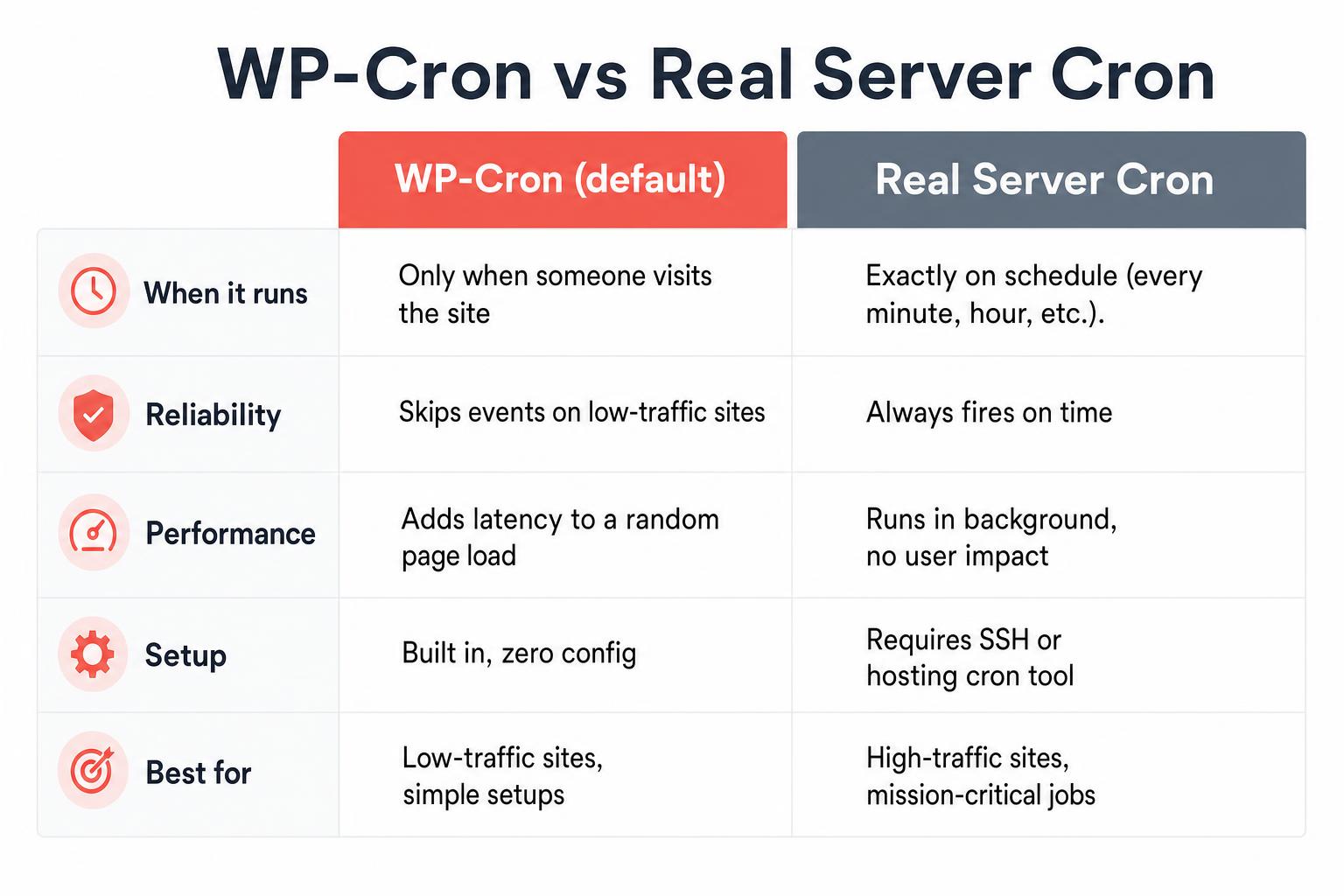
- You can stay with WP-Cron if: you have a low-to-medium-traffic site, scheduled tasks aren’t mission-critical (a 30-minute delay on a scheduled post is fine), and you don’t have SSH access or a real cron-job tool in your hosting panel.
- You should switch to real cron if: you have a high-traffic site and want to remove the per-pageload schedule check, or your site is low-traffic and you need scheduled tasks to fire on time, or you’re running anything mission-critical (eCommerce inventory sync, backups, automated emails).
Most managed WordPress hosts (Kinsta, WP Engine, Rocket.net, GridPane, Pressable) handle this for you automatically. They disable WP-Cron at the platform level and run a real cron that hits wp-cron.php every minute or two. If you’re on one of those, you don’t need to do anything.
How to Disable WP-Cron and Use Real Cron
Two steps. First, tell WordPress to stop running cron on page loads by adding this line to your wp-config.php file (above the /* That's all, stop editing! */ line):
define( 'DISABLE_WP_CRON', true );That stops the per-pageload check and the spawned wp-cron.php request. WordPress will queue scheduled events but never fire them.
Second, set up a real cron job that hits wp-cron.php on a regular schedule. The line that goes in your server crontab (crontab -e from SSH):
*/15 * * * * wget -q -O - https://yoursite.com/wp-cron.php?doing_wp_cron >/dev/null 2>&1That fires every 15 minutes. Adjust the interval to your needs (every 5 minutes for time-sensitive jobs, hourly for less-critical ones). The ?doing_wp_cron query string is a flag WordPress uses internally to recognize that this is a legitimate cron request.
If your host gives you a cron-job tool in cPanel or the dashboard (most do), use that instead of editing crontab directly. The command is the same.
Common cron interval reference:
*/5 * * * *: every 5 minutes*/15 * * * *: every 15 minutes (the most common WP-Cron replacement schedule)0 * * * *: every hour, on the hour0 */6 * * *: every 6 hours0 0 * * *: once a day, at midnight server time
If you need an interval that isn’t on the list above (every 7 minutes, every other Tuesday at 2 AM, etc.), Cron Calculator will build the expression, explain an existing one back to you in plain English, and list the next 50 times it would actually fire. That last part is the useful one here, because it shows the run times in whichever timezone you pick, which is the quickest way to check a schedule against the “server time” caveat above rather than guessing. It is free and needs no signup. Disclosure: it is another tool made by SmartWP’s author.
The WP-Cron Developer API
If you’re building a plugin or theme that needs to do work on a schedule (sync data, send digest emails, clean up old records, etc.), you don’t write your own scheduler. You use WP-Cron’s API and WordPress takes care of the rest.
Schedule a recurring event
// On plugin activation, schedule the event if it isn't already scheduled
register_activation_hook( __FILE__, 'myplugin_schedule_cron' );

function myplugin_schedule_cron() {
    if ( ! wp_next_scheduled( 'myplugin_hourly_sync' ) ) {
        wp_schedule_event( time(), 'hourly', 'myplugin_hourly_sync' );
    }
}

// Hook the actual work to the cron event name
add_action( 'myplugin_hourly_sync', 'myplugin_run_sync' );

function myplugin_run_sync() {
    // ...do the scheduled work
}
The default recurrence intervals WordPress ships with are hourly, twicedaily, daily, and (since WP 5.4) weekly. Use one of those as the second argument to wp_schedule_event(), or define a custom interval (covered below).
Schedule a one-off event
// Run once, 5 minutes from now
wp_schedule_single_event( time() + ( 5 * MINUTE_IN_SECONDS ), 'myplugin_one_off_task' );

add_action( 'myplugin_one_off_task', 'myplugin_run_one_off' );

function myplugin_run_one_off() {
    // ...runs once and never again
}
One-off events are the right pattern for “do this in the background a bit later” work, like sending a follow-up email after a form submission or processing an upload after a webhook fires.
Add a custom interval
If you need a recurrence that isn’t hourly / twicedaily / daily / weekly, register your own via the cron_schedules filter:
add_filter( 'cron_schedules', function( $schedules ) {
    $schedules['every_15_minutes'] = array(
        'interval' => 15 * MINUTE_IN_SECONDS,
        'display'  => 'Every 15 Minutes',
    );
    return $schedules;
} );

// Now you can use 'every_15_minutes' as the recurrence
wp_schedule_event( time(), 'every_15_minutes', 'myplugin_quick_check' );
Cancel a scheduled event
Always clear scheduled events on plugin deactivation. If you don’t, the event stays in the database forever, firing the hook even though your plugin is gone (which usually causes a fatal error if anyone re-visits and the hook tries to call your now-missing function):
register_deactivation_hook( __FILE__, 'myplugin_clear_cron' );

function myplugin_clear_cron() {
    wp_clear_scheduled_hook( 'myplugin_hourly_sync' );
}
wp_clear_scheduled_hook() removes every event for that hook name. wp_unschedule_event() removes a single specific scheduled event by timestamp.
Debugging WP-Cron with WP-CLI
The fastest way to inspect and run cron events is via WP-CLI. Three commands cover 90% of debugging:
# List every scheduled cron event with its next run time
wp cron event list

# Run a specific event manually (useful for testing)
wp cron event run myplugin_hourly_sync

# Run all events that are currently due
wp cron event run --due-now
wp cron event list is the most useful one. It shows every event scheduled, its hook name, recurrence, and the timestamp it’ll fire next. If a plugin says it should be running an hourly sync but isn’t, this is where you check.
If you’d rather use a UI, the WP Crontrol plugin adds a Tools -> Cron Events page to the admin with the same data plus inline run/edit/delete buttons. It’s the de facto standard for WordPress developers who debug cron regularly.
Common WP-Cron Pitfalls
- The first is forgetting to
add_action()for the hook. Scheduling an event without registering a callback for the hook means WordPress fires the hook every interval and nothing happens. Schedule + add_action both required. - Next is scheduling the same event multiple times. Calling
wp_schedule_event()repeatedly without checkingwp_next_scheduled()first creates duplicate scheduled events. The hook then fires more than once per interval. - Watch out for long-running cron tasks. WP-Cron tasks share the PHP request lifecycle. If your callback takes 60 seconds, you’ve added 60 seconds to a random visitor’s pageload (or hit your host’s PHP timeout, killing the task halfway through). Break long jobs into smaller chunks or use background processing patterns.
- Then there are cron events that survive plugin removal. Always call
wp_clear_scheduled_hook()in your deactivation hook. Otherwise, your cron entry sits inwp_optionsforever, trying to call a function that no longer exists. - Last, assuming WP-Cron runs at exact times. Even with default WP-Cron, events fire after their scheduled time, not at it. The lag is whatever the gap is between page loads. With real cron, the lag is whatever your interval is (5 minutes for
*/5 * * * *).
Frequently Asked Questions
Why aren’t my scheduled posts publishing on time?
Almost always because WP-Cron didn’t fire when the post was supposed to publish. Default WP-Cron only runs when someone visits the site, so a scheduled post timed for 3 AM won’t go live until the first visitor after 3 AM. The fix is to disable WP-Cron and run a real cron job every 5-15 minutes (covered above).
Will disabling WP-Cron break my plugins?
Only if you forget to set up a real cron replacement. DISABLE_WP_CRON stops the visit-triggered cron, but plugins still register their events normally. As long as something is hitting wp-cron.php on a regular schedule (your real cron job, or your managed host’s platform cron), every plugin’s scheduled tasks keep running. If you disable WP-Cron and don’t replace it, plugins that rely on cron will silently stop working.
How do I see what’s currently scheduled?
Two options. From SSH: wp cron event list. From the WordPress admin: install WP Crontrol and check Tools -> Cron Events. Both show every event registered, its hook name, schedule, and next run time.
Can I run wp-cron.php from a different server?
Yes. The cron job that fires wp-cron.php doesn’t have to run on the same server as your WordPress site. A common pattern for high-availability setups is running cron from a dedicated worker server (or a service like cron-job.org or EasyCron) that hits https://yoursite.com/wp-cron.php?doing_wp_cron on schedule. WordPress doesn’t care where the request originates.
Why is wp-cron.php hitting my server constantly?
If you’re seeing wp-cron.php in your access logs on a busy site, that’s normal. Default WP-Cron spawns a wp-cron.php request every time someone visits and an event is due. The fix on a high-traffic site is to disable WP-Cron with the DISABLE_WP_CRON constant and run real cron at a sane interval (every 5-15 minutes). That replaces hundreds of per-pageload spawn requests with a few dozen scheduled ones per hour.
Does my managed WordPress host already handle this?
If you’re on Kinsta, WP Engine, Rocket.net, Pressable, GridPane, or most other managed WordPress platforms, yes. They set DISABLE_WP_CRON at the platform level and run their own cron that hits wp-cron.php every minute or two. You don’t need to do anything. Most shared hosts don’t do this for you, which is why scheduled tasks on Bluehost / HostGator / GoDaddy can feel unreliable.
Wrapping Up
WP-Cron is fine on small sites and useful as a fallback when you don’t have access to real cron. On any site where scheduled events matter (eCommerce, automated emails, autoblogging, time-sensitive publishing), disable it and run a real cron job that hits wp-cron.php every 5-15 minutes. Most managed hosts handle this for you; on shared hosting you’ll set it up yourself in the cron-jobs panel.
For development, the API surface (wp_schedule_event, wp_schedule_single_event, wp_clear_scheduled_hook) is small and stable. Always pair scheduling with add_action() for the hook, always clear hooks on deactivation, and use wp cron event list from WP-CLI to verify what’s actually queued.
If your scheduled tasks are misbehaving and you suspect cron is the cause, our WordPress debug mode guide covers how to log errors from cron callbacks without exposing them to visitors.
Let me know in the comments if you’ve run into a WP-Cron edge case worth adding to the list.