
Your PHP version affects your site’s speed, security, and plugin compatibility. Outdated PHP versions no longer receive security patches, which makes your site vulnerable. Here’s how to check your WordPress PHP version and what to do if it’s outdated.
Check PHP Version in the WordPress Dashboard
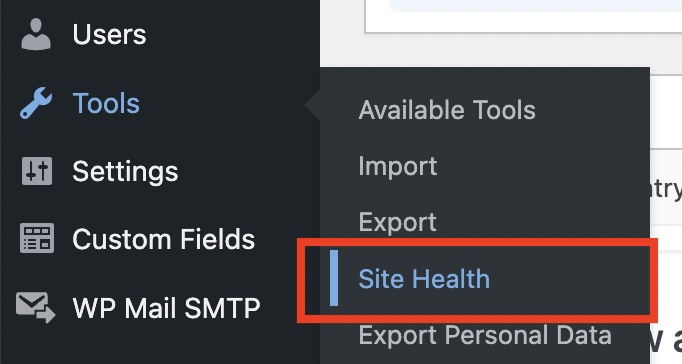
The quickest way to check your PHP version is through the built-in Site Health tool. Log in to your WordPress dashboard and head to Tools > Site Health.
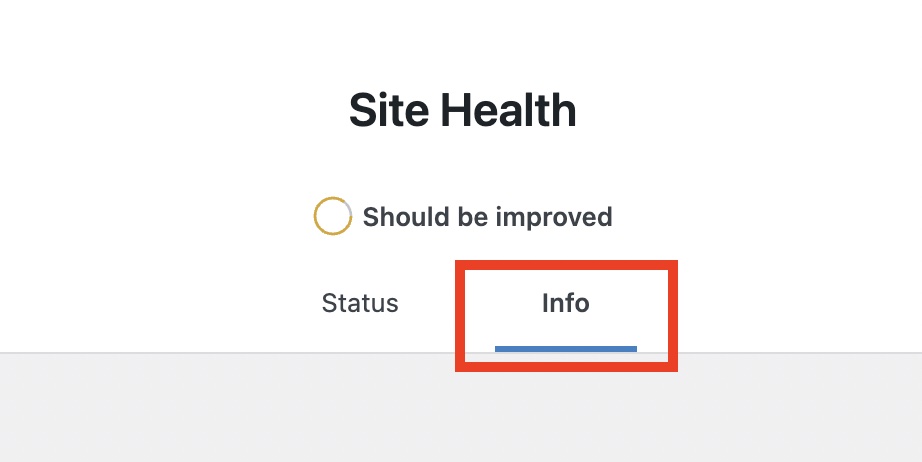
Click the Info tab at the top of the page.
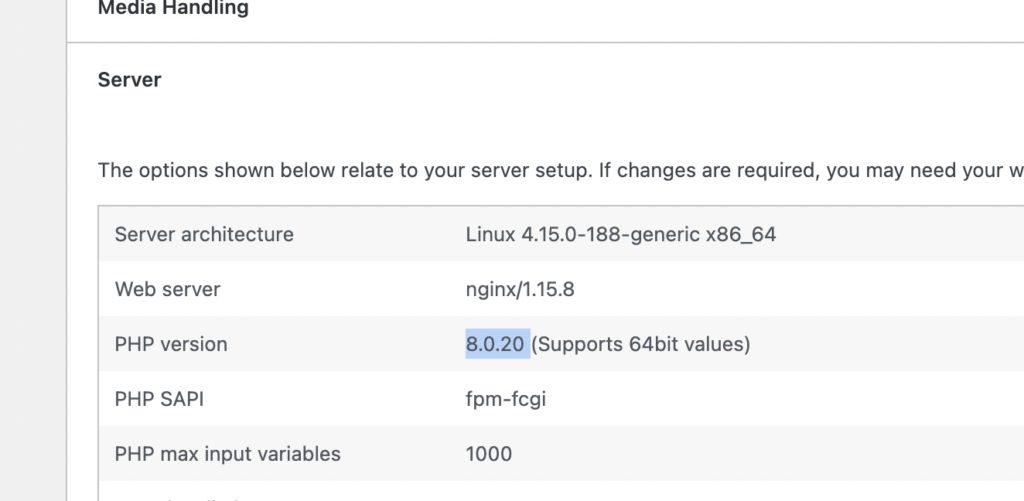
Expand the Server section and you’ll see your PHP version listed along with other server details like MySQL version and max input variables.
Check PHP Version with a phpinfo() File
If you can’t access the WordPress dashboard (or need detailed PHP configuration info), you can create a small PHP file and upload it to your server.
Create a file called phpinfo.php with this single line:
<?php phpinfo(); ?>Upload it to your site’s root directory (the same folder as wp-config.php) using FTP or your hosting file manager. Then visit yoursite.com/phpinfo.php in your browser. You’ll see a full page of PHP configuration details, including the version number at the top.
Important: Delete the file from your server as soon as you’re done. It exposes sensitive server information that you don’t want publicly accessible.
Check PHP Version with WP-CLI
If you have SSH access to your server, WP-CLI can show your PHP version in one command:
wp cli infoThis outputs your PHP version, WP-CLI version, and other environment details. You can also run php -v directly in the terminal for just the PHP version.
Which PHP Version Should WordPress Use?
WordPress officially requires PHP 7.4 or higher, but you should always run a version that still receives security updates. As of 2026, these PHP versions are actively supported:
- PHP 8.5 (active support until Dec 2027)
- PHP 8.4 (active support until Dec 2026)
- PHP 8.3 (security fixes only until Dec 2027)
- PHP 8.2 (security fixes only until Dec 2026)
If you’re on PHP 8.1 or lower, your version is no longer receiving security patches. Contact your hosting provider to upgrade. Most hosts let you change PHP versions from their control panel (usually under a “PHP Version” or “Software” menu).
Before upgrading, make sure your theme and plugins are compatible with the newer version. A quick way to test is to use a staging site if your host offers one.
Those are three ways to check your WordPress PHP version. The Site Health dashboard works for most people, while the phpinfo() file and WP-CLI options are useful when you need more detail or don’t have dashboard access.


2 Responses
Informasi ini menarik
nice work.