“There has been a critical error on this website” means a PHP fatal error stopped WordPress mid-request. It is not a vague warning or a theme glitch. Something crashed hard enough that WordPress could not finish building the page, so it caught the crash and showed you a polite screen instead of a stack trace.
The fastest route back in is usually recovery mode, a feature built into WordPress since 5.2 that emails you a login link and pauses the extension that broke. Most guides mention it in passing. The part they leave out is that loading your homepage will never trigger that email, which is why so many people conclude it does not work.
- The error always means a genuine PHP fatal. WordPress only shows this screen for five error types, and a warning or notice is not one of them.
- Visit
/wp-admin/or/wp-login.php, not your homepage. Recovery mode only triggers on those, so a front-end visit sends no email. - The exact wording of the message tells you what WordPress managed to do. Four different versions exist and each one means something specific.
- You get one recovery email every 24 hours, and the link inside expires after 24 hours. Miss it and you wait, unless you clear the limit.
- Recovery mode does not run on multisite at all. Core skips it entirely, so multisite needs the manual route.
- Add
WP_DISABLE_FATAL_ERROR_HANDLERto see the real PHP error instead of the friendly screen.
What the error actually means
WordPress registers a shutdown handler called WP_Fatal_Error_Handler. When PHP dies partway through a request, that handler catches it, sends a 500 status, and prints the critical error page. Without it you would see a raw PHP fatal error, or a blank white page, which is what older WordPress versions did.
It is worth knowing that the handler is deliberately picky. Reading core, it only acts on five PHP error types:
E_ERROR
E_PARSE
E_USER_ERROR
E_COMPILE_ERROR
E_RECOVERABLE_ERROR
Warnings, notices and deprecation messages are not on that list. So if you are seeing this screen, something genuinely fatal happened: a plugin called a function that does not exist, a PHP version mismatch, a syntax error in a file you just edited, or a script that ran out of memory. It is never “just a warning.”
Read the wording, it tells you what WordPress did
This is the step almost every guide skips, and it costs people hours. WordPress does not have one critical error message. It has four, and which one you are looking at tells you whether recovery mode engaged and whether an email went out.
| What the page says | What it means |
|---|---|
| “…putting it in recovery mode. Please check the Themes and Plugins screens…” | You are already inside recovery mode. The broken extension is paused and you can work. |
| “…Please check your site admin email inbox for instructions.” | Recovery mode fired and WordPress attempted to send you the login link. Go and check that inbox. |
| “…Please reach out to your site administrator…” | You are on multisite. Recovery mode does not run there, so no email is coming. |
| “There has been a critical error on this website.” (nothing else) | No email was sent for this request. You are almost certainly looking at the front end. |
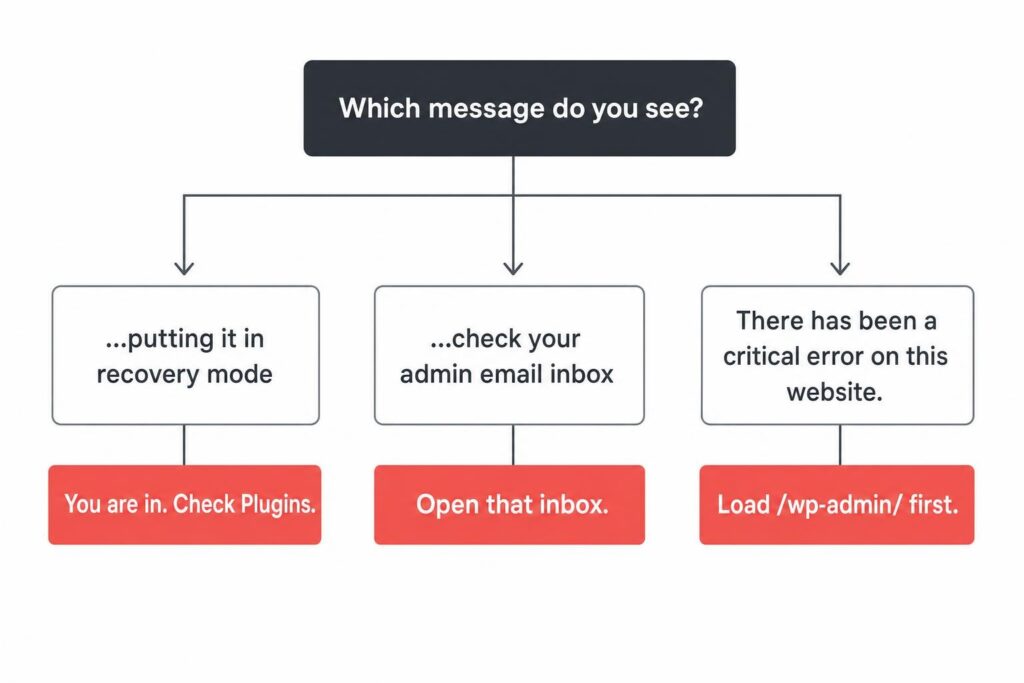
That last row is the one that matters. If the message is the bare one-liner with no mention of an inbox, WordPress did not even attempt to email you, and refreshing the homepage a dozen more times will not change that.
How to actually trigger recovery mode
Recovery mode only initialises on what core calls a protected endpoint. There are exactly three:
- The login page,
wp-login.php. - The admin area, any
/wp-admin/screen, as long as the request is not Ajax. - A short allowlist of Ajax actions that exist specifically to help resolve a fatal error.
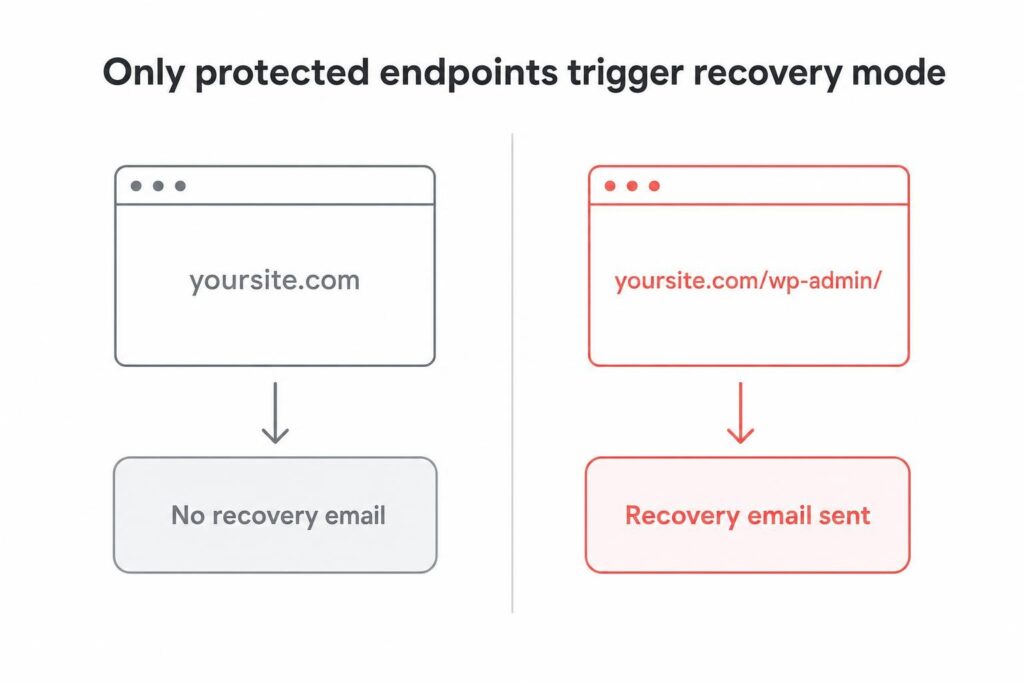
Your homepage is not on that list. Neither is a post, a category archive, or the checkout page a customer just complained about. So the first thing to do, before anything involving FTP, is simply this:
https://yoursite.com/wp-admin/Load it once, even though it will also show the error. That request is what makes WordPress notice the fatal on a protected endpoint, start recovery mode, and email the admin address a link. Then check that inbox.
The email arrives from your site, contains a one-click link, and logs you into wp-admin with the offending plugin or theme paused rather than active. That pausing behaviour is the whole point of the feature, as the original core proposal explains. You can then deactivate it properly, roll it back, or update it, and everything else on the site keeps working while you do.
When the email never arrives
Three reasons, in the order they are likely:
- Your site cannot send mail at all. Plenty of WordPress installs cannot, which is why the recovery feature quietly fails on so many sites. If contact form notifications have never worked, this will not work either.
- You already used up today’s. Core rate limits the recovery email to one per day, and the link it contains is valid for the same window. If you triggered one this morning and deleted it, no second email is coming until tomorrow.
- You are on multisite. Core wraps the whole recovery mode setup in a check that skips multisite entirely, so the feature does not exist for you.
Also check the address the mail would go to. It is the site admin email from Settings, which on a site you inherited is often a developer who left three years ago.
Fixing it without recovery mode
If the email is not coming, you need file access over SFTP, your host’s file manager, or SSH. The goal is the same: switch off the thing that crashed so you can get back into wp-admin.
Nine times in ten the culprit is whatever you touched last, so start there. Rename that single plugin’s folder inside wp-content/plugins, for example woocommerce to woocommerce-off. WordPress cannot find the plugin, deactivates it, and the site comes back.
If you have no idea what changed, rename the entire plugins folder to plugins-off. That disables everything at once. Log in, rename it back, then reactivate plugins one at a time until the error returns. The last one you switched on is your answer.
With WP-CLI, if the fatal is not severe enough to break the CLI too:
wp plugin deactivate --all
wp plugin activate <slug>      # then re-enable one at a time
If disabling every plugin changes nothing, the theme is next. Rename its folder in wp-content/themes and WordPress falls back to a default theme, assuming one is still installed. That is a good argument for never deleting the bundled themes.
See the real error instead of the friendly screen
The critical error page is deliberately vague because it is public. To find out what actually broke, turn on WordPress debugging in wp-config.php, above the “stop editing” line:
define( 'WP_DEBUG', true );
define( 'WP_DEBUG_LOG', true );
define( 'WP_DEBUG_DISPLAY', false );
Reload the page, then read wp-content/debug.log. The last fatal in that file names the file and line number that killed the request, which is usually enough to identify the plugin instantly. Our guide to WordPress debug mode covers the flags in more detail, and the error log explainer will translate the line you find.
There is also a blunter option. Adding this constant switches the handler off completely, so WordPress stops catching the crash and PHP prints the actual fatal error to the screen:
define( 'WP_DISABLE_FATAL_ERROR_HANDLER', true );Use it on staging, or for the sixty seconds it takes to read the error, then remove it. With the handler disabled you also lose recovery mode, and anyone visiting the site sees the raw error including your server paths.
Critical error or white screen of death?
They are the same underlying problem shown two different ways. Before WordPress 5.2 a PHP fatal produced a blank page with nothing on it, the famous white screen of death. The fatal error handler exists to replace that blankness with a message and an escape route.
So if you are still getting a genuinely blank page in 2026, the handler itself did not run. That usually means the crash happened very early, before WordPress loaded enough to register it, which points at wp-config.php, a corrupted core file, or a server-level problem rather than a plugin.
Frequently asked questions
How do I fix the critical error if I cannot log in?
Load yoursite.com/wp-admin/ once, which is what triggers WordPress to send the recovery mode email, then use the link in that email to log in with the broken extension paused. If no email arrives, connect over SFTP and rename the folder of the plugin you changed most recently inside wp-content/plugins, or rename the whole plugins folder to disable everything at once.
Why did I not get the recovery mode email?
Usually one of four reasons: you only loaded the front end, which does not trigger it; your site cannot send email at all; you already received one within the last 24 hours, since core rate limits it to one per day; or you are running multisite, where recovery mode is skipped entirely. Also confirm the site admin email address in Settings is one you can actually read.
Does the critical error mean my site was hacked?
Almost never. It means PHP hit a fatal error, and the overwhelmingly common causes are a plugin or theme update, an edited file with a typo in it, a PHP version change on your host, or exhausted memory. Malware can cause fatals too, but if the error appeared immediately after an update, start with the update.
How long does the recovery mode link stay valid?
One day by default. Core sets the link lifetime to match the email rate limit, and both default to 24 hours. If the link has expired, loading a protected endpoint again after the window has passed will generate a fresh one.
Will this error hurt my SEO?
Not if you fix it quickly. The page returns a 500 status, which tells search engines the failure is on the server side and temporary, so they retry rather than dropping the page. A 500 is a much better thing to serve than a 404 or a page of broken output. Sustained downtime over days is a different matter, which is where uptime monitoring earns its keep.
Bottom line
Work it in this order and most critical errors take minutes rather than an afternoon. Load /wp-admin/ to trigger recovery mode, read the exact wording on the screen to learn whether an email went out, and check that inbox. If nothing arrives, rename the last plugin you touched over SFTP. Turn on WP_DEBUG_LOG to find out what actually broke, rather than guessing.
The one habit that makes all of this shorter: take a working backup before updating anything, and run updates on a copy first. Recovery mode is a good safety net, but it is a net, not a plan.