
The fastest way to check your WordPress version is to log into your site’s admin dashboard. The version number appears in the “At a Glance” panel on the main dashboard page, and again in the bottom-right corner of every admin screen.
If you don’t have admin access (you want to check someone else’s WordPress site without logging in), you can usually find the version in the site’s HTML source, its RSS feed, an online version checker tool, or by running a single WP-CLI command.
Below are 7 ways to check what version a WordPress site is running, ordered from fastest to most reliable, plus one widely repeated method that stopped working and now returns a number that is easy to misread.
- On your own site, the dashboard “At a Glance” panel is the fastest check, and the version also sits in the bottom-right corner of every admin screen.
- On a site you do not control, view the HTML source and search for the
generatormeta tag, or paste the URL into the checker below. - Most reliable when you have file access: open
/wp-includes/version.phpand read$wp_version. That is the file WordPress reads its own version from. - A blank result usually means hardening, not an error. Security plugins routinely strip both the generator tag and the feed generator.
readme.htmlno longer contains the version number, so ignore any guide that still tells you to check it.- Not sure it is even WordPress? Search the page source for
wp-content. That survives the hardening that hides the version. - The latest WordPress version is 7.1.3.
Free WordPress version checker
Paste any site’s URL below. The checker reports whether the site runs WordPress, which version it exposes, the active theme, and whether that version is behind the current release. Nothing is saved.
If it comes back with “version hidden,” that is a good sign rather than an error. It means the site has deliberately stripped the public version fingerprints, which is exactly what the hardening advice further down recommends. It is also common: when we scanned the top 20,000 websites, 38.2% of the WordPress sites we found exposed no version at all. The methods below cover how to find the version on a site you control, and what to do when it is hidden.
Latest WordPress Version: 7.1.3
You can download the latest version of WordPress on wordpress.org
1. Check WordPress version in the dashboard
If you have admin access, this is the fastest check. Log into your WordPress dashboard and look at the “At a Glance” panel on the main admin screen. Your current WordPress version is shown right there (for example, “WordPress 7.0.2 running Twenty Twenty-Five theme”).
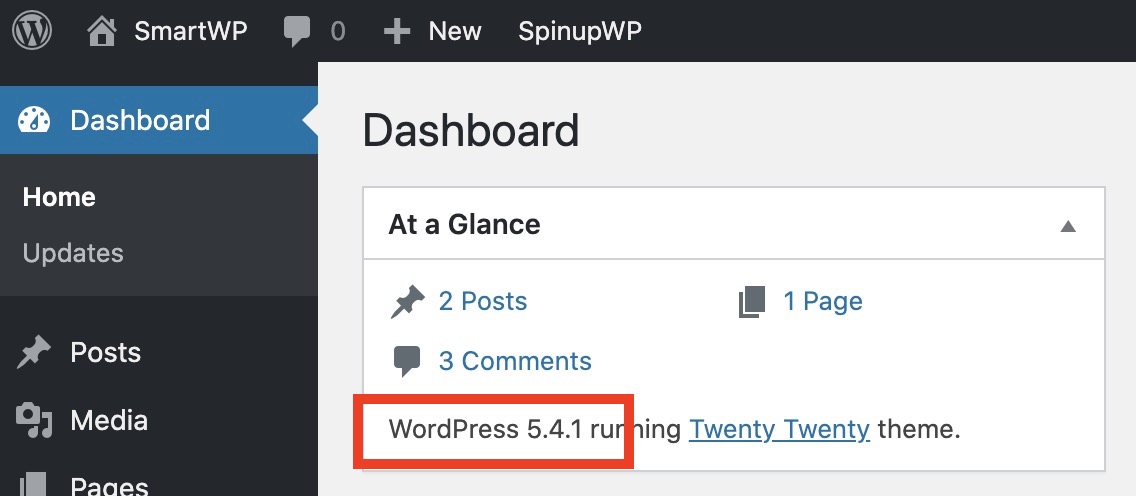
The version also appears in the bottom-right corner of every admin page, which is handy if the “At a Glance” widget has been hidden. If you see something like “Version 7.0.2” down there, that’s your number.
2. Check WordPress version by viewing page source
You can usually spot the WordPress version on any public site by checking its HTML source. Right-click on any page, choose “View Page Source” (Chrome, Firefox, Edge), and a new tab opens with the raw HTML.
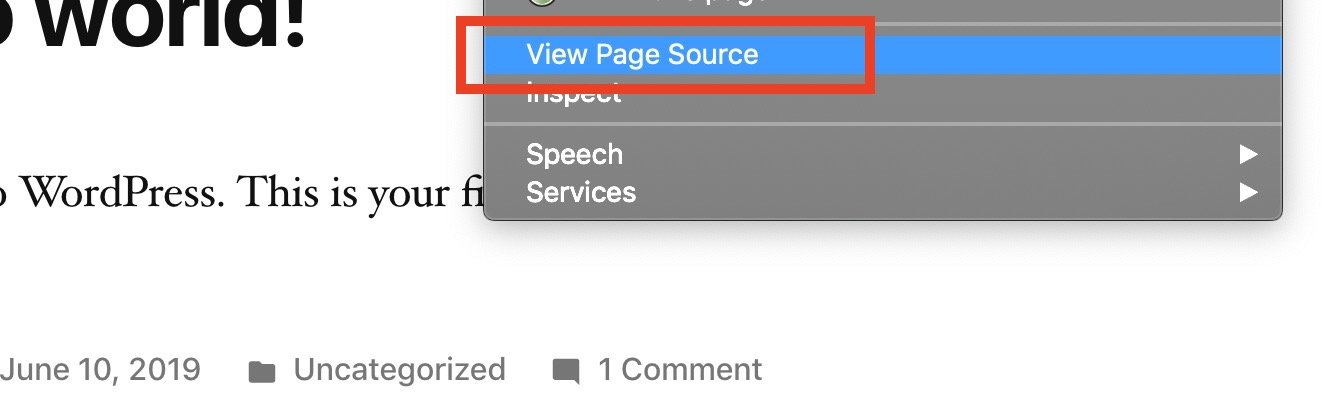
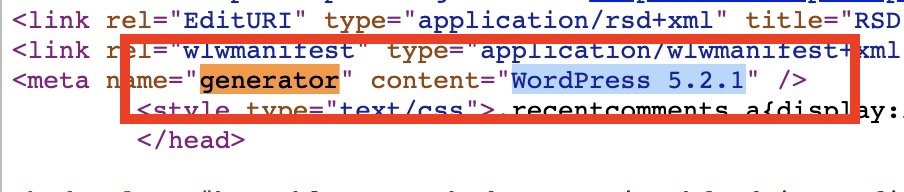
Press Ctrl + F (or Cmd + F on Mac), search for the word generator, and look for a meta tag like this:
<meta name="generator" content="WordPress 7.0.2" />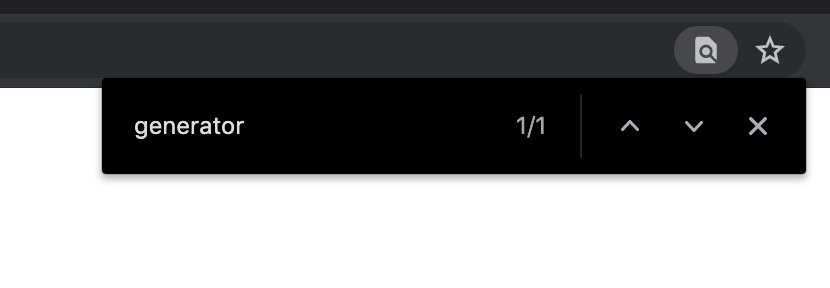
This won’t work on every WordPress site. A lot of security plugins strip the generator tag specifically to hide the version from attackers, and Wordfence, Kadence Security and All-In-One Security (AIOS) all offer it as a setting. If you are hunting for that middle one under an older name, it has been renamed twice: it shipped as iThemes Security, became Solid Security in 2023, and is now Kadence Security. The slug never changed, so it is still better-wp-security in your plugins folder and in any install command. If the search comes up empty, move on to the RSS feed method below.
3. Check WordPress version via RSS feed
Most WordPress sites expose an RSS feed at yoursite.com/feed/. Open that URL in your browser, then Ctrl + F / Cmd + F and search for generator. You’ll see a line that looks like:
<generator>https://wordpress.org/?v=7.0.2</generator>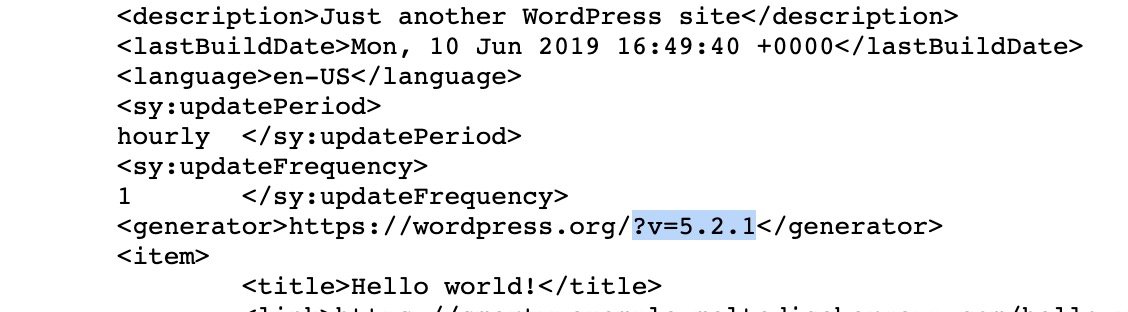
The RSS method often works even when the meta tag has been stripped from the main site, because some security plugins don’t touch the feed. If both are hidden, the site is running a tighter-than-average security setup.
4. Get WordPress version with PHP
If you’re writing a plugin or theme and need the version number at runtime (for example, to conditionally load code based on the WordPress version), use wp_get_wp_version(). WordPress 6.7 added it specifically because the two older approaches can hand you the wrong answer:
// Best (WordPress 6.7+): reads version.php, cannot be spoofed
echo wp_get_wp_version();

// Older approaches: both read the same global, so both can lie
echo get_bloginfo( 'version' );

global $wp_version;
echo $wp_version;

// Conditional example
if ( version_compare( wp_get_wp_version(), '6.5', '>=' ) ) {
    // Do something only on WordPress 6.5 or later
}
The reason for the newer function is the same hardening habit the rest of this page keeps running into. Some security plugins overwrite the $wp_version global to hide the version, and get_bloginfo( 'version' ) is not a way around that: it returns that same global (you can see it in wp-includes/general-template.php). So on a hardened site, both of the older options can return an empty string or a made-up number while the install is perfectly current. Core’s documentation for the new function is blunt about why it exists: modifying the global “can cause errors in WordPress, so the ability to get an unmodified version is needed.”
wp_get_wp_version() sidesteps all of that by loading wp-includes/version.php itself, which is the same file method 6 below tells you to open by hand. If your plugin still supports WordPress older than 6.7, keep get_bloginfo( 'version' ) as the fallback and accept that a hardened host may distort it. version_compare() is a PHP built-in that handles version strings properly, so you don’t have to worry about “6.10” being treated as less than “6.2” with simple string comparison.
5. Check WordPress version with WP-CLI
If you have SSH access to your server, WP-CLI gives you the version in one command:
wp core versionIt outputs just the version number (for example, 7.0.2). Pair it with wp core check-update to see if a newer version is available, or add --extra for additional info like the database version:
wp core version --extra6. Read the version.php file
WordPress stores its version number in /wp-includes/version.php. Open the file over FTP, SFTP, or your hosting file manager and look for the $wp_version variable near the top:
$wp_version = '7.0.2';This is the most reliable method because it reads straight from the WordPress core files, not from a UI element or a public-facing tag. It works even if the admin dashboard is broken, locked behind login issues, or stripped by a security plugin. The catch is you need server access to reach the file.
7. Use an online WordPress version checker
If you want to check the WordPress version of a site you don’t own (and don’t have server access to), an online checker is the easiest no-code option. Paste a URL, click a button, get the result. Our free WordPress version checker at the top of this page does exactly that, and a few other tools are worth knowing about as well:
- BuiltWith: a general technology profiler. Enter a domain, and it returns the CMS, the WordPress version (when detectable), the active theme, and a long list of installed plugins and analytics tools. Free for one-off checks; paid for bulk lookups.
- WP Theme Detector: WordPress-specific. Returns the active theme, parent theme (if a child theme is used), and a plugin list. Doesn’t always show the core version directly, but the data it does return is usually enough to tell which major release a site is on.
- WhatCMS.org: detects whether a site is on WordPress, Joomla, Drupal, Shopify, or another platform, and (for WordPress) tries to extract the version number. Good fallback when BuiltWith comes up empty.
These tools work by scanning the same signals you’d check manually (the generator meta tag, RSS feed, theme directory paths). If a site has aggressively hidden every version signal, online tools will come up empty too: at that point your only option is server access or asking the site owner.
The readme.html method no longer works
Plenty of guides still tell you to open yoursite.com/readme.html and read the version off the top of the page. WordPress used to print it there. It does not any more, and the file is worth a warning rather than a mention.
The file still ships with core and still loads on most installs, so the method looks like it should work. Search it for a version number, though, and every number you find belongs to something else. Here is the whole of it, straight out of the WordPress 7.1.3 source:
System Requirements
  PHP version 7.4 or greater
  MySQL version 5.5.5 or greater

Recommendations
  PHP version 8.3 or greater
  MySQL version 8.0 or greater
  MariaDB version 10.11 or greater
That is the trap, and it is worse than it first looks: five numbers, none of them the WordPress version. Reading “PHP version 7.4” as “WordPress 7.4” is an easy way to conclude that a perfectly current site is years behind, or that an ancient one is fine. The recommendations block is the more dangerous half, because “8.3” reads like a plausible WordPress release that has not shipped yet.
One thing readme.html is still good for: if it loads at all, the site is almost certainly WordPress. That makes it a quick confirmation of the platform, just not of the version. If you have file access anyway, use /wp-includes/version.php from method 6 instead.
How to tell whether a site is WordPress at all
Every method above assumes you already know the site runs WordPress. Often you don’t, and that is a separate question with a much more dependable answer. Hiding the version is routine. Hiding the platform is close to impossible, because the theme and every plugin load their CSS and JavaScript out of the /wp-content/ directory, and those URLs sit in the page source of even a heavily locked-down site.
Three checks, in the order worth trying:
- View the page source and search for
wp-content. This is the strongest signal by a distance. A site that has stripped its generator tag, its RSS generator, and its readme file will still be serving/wp-content/themes/and/wp-content/plugins/asset URLs on every page, because that is where the files live. - Open
yoursite.com/wp-json/. On a standard install the REST API root returns a block of JSON that names the site and lists its registered namespaces, which is about as unambiguous as confirmation gets. Treat a failure here as inconclusive rather than a no, though: locking down or blocking the REST API for anonymous visitors is a common hardening step, so a 401, 403 or 404 does not rule WordPress out. - Try
yoursite.com/readme.htmlandyoursite.com/wp-login.php. Neither tells you the version, but either one loading is a strong confirmation of the platform. Plenty of sites delete or block both, so again, absence proves nothing.
The pattern across all three is the same: a hit is close to conclusive, a miss is not. Work down the list and stop at the first hit. If wp-content appears anywhere in the source, you have your answer regardless of what the other two do.
One thing that will trip you up if you script this: check the site the way a browser would. Fetching a URL with a bare command-line request often gets you a bot-protection challenge page instead of the real HTML, and that placeholder contains no WordPress fingerprints at all. A site that looks like it is not running WordPress from the terminal but obviously is in a browser has usually just served you a security interstitial. The checker at the top of this page reports the platform separately from the version for the same reason, so a site with a hidden version still comes back confirmed as WordPress.
Why the WordPress version you’re running matters
A few reasons to care about which version is on your site:
- Security and stability. Outdated versions accumulate known vulnerabilities that attackers actively scan for. Running the latest stable version is the single easiest thing you can do to reduce your risk.
- Plugin and theme compatibility. Most plugins list a minimum and tested WordPress version. Knowing yours avoids install conflicts and the white screen of death.
- Features. Each major WordPress release adds core functionality (block themes, XML sitemaps, Site Editor improvements) that can replace plugins you’re currently running.
Frequently asked questions
What version of WordPress am I running?
Log into your WordPress admin and look at the “At a Glance” panel on the main dashboard page. Your current version is listed there (for example, “WordPress 7.1.3 running Twenty Twenty-Five theme”). The version also appears in small text in the bottom-right corner of every admin screen.
How do I know if WordPress is up to date?
Go to Dashboard → Updates in WP admin. If a new version is available you’ll see a prompt to update. From the command line, wp core check-update returns the latest available version and flags whether your site is behind. The current stable release is 7.1.3.
Why can’t I see my WordPress version in the source code or RSS feed?
Security plugins like Wordfence, Kadence Security and All-In-One Security (AIOS) strip the generator meta tag from both the HTML source and RSS feed to hide the version from attackers. If you own the site, check the admin dashboard instead. If it’s someone else’s site, try opening a random post or page at the ?feed=rss2 URL, which some plugins miss.
How do I update WordPress to the latest version?
From WP admin, go to Dashboard → Updates and click “Update Now.” From the command line, run wp core update with WP-CLI. Either way, back up your site first, because major version updates can break incompatible plugins or themes.
Is it safe to display my WordPress version publicly?
It’s safer to hide it. Attackers scan for sites running versions with known vulnerabilities, so publishing the version in the generator tag makes you a slightly easier target. Most security plugins strip the tag by default, and you can also remove it manually with a short snippet in your theme’s functions.php.
What is the latest WordPress version?
The current stable WordPress release is 7.1.3. You can always download the latest version directly from WordPress.org, and WordPress auto-updates minor releases by default (for example, 7.0.1 to 7.0.2) unless you’ve disabled that in wp-config.php.
Can I check the WordPress version without logging in?
Yes. The fastest options are viewing the page source (search for the generator meta tag) or opening the site’s RSS feed at /feed/. Both may be blocked by security plugins. If you have server access, opening /wp-includes/version.php always works.
How do I know if a website is built with WordPress?
View the page source and search for wp-content. Theme and plugin assets load from that directory on every page, so it shows up even on sites that have hidden their version number. Opening /wp-json/ is a good second check, since the REST API root returns JSON naming the site. A blocked REST API is not proof of anything either way, because restricting it is a common hardening step. You can also paste the URL into the checker at the top of this page, which reports the platform whether or not the version is exposed.
Bottom line
For your own site, the admin dashboard (method 1) or wp core version (method 5) answer the question in under a minute.
For someone else’s site, start with the page source (method 2) or RSS feed (method 3). If a security plugin has stripped both, an online checker (method 7) is the next stop. If even that comes up empty, you’re out of non-invasive options short of server access, and a blank result is itself informative: it tells you the site has been deliberately hardened. When you are not certain the site runs WordPress in the first place, check the platform before you go hunting for a version that may not exist.
If you landed here because you’re behind on updates, fix that first: the version number you’re checking is only useful if it’s the latest one. For more, see my guide to checking your PHP version or browse the full WordPress code snippets library.
Browse all our free WordPress tools, all free and none of them asking for an email address.




12 Responses
Thank you, the feed version worked nicely for the site I was checking. Cheers!
The feed trick worked for me, too.
Thank you very much for providing textual information, in addition to the video. Learning with videos is increasing amazingly, but reading text, at our own pace, is still better to really master and memorize contents.
I’m a former web designer, trying to help an organization I’m involved with. I did not use WP when I was a web designer (Dreamweaver) but I’ve made a few WP and Joomla sites and am very familiar with the dashboard, I can still FTP to web hosts, etc. However, the site I’m trying to help with was set up by someone 8 years ago and they set it up at wordpress.com, not at a web hosting service, I suppose because it’s free hosting.
So there is no Dashboard, I don’t know how to FTP to wordpress.com to try the php idea, the version is not in the generator tag, they don’t use RSS. I’ve looked all over the settings and other menu items.
All I want to do is get rid of whatever is auto-generating .webp images!! I can’t find a plugin that’s doing this, and can’t find anywhere to turn it off. In the WP documentation, I see that this was somebody’s great idea to have WP automatically generate webp images!!! So I thought maybe it’s a super old version and if I got the latest update I’d have an option to turn this stupid thing off. But now I think it’s a NEW (bad) idea.
I did not mean there is NO dashboard, but there is no version number anywhere and the dashboard is a little different from what I’m used to seeing.
Never mind! I uploaded images and they did not automatically get converted to webp. I was able to save and convert to jpg the only image I needed using Paint.
Glad you figured it out Barb! The open source version of WordPress does not converts to webp by default. It looks like you’re using WordPress.com, likely it’s an option in WordPress.com (you can email their support) I would highly recommend leaving it enabled though since it’ll make all aspects of your site faster.
> When WordPress is installed it included a readme.html file. This file will reveal the WordPress version and is often front end accessible.
This is wrong.
Great catch, they must have removed it which is a good move! I’ll modify the article
Andy, WordPress still includes readme.html as part of any core files update. Some websites, through security plugins, rename that file to readme-severalrandomnumbers.html. Some hosting providers force a 403 error on readme.html (and license.txt) for the same reasons (security). WordPress will not NOT ship with readme.html, though.
Correcting the last line (apologies for the incorrect initial wording).
WordPress will not NOT ship without readme.html, though.
Hey Doug, the issue is actually that the version number has been removed from the readme.html file.