
If the Facebook Sharing Debugger tells you “The following required properties are missing: fb:app_id,” you can ignore it. Despite the wording, nothing is broken and no property is actually required. Your Open Graph tags are fine and your pages will share correctly.
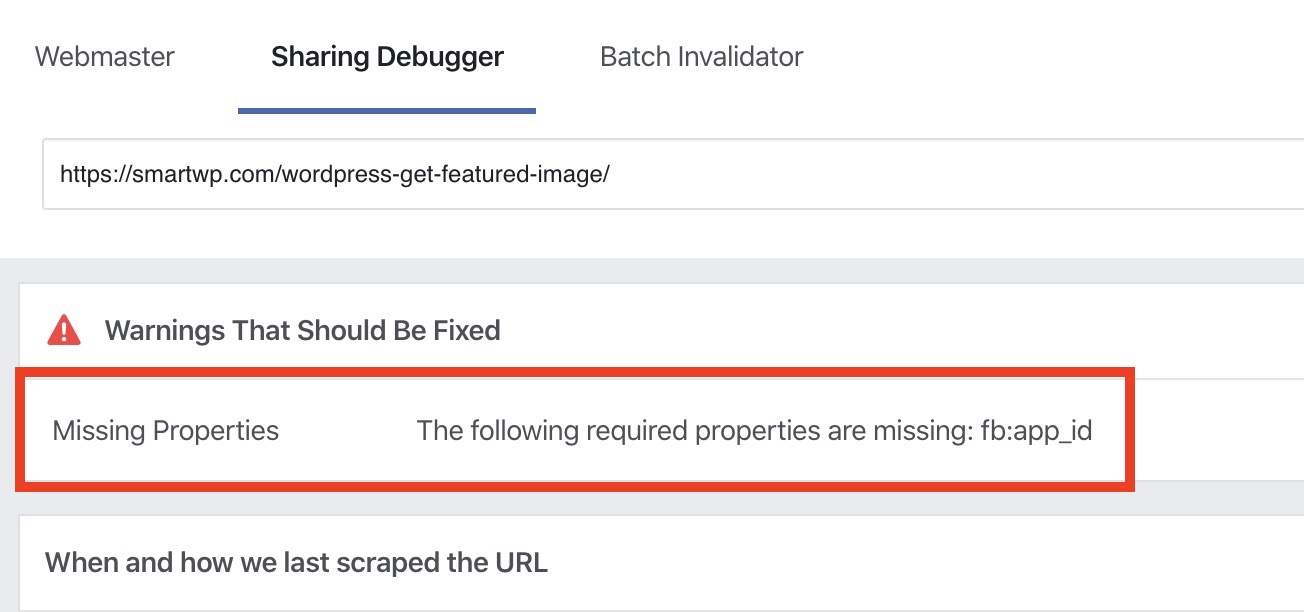
- This warning is safe to ignore. Your Open Graph tags are fine and your links will share correctly on Facebook.
- The
fb:app_idtag powered Facebook Domain Insights, which Facebook began retiring in 2016, and Open Graph Stories, which ended in 2018. Nothing reads the tag today. - Yoast removed the fb:app_id field in Yoast SEO 15.5 (December 2020) for exactly this reason, which is why you cannot find the setting anymore. Rank Math still has one, under Titles & Meta > Social Meta.
- Meta’s own webmaster docs still list the tag, tied to “Facebook Insights,” which is why the debugger keeps checking for it years after the product went away.
- If you still want a clean debugger report, the fastest fix is a one-line snippet using Facebook’s public default App ID.
- You only need your own Facebook App ID if you actually use other Facebook platform features.
Why the fb:app_id Warning Appears (and Why It No Longer Matters)
The fb:app_id meta tag used to connect your pages to a Facebook App so Facebook could attribute activity back to it. It fed two products: Domain Insights, the old analytics tool Facebook began shutting down in 2016, and Open Graph Stories, which Facebook discontinued in 2018.
Both are gone. The tag is not read by anything in Facebook’s current ecosystem, and the analytics it once provided now come from the Meta Pixel instead. The Sharing Debugger simply never had its checklist updated, so it keeps reporting a missing property that stopped mattering years ago.
Meta has not cleaned up its own paperwork either. The Sharing for Webmasters documentation still lists fb:app_id among its basic tags, with the note that it is needed “in order to use Facebook Insights,” a product that no longer exists in that form. That is the whole explanation for the warning: the debugger checks against a list that was never revised, and so does the document the list came from. As of September 2026 the message is still being shown, and searches for the exact sentence have not slowed down.
This is also why the setting vanished from your SEO plugin. Yoast removed the fb:app_id field in Yoast SEO 15.5 in December 2020 and now recommends against adding the tag back, noting that obtaining an App ID was a convoluted process for a tag nothing uses.
Do You Actually Need to Fix It?
For almost everyone, no. If the rest of your Open Graph tags are in place (og:title, og:description, og:image, og:url), your links will preview correctly on Facebook whether or not the App ID is there. Test a page in the debugger and look at the preview image and title rather than the warning list.
There are two situations where adding it is reasonable. The first is practical rather than technical: you are handing a client or a manager a debugger report and you want it clean. The second is that you genuinely use other Facebook platform features and already have an App ID to point at. If neither applies, you are done, and the rest of this guide is optional.
Option 1: Silence the Warning With One Snippet (Fastest)
You do not need to create a Facebook App just to clear a cosmetic warning. Facebook publishes a default App ID that any site can use, and Yoast documents this as the simplest route. Add this to your child theme’s functions.php or a custom plugin:
add_action( 'wp_head', function () {
	echo '<meta property="fb:app_id" content="966242223397117" />' . "\n";
} );
That is Facebook’s public default App ID. Swap in your own if you have one. Add the snippet through a child theme or the Code Snippets plugin so a theme update cannot wipe it, then clear your cache and re-test.
One caution: only add this tag once. If your SEO plugin or another plugin is already outputting Open Graph tags, adding a second source of the same tag creates duplicates, which produces real debugger errors rather than this harmless one.
No Code: Add the Tag With Meta Tag Manager
If you would rather not add code, the free Meta Tag Manager plugin (70,000+ installs, still updated in 2026) adds the same tag from the dashboard, and it works just as well with the default ID as with your own.

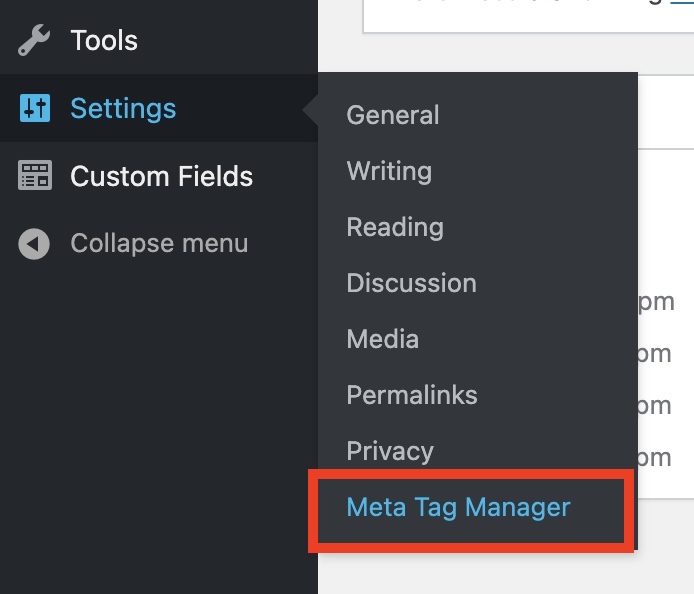
Install the plugin, then open Settings>Meta Tag Manager.
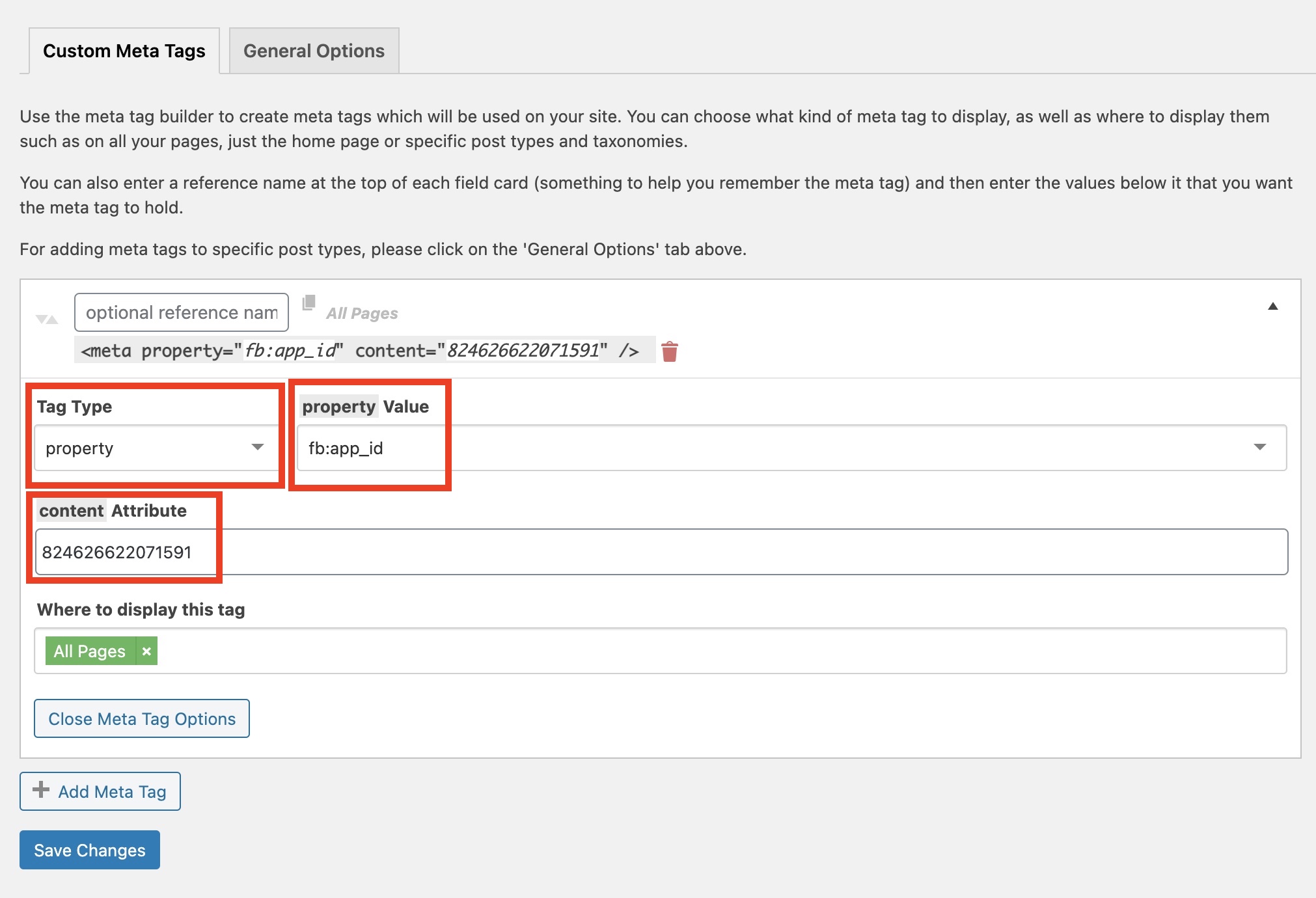
Select “property” as the tag type, set the property value to fb:app_id, put the App ID (the default one above, or your own) in the content field, and save.
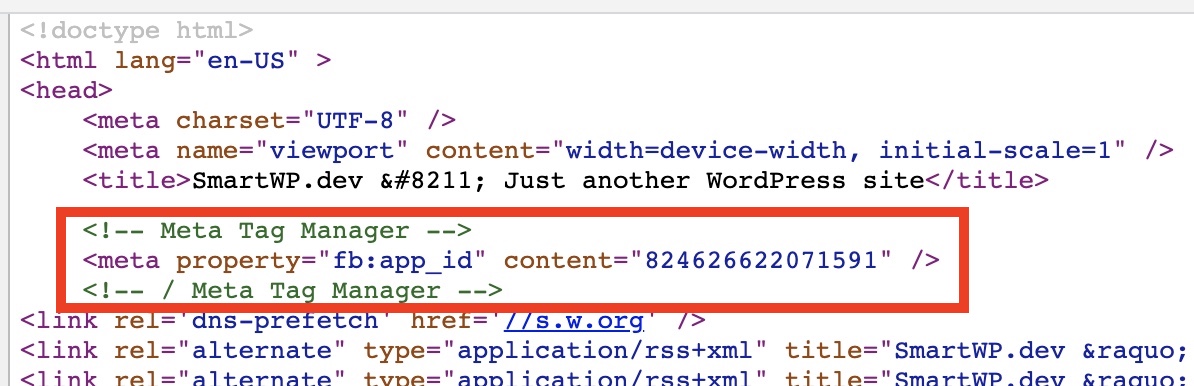
After clearing your cache, the tag will be present in your page source.
Option 2: Rank Math Users Have a Built-in Field
If your site runs Rank Math, you need neither a snippet nor an extra plugin. Rank Math kept the setting Yoast removed: go to Rank Math SEO > Titles & Meta > Social Meta, paste an App ID into the “Facebook App” field, and save. Rank Math’s own documentation points people at the same default ID above if they have no app, and, like Yoast, says the warning can simply be ignored.
Clear your cache and confirm the tag appears exactly once in the page source. If Rank Math is outputting it, leave the wp_head snippet out.
Option 3: Use Your Own Facebook App ID
If you want the tag pointing at an App you control, and especially if you already use other Facebook platform tools, you can create a free Facebook App and reference its ID instead. This is the longer route, and it is only worth it if you have a reason beyond the warning itself.
Create a Facebook App
Head to the Facebook Developer portal at developers.facebook.com/apps and click “Create App”. Meta replaced the old one-screen form with a short wizard: you give the app a name (your site name is fine) and a contact email, pick one or more use cases, choose whether to attach a business portfolio (there is an “I don’t want to connect a business portfolio yet” option, which is the right one here), review the requirements screen, and click “Go to dashboard”.
Switch the App to Live Mode
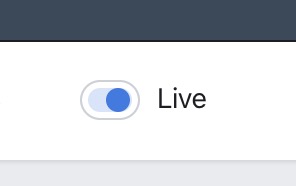
A new app starts in development mode. Meta describes Live mode as the state for finished apps that anyone can find through its tools, so switch it before pointing the tag at it.

The mode toggle sits in the App Dashboard toolbar. Meta will not flip it until the required fields under Settings > Basic are filled in (its docs single out the app category as one of them), and the dashboard lists whatever is still missing. Your App ID is shown at the top of that same Basic settings screen.
Expect to be asked for a privacy policy URL along the way; if your site does not have one yet, WordPress can generate a draft under Settings > Privacy. Once the app is live, add its ID with the snippet, the Rank Math field, or Meta Tag Manager from the options above.
Re-test in the Facebook Debugger
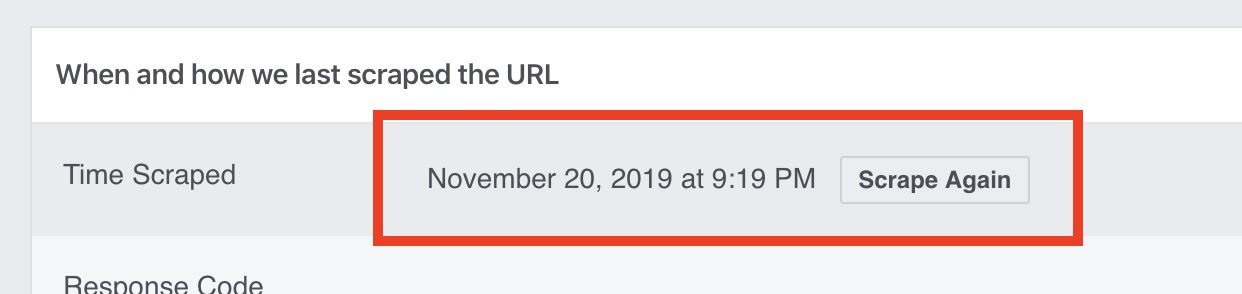
Whichever route you took, clear your site cache and run the URL through the Facebook Sharing Debugger again. Facebook caches what it scraped previously, so click Scrape Again to force a fresh fetch.
The warning should be gone. If it persists, the tag is almost certainly not reaching the page source: check that your cache is genuinely cleared, and view the page source to confirm the tag is there exactly once.
Frequently Asked Questions
What is fb:app_id?
A meta tag, <meta property="fb:app_id" content="...">, holding the numeric ID of a Facebook App. Facebook used it to link a web page to an app so that likes and shares of the page could be attributed to it inside Domain Insights and Open Graph Stories. Both products are gone, so the tag is inert today; the debugger still lists it because its checklist was never updated.
Will the missing fb:app_id warning hurt my SEO?
No. The Facebook Sharing Debugger has nothing to do with Google, and the tag has no bearing on search rankings. It does not affect how your pages appear in search results.
Why can’t I find the fb:app_id setting in Yoast anymore?
Because Yoast deliberately removed it in version 15.5, released in December 2020, on the grounds that the tag is unused and the App ID process caused more confusion than it was worth. Yoast still outputs the rest of your Open Graph tags.
Where is the Facebook App ID setting in Rank Math?
Rank Math SEO > Titles & Meta > Social Meta, in the “Facebook App” field. Paste the default ID or your own, save, and clear your cache. Rank Math is the one major SEO plugin that kept the field.
Is it safe to use Facebook’s default App ID?
Yes. It is published by Facebook as a shared default, and both Yoast and Rank Math document it for this purpose. Since nothing consumes the tag anymore, it only serves to satisfy the debugger’s checklist.
Does the debugger still show this warning in 2026?
Yes. Yoast wrote that it hoped Meta would remove the check; as of September 2026 it is still there, and Meta’s Sharing for Webmasters documentation still lists the tag. Treat it as a known quirk rather than something to chase.
Once your shares are behaving, it is worth checking how your pages look across the other networks too. Social Media Share Preview shows the Facebook, X, and LinkedIn previews side by side, and our guide to WordPress social image generators covers automating the images themselves.





34 Responses
Extremely clear and helpful! Thanks Andy!
Very helpful. Thank you!
Thanks!
Hi Andy, I just read your post, I don´t have an issue with my website but with my IG share link. It shows my pic, but not my name, description & handle (just “www.instagram.com”). Tried it with the Fb debugger and got the error message “Missing Properties: The following required properties are missing: fb:app_id”.
Do you have any idea how to fix this? thx!
“url”: “https://www.instagram.com/_u/leoniekaiser/”,
“package”: “com.instagram.android”,
“app_name”: “Instagram”
I second this issue. Any help would be appreciated!
Hey Leonie, sadly you can’t modify what code Instagram uses and you’ll always have this error (granted it’s irrelevant). This tutorial shows you how to fix it for your website. That being said you can use a tool like https://www.sharekit.io/ to modify what displays when you share a link on social. For example this tool should let you add your name or any details you’d like.
Perfect directions! Thank you so much!!!
🙏
I’ve done all of this, but the Sharing Debugger is still showing the FB App ID as missing. Any thoughts on fixing this?
Hello, yoast seo has removed this option to put facebook app id in social section. Can you tell me anh other way!
You can still create an app and put the codes in the header with your app id. After that, you can scrap it out.
I’ve updated the article! using a different plugin to add the App_ID
Hi Andy,
I have followed step by step and the property option is easy to select. I don’t see the option to select “fb:app_id” so I typed the information and then I also typed in the Facebook App ID. I was hoping this would resolve my issue but I still get the same error.
What do you suggest I do to solve this problem?
In the WordPress plugin Rank Math, under the ‘Titles & Meta’ option, click on Social Meta and there’s an option there to add the numeric value of YOUR Facebook App
Thanks.
Thanks a milli
Attention No option to select fb: app_id under property value.
You’ll have to manually type it into the field
I can’t see fb:app_id as a property value in the plugin anymore
You have to manually type it into the field
Thanks for explaining the problem. The FB app dashboard looks different and I can’t see the developer mode. Also it asks for products to add and I’ve no idea which one to select.
Thank you for your clear instructions. After following your steps, the “fb:app_id” notification in the sharing debugger has been fixed. I am quite new to Wordpress and don’t know if the problem I have is related, but when I share my URL on Facebook, the main pictures don’t load. Would you have any idea why this is and how I can fix this? I have cleared my cache and also passed the URL through the Sharing Debugger.
Very helpful. Thank you!
Doesn’t work, no fb:app_id option in the settings
Hello Andy – just followed your guide to getting fb:app_id into wordpress site using Met Tag Manager. When I select “property” it does not aloow me to enter the value fb:app-id. As soon as I type it and press enter it goes blank.
Any suggestions
Cheers
Peter under Tag type select Property and next to Tag Type you have property Value under tou have option to select some option but you will see a text: choose a value or type in a custom one… so you copy this: fb:app_id or type it and click save changes. That is.
I may have just sorted this. cheers
Hi i fix one of the problem with your method using Met Tag Manager (fb:app_id) but i have this more errors can you help me with that? The following required properties are missing: og:url, og:type, og:title, og:image, og:description. Thanks
Hey Dejan,
Those errors can be addressed by adding those errors in place of fb:app_id, adding one at a time until you’ve got them all covered… or… using an SEO plugin like All In One SEO. Hope you find this helpful.
Your instructions are a bit out dated (I know, “Already?” but yes, they are) for where to click. It’s now Getting Started and not My Apps.
When searching under Add New Plugin within my WordPress Dashboard, the Meta Tag Manager plugin was not made available. So, I downloaded it then uploaded, installed and activated the plugin.
Then… I can clearly see my meta property is displaying correctly once I cleared the cache… yet, Facebook’s Debug STILL displays the same error… this time with additional information… “image webp could not be downloaded”.
This now put Facebook in as big a “GRRR” for me as LinkedIn for NOT allowing users to display webp formatted images when they load faster due to a much smaller file size as opposed to jpg formatted images.
Both of those platforms SHOULD allow the webp image format as the pages load faster for their users. So what are they thinking by NOT allowing them?
Makes me wanna’ scream at these two social media platforms.
Hello, Is there any way when I share gifs from my own website to be playable on Facebook and not show a static image?
HI, Andy,
I did get that error and your instructions are very clear! (thank you!) But — why is it important that I fix that error in the first place — especially since Yoast removed the ability to fix it without installing (yet) another plugin?
Hi, the instructions are very clear, thank you, and I understand that it is to remove the decribed error. I’m sorry if I’m a bit slow, but what actually ID the error? What am I fixing with this? I’m not very technical, so I don’t understand why I’m actually doing all this. Please help, I’m a bit lost! Thank you!
*IS